
Updating your WordPress theme is essential for security, performance, and access to new features. This guide walks you through the process safely, including backups, using child themes, and troubleshooting common issues.
Key Takeaways
- Always back up your site first: Prevent data loss by creating a full backup before updating your theme.
- Use a child theme for customizations: Protect your design changes from being overwritten during updates.
- Update via the WordPress dashboard: The easiest and safest method for most users.
- Check compatibility after updating: Ensure plugins and content work correctly post-update.
- Test on a staging site if possible: Avoid disrupting your live site by testing updates in a safe environment.
- Know when to update manually: Some premium themes require manual uploads via FTP or the admin panel.
- Keep your theme updated regularly: Regular updates improve security, speed, and functionality.
How Do I Update My WordPress Theme?
Keeping your WordPress theme up to date is one of the most important maintenance tasks for any website owner. Whether you’re running a blog, an online store, or a business site, outdated themes can lead to security vulnerabilities, broken layouts, and poor performance. But don’t worry—updating your theme doesn’t have to be scary or complicated.
In this guide, you’ll learn exactly how to update your WordPress theme the right way. We’ll cover everything from backing up your site to troubleshooting common issues. By the end, you’ll feel confident handling theme updates like a pro—without risking your website’s stability or design.
Why Should You Update Your WordPress Theme?
Before diving into the steps, let’s quickly go over why updating your theme matters:
- Security: Developers regularly patch vulnerabilities. An outdated theme can be an open door for hackers.
- Performance: Newer versions often include speed improvements and better code optimization.
- Compatibility: Updates ensure your theme works well with the latest version of WordPress and popular plugins.
- New Features: You’ll gain access to fresh design options, templates, and functionality.
- Bug Fixes: Common glitches and layout issues are often resolved in updates.
Ignoring updates might seem harmless at first, but over time, it can seriously harm your site’s health and user experience.
Step 1: Back Up Your Website
Visual guide about How Do I Update My WordPress Theme
Image source: d33v4339jhl8k0.cloudfront.net
Never update your theme without a backup. Even small changes can cause big problems if something goes wrong.
How to Back Up Your Site
You can back up your site in several ways:
- Use a backup plugin: Plugins like UpdraftPlus, BackupBuddy, or Jetpack make it easy to create full backups with one click.
- Use your hosting provider’s tools: Many hosts like Bluehost or SiteGround offer one-click backups in their control panel.
- Manual backup via FTP: Download your theme folder and database using an FTP client like FileZilla.
Pro Tip: Store your backup in a secure location—like Google Drive or Dropbox—so you can restore it quickly if needed.
Step 2: Use a Child Theme (If You’ve Made Customizations)
Visual guide about How Do I Update My WordPress Theme
Image source: scottsmoneymachines.com
If you’ve edited your theme’s code—like changing CSS, PHP, or template files—those changes will be lost when you update unless you’re using a child theme.
What Is a Child Theme?
A child theme inherits all the functionality and styling of its parent theme but allows you to make custom changes safely. When the parent theme updates, your modifications stay intact.
If you haven’t set up a child theme yet, now is the time. You can learn more about what is a child theme in WordPress and how to create one.
How to Check If You’re Using a Child Theme
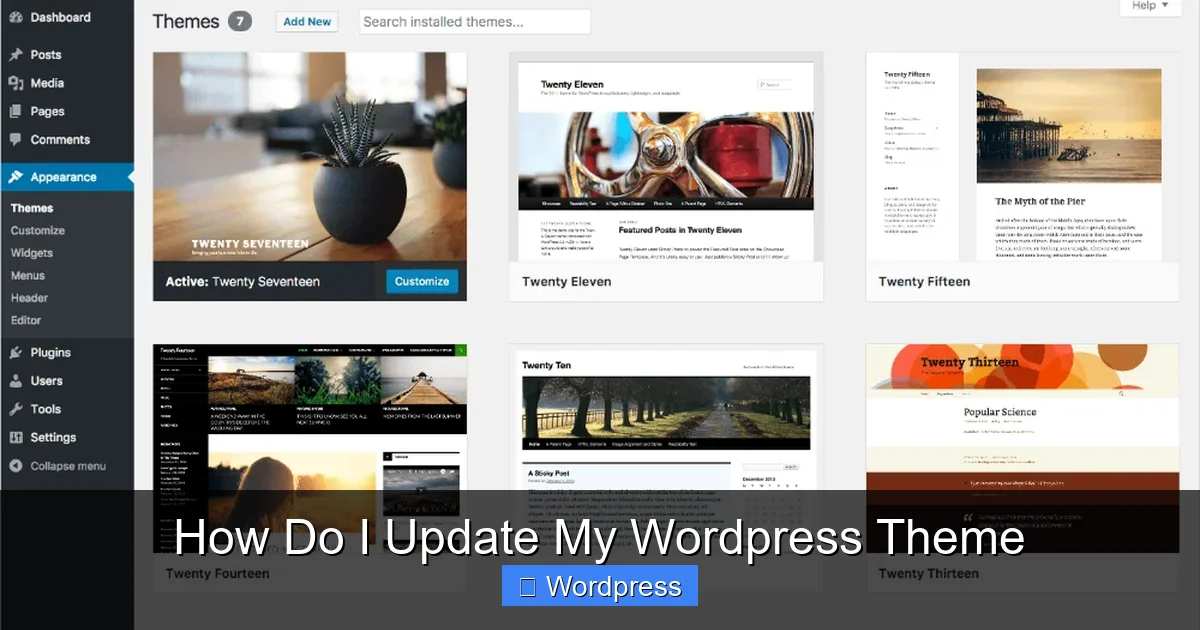
Go to Appearance > Themes in your WordPress dashboard. If your active theme says “Child Theme” or has “-child” in the name, you’re good to go. If not, consider creating one before updating.
Step 3: Update Your Theme via the WordPress Dashboard
This is the most common and user-friendly method for updating themes.
Step-by-Step Instructions
- Log in to your WordPress admin dashboard.
- Go to Appearance > Themes.
- Look for a notification that says “Update Available” under your active theme.
- Click “Update Now”.
- Wait for the update to complete—WordPress will show a success message.
That’s it! Your theme is now updated.
What If There’s No Update Button?
Sometimes, especially with premium themes, updates aren’t available through the dashboard. In that case, you’ll need to update manually (see Step 5).
Step 4: Check Your Site After Updating
After updating, always test your website to make sure everything still works.
What to Look For
- Does your homepage load correctly?
- Are images, menus, and buttons displaying properly?
- Do forms, sliders, or other dynamic elements work?
- Is your site mobile-friendly?
- Are there any error messages in the browser console?
If something looks off, don’t panic. Most issues can be fixed quickly.
How to Fix Common Post-Update Issues
- Broken layout: Clear your browser and site cache. If that doesn’t help, check if a plugin conflict is causing the problem.
- Missing styles: This often happens if you edited the parent theme directly. Restore from backup and use a child theme next time.
- White screen of death: This usually means a PHP error. Disable plugins via FTP or contact your host for help.
For more advanced troubleshooting, consider using a custom CSS method to override styles safely.
Step 5: Update Your Theme Manually (For Premium or Custom Themes)
Some themes—especially premium ones from marketplaces like ThemeForest—don’t support automatic updates. You’ll need to update them manually.
How to Manually Update a Theme
- Download the latest version of your theme from the developer’s website.
- Go to Appearance > Themes > Add New in WordPress.
- Click “Upload Theme” and select the .zip file you just downloaded.
- Click “Install Now”.
- WordPress will ask if you want to replace the current theme—click “Replace”.
Important: If you’ve made direct edits to the theme files, those changes will be lost. Always use a child theme to preserve customizations.
Alternative: Update via FTP
If the upload method fails (e.g., due to file size limits), use FTP:
- Unzip the new theme folder on your computer.
- Connect to your site via FTP (using FileZilla or similar).
- Navigate to
/wp-content/themes/. - Delete the old theme folder (after backing it up).
- Upload the new theme folder.
- Go to Appearance > Themes and activate the updated theme.
This method gives you full control but requires a bit more technical know-how.
Step 6: Use a Staging Site for Safer Updates (Recommended)
If you run a high-traffic or business-critical site, always test updates on a staging site first.
What Is a Staging Site?
A staging site is a clone of your live website where you can safely test changes—like theme updates—without affecting your real visitors.
How to Create a Staging Site
Many hosting providers (like SiteGround, WP Engine, or Bluehost) offer one-click staging. Alternatively, use plugins like WP Staging or Duplicator.
Once your staging site is ready:
- Update the theme there first.
- Test all pages, forms, and functionality.
- If everything looks good, apply the same update to your live site.
This extra step can save you from embarrassing downtime or broken features.
Troubleshooting Common Theme Update Problems
Even with careful planning, issues can arise. Here’s how to handle the most common ones:
“Update Failed” Error
This usually happens due to server permissions or file size limits. Try updating manually via FTP or contact your host.
Theme Looks Different After Update
New versions may change default styles or layouts. Use a child theme or custom CSS to restore your preferred look.
Plugins Stop Working
Some plugins rely on specific theme features. Check for plugin updates or contact the plugin developer for compatibility info.
White Screen After Update
This is often caused by a PHP error. Enable debugging in wp-config.php or restore from backup and try again.
For more help, check out our guide on how to upgrade WordPress theme safely.
Conclusion
Updating your WordPress theme doesn’t have to be stressful. By following these steps—backing up your site, using a child theme, updating via the dashboard or manually, and testing thoroughly—you can keep your website secure, fast, and up to date.
Remember: Regular updates are not optional—they’re essential for maintaining a healthy, professional website. Whether you’re using a free theme from the WordPress directory or a premium design from a third-party developer, staying current protects your content, your visitors, and your online reputation.
Take a few minutes today to check if your theme needs an update. Your future self (and your website) will thank you.