Backing up your WordPress site is essential to protect your content, design, and data from loss. This guide walks you through simple, reliable methods—using plugins, manual backups, and hosting tools—so you can restore your site quickly if something goes wrong.
Key Takeaways
- Regular backups prevent data loss: Whether it’s a hack, plugin conflict, or server crash, backups let you restore your site fast.
- Use trusted backup plugins: Tools like UpdraftPlus and Jetpack automate backups and store them safely offsite.
- Manual backups give full control: Download your files via FTP and export your database using phpMyAdmin for complete ownership.
- Check your hosting provider’s backup options: Many hosts like Bluehost and WP Engine offer built-in backup tools—use them wisely.
- Store backups in multiple locations: Save copies on cloud storage (Google Drive, Dropbox), external drives, or email for extra safety.
- Test your backups regularly: A backup is only good if it works—practice restoring to avoid surprises.
- Schedule automatic backups: Set weekly or daily backups so you never forget to protect your site.
Why Backing Up Your WordPress Site Matters
Imagine spending months building your blog or online store—only to lose everything because of a hacked plugin or a server error. That’s why learning how to backup WordPress site is not optional—it’s essential.
WordPress sites face risks like malware, human error, theme conflicts, and hosting failures. A solid backup strategy ensures you can restore your site quickly, with minimal downtime. Whether you’re a blogger, business owner, or developer, protecting your digital assets should be a top priority.
In this guide, you’ll learn three proven ways to backup your WordPress site: using plugins, manual methods, and your hosting provider’s tools. We’ll also cover best practices to keep your backups safe and reliable.
Method 1: Backup WordPress Site Using Plugins (Easiest Way)
Plugins are the most popular and user-friendly way to backup WordPress sites. They automate the process and often include scheduling and cloud storage options.
Step 1: Choose a Reliable Backup Plugin
Some of the best free and premium plugins include:
- UpdraftPlus: Free, highly rated, supports cloud storage like Google Drive and Dropbox.
- Jetpack Backup: Offers real-time backups with a paid plan, great for security.
- BackupBuddy: Premium plugin with migration and restore features.
- Duplicator: Free for basic use, excellent for cloning or moving sites.
For most users, UpdraftPlus is the best starting point because it’s free, easy to use, and reliable.
Step 2: Install and Activate the Plugin
- Go to your WordPress dashboard.
- Navigate to Plugins > Add New.
- Search for “UpdraftPlus” and click Install Now, then Activate.
Step 3: Configure Backup Settings
- Go to Settings > UpdraftPlus Backups.
- Click the Settings tab.
- Choose how often you want backups: daily, weekly, or monthly.
- Select what to include: files, database, or both (always choose both).
- Pick a remote storage location (e.g., Google Drive, Dropbox, or email).
- Click Save Changes.
Step 4: Run Your First Backup
- Go back to the Backup/Restore tab.
- Click Backup Now.
- Wait while the plugin backs up your files and database.
- Once done, you’ll see a success message and a list of backup files.
Pro Tip: Always test restoring from a backup on a staging site before relying on it fully.
Method 2: Manual Backup (Full Control)
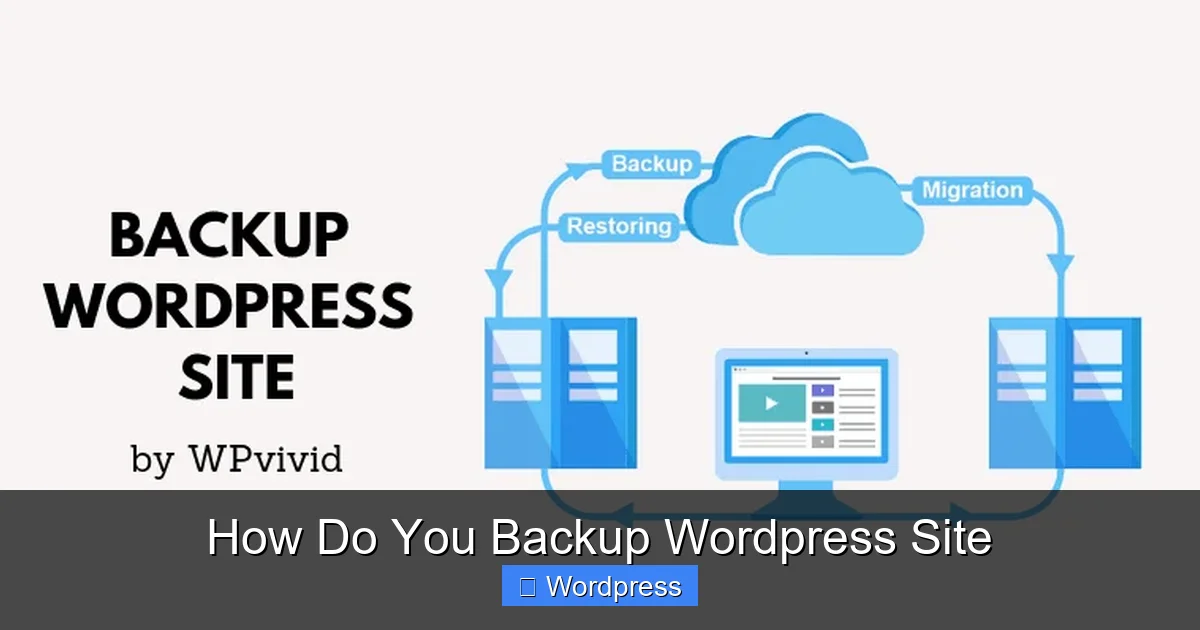
Visual guide about How Do You Backup WordPress Site
Image source: wpnewsify.com
If you prefer not to use plugins or want a deeper understanding, manual backups give you complete control over your data.
Step 1: Backup WordPress Files via FTP
Your site’s files include themes, plugins, uploads, and core WordPress files.
- Use an FTP client like FileZilla (free) to connect to your site.
- Enter your FTP credentials (usually found in your hosting account).
- Navigate to the public_html or www folder (this is your WordPress root).
- Download the entire folder to your computer.
Note: This may take time depending on your site size. Focus on key folders like wp-content if you’re short on time.
Step 2: Backup the WordPress Database
The database stores your posts, pages, comments, and settings.
- Log in to your hosting control panel (e.g., cPanel).
- Open phpMyAdmin.
- Find your WordPress database (usually named after your site).
- Click Export at the top.
- Choose Quick export method and SQL format.
- Click Go to download the .sql file.
Tip: Store this file in the same folder as your downloaded site files for easy access.
Method 3: Use Your Hosting Provider’s Backup Tools
Many web hosts offer built-in backup solutions. These are often automated and require no plugins.
Check If Your Host Offers Backups
Popular hosts like Bluehost, SiteGround, and WP Engine provide backup tools. For example:
- Bluehost: Offers daily backups with restore options in the control panel. Learn more in our Bluehost WordPress Hosting Review.
- WP Engine: Provides daily backups and one-click restores. See our WP Engine WordPress Hosting Review for details.
- SiteGround: Includes daily backups and on-demand snapshots.
How to Restore from Hosting Backups
- Log in to your hosting account.
- Go to the backup or restore section (often under “Files” or “Security”).
- Select the backup date you want to restore.
- Click Restore and confirm.
Warning: Some hosts charge for restores or only keep backups for 30 days. Always check your host’s policy.
Best Practices for WordPress Backups
Backing up is only half the battle—keeping backups safe and usable is just as important.
Store Backups in Multiple Locations
Don’t keep all backups on your server. Use:
- Cloud storage (Google Drive, Dropbox, OneDrive)
- External hard drives
- Email (for small backups)
- Another hosting account
This way, if one location fails, you still have copies.
Schedule Regular Backups
Set backups to run automatically:
- Daily for busy sites (e-commerce, news blogs)
- Weekly for personal blogs or small business sites
- Before major updates (WordPress core, themes, plugins)
Use plugins like UpdraftPlus to automate this.
Test Your Backups
A backup is useless if it doesn’t restore properly.
- Create a test site (use a subdomain or local server).
- Restore your backup there.
- Check if all pages, images, and functions work.
Do this at least once every few months.
Keep Backup Plugins Updated
Outdated plugins can cause conflicts or fail during backups. Regularly update your backup plugin and check for compatibility with your WordPress version.
Troubleshooting Common Backup Issues
Even with the best tools, problems can happen. Here’s how to fix them.
Backup Fails or Times Out
Large sites may exceed server limits. Try:
- Increasing PHP memory limit (ask your host or edit wp-config.php)
- Splitting backups into smaller chunks (some plugins support this)
- Using manual FTP + database export instead
Can’t Restore from Backup
- Ensure the backup file isn’t corrupted (try opening the .sql file).
- Check file permissions on your server.
- Use a different restore method (e.g., phpMyAdmin for database).
Plugin Conflicts During Backup
Some plugins (like security or caching tools) may interfere.
- Temporarily deactivate other plugins before backing up.
- Use a staging site for safer testing.
Conclusion
Learning how to backup WordPress site doesn’t have to be complicated. Whether you use a plugin like UpdraftPlus, go manual with FTP and phpMyAdmin, or rely on your host’s tools, the key is consistency and safety.
Remember: A backup is only as good as your last test. Schedule regular backups, store them in multiple places, and practice restoring. That way, when disaster strikes, you’ll be ready—not panicked.
Protect your hard work today. Set up your first backup now, and sleep easier knowing your WordPress site is safe.