This guide walks you through how to add Bootstrap to a WordPress theme using multiple reliable methods. Whether you’re a beginner or developer, you’ll learn to integrate Bootstrap for better layouts, grids, and responsive design.
Key Takeaways
- Bootstrap enhances WordPress themes with responsive grids, components, and mobile-first design.
- You can add Bootstrap via CDN for quick setup without downloading files.
- Downloading Bootstrap locally gives you full control and faster loading times.
- Child themes are recommended to safely modify your theme without losing changes on updates.
- Proper enqueueing in functions.php ensures Bootstrap loads correctly and avoids conflicts.
- Test responsiveness after integration to ensure mobile compatibility.
- Avoid plugin overload—use only necessary Bootstrap features to keep your site fast.
How to Add Bootstrap to WordPress Theme
Adding Bootstrap to your WordPress theme can dramatically improve your website’s design, responsiveness, and user experience. Bootstrap is a popular front-end framework that provides pre-built CSS and JavaScript components like grids, buttons, modals, and navigation bars. Whether you’re building a custom theme or enhancing an existing one, integrating Bootstrap makes styling faster and more consistent.
In this guide, you’ll learn how to add Bootstrap to a WordPress theme using two main methods: via a CDN (Content Delivery Network) and by downloading the files locally. We’ll also cover best practices, troubleshooting tips, and how to use a child theme to keep your changes safe. By the end, your WordPress site will be more modern, mobile-friendly, and visually appealing.
Why Use Bootstrap in WordPress?
Bootstrap simplifies web development with its ready-to-use classes and components. Here’s why it’s worth adding to your WordPress theme:
Visual guide about How to Add Bootstrap to WordPress Theme
Image source: images.template.net
- Responsive Design: Automatically adapts to mobile, tablet, and desktop screens.
- Consistent Styling: Uniform buttons, forms, and typography across your site.
- Faster Development: No need to write CSS from scratch—just apply Bootstrap classes.
- Cross-Browser Compatibility: Works smoothly on all major browsers.
- Rich Components: Includes navbars, cards, alerts, modals, and more.
Even if you’re using a page builder like Elementor, knowing how to add Bootstrap gives you more control over custom designs.
Method 1: Add Bootstrap via CDN (Fastest Way)
The easiest way to add Bootstrap to your WordPress theme is by using a CDN. This method doesn’t require downloading files and loads Bootstrap from a remote server.
Step 1: Use a Child Theme
Before making any changes, always use a child theme. This protects your modifications when the parent theme updates. If you haven’t created one yet, check out our guide on what is a child theme in WordPress for step-by-step instructions.
Step 2: Edit the functions.php File
Open your child theme’s functions.php file. You can do this via Appearance > Theme File Editor in your WordPress dashboard, or by using FTP/SFTP.
Add the following code to enqueue Bootstrap CSS and JavaScript:
function add_bootstrap_to_theme() {
    // Bootstrap CSS from CDN
    wp_enqueue_style('bootstrap-css', 'https://cdn.jsdelivr.net/npm/bootstrap@5.3.2/dist/css/bootstrap.min.css');

    // Bootstrap JS from CDN (with Popper.js included)
    wp_enqueue_script('bootstrap-js', 'https://cdn.jsdelivr.net/npm/bootstrap@5.3.2/dist/js/bootstrap.bundle.min.js', array('jquery'), '', true);
}
add_action('wp_enqueue_scripts', 'add_bootstrap_to_theme');
This code tells WordPress to load Bootstrap’s CSS and JavaScript on every page. The true at the end ensures the script loads in the footer for better performance.
Step 3: Test Your Site
Visit your website and inspect elements using your browser’s developer tools. Look for Bootstrap classes like container, row, or btn in the HTML. You can also test responsiveness by resizing your browser window.
Tip: If you don’t see changes, clear your browser cache and WordPress cache (if using a caching plugin).
Method 2: Download Bootstrap and Add It Locally
For better performance and offline development, you can download Bootstrap and host it on your server. This method is ideal if you want to customize Bootstrap or avoid relying on external CDNs.
Visual guide about How to Add Bootstrap to WordPress Theme
Image source: blog.templatetoaster.com
Step 1: Download Bootstrap
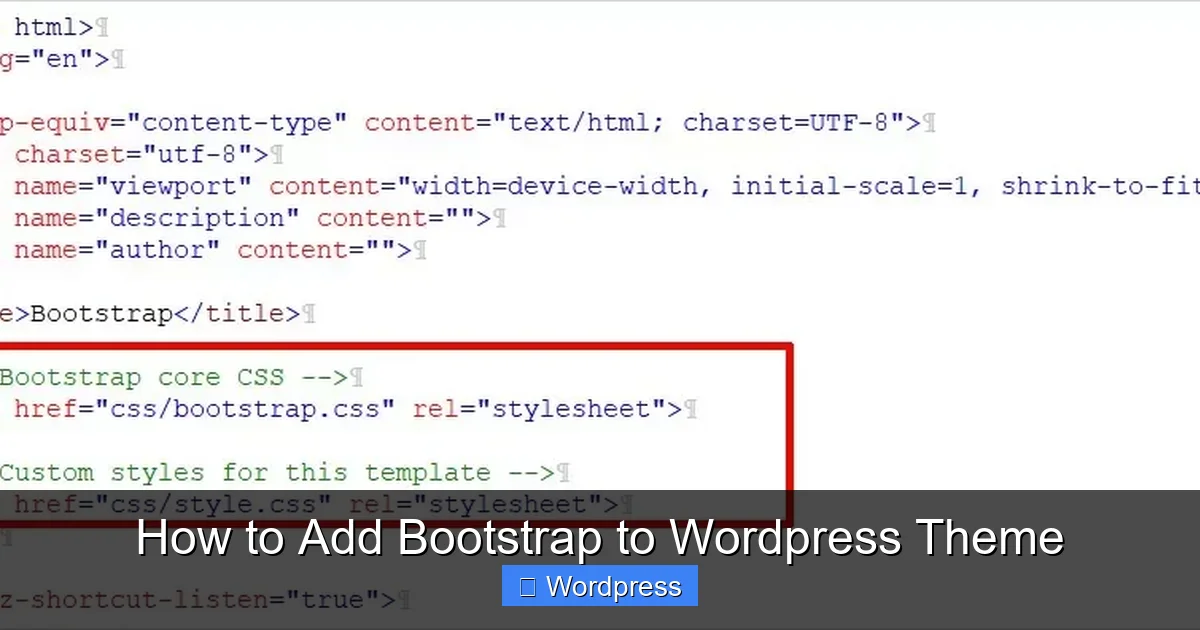
Go to the official Bootstrap website at getbootstrap.com and click “Download”. Choose the compiled CSS and JS files (not the source code unless you plan to customize it).
Step 2: Upload Files to Your Theme
Extract the downloaded ZIP file. You’ll find folders like css and js. Upload these folders to your child theme directory using FTP or your hosting file manager.
Your structure should look like this:
/wp-content/themes/your-child-theme/
    ├── css/
    │   └── bootstrap.min.css
    └── js/
        └── bootstrap.bundle.min.js
Step 3: Enqueue Local Bootstrap Files
Edit your child theme’s functions.php file and replace the CDN code with this:
function add_bootstrap_to_theme() {
    // Local Bootstrap CSS
    wp_enqueue_style('bootstrap-css', get_stylesheet_directory_uri() . '/css/bootstrap.min.css');

    // Local Bootstrap JS
    wp_enqueue_script('bootstrap-js', get_stylesheet_directory_uri() . '/js/bootstrap.bundle.min.js', array('jquery'), '', true);
}
add_action('wp_enqueue_scripts', 'add_bootstrap_to_theme');
This method gives you full control and can improve load times since files are hosted on your server.
How to Use Bootstrap in Your Theme
Once Bootstrap is loaded, you can start using its classes in your theme files. Here are a few examples:
Create a Responsive Grid
In your page.php or a custom template, add:
<div class="container">
  <div class="row">
    <div class="col-md-6">
      <p>Left column content</p>
    </div>
    <div class="col-md-6">
      <p>Right column content</p>
    </div>
  </div>
</div>
This creates two equal columns on medium screens and above, stacking on mobile.
Add a Bootstrap Button
Use Bootstrap’s button classes for consistent styling:
<a href="#" class="btn btn-primary">Click Me</a>You can also use btn-success, btn-danger, or btn-outline-secondary for different styles.
Build a Navigation Bar
Replace your default menu with a Bootstrap navbar. Add this to your header.php:
<nav class="navbar navbar-expand-lg navbar-light bg-light">
  <div class="container">
    <a class="navbar-brand" href="#">My Site</a>
    <button class="navbar-toggler" type="button" data-bs-toggle="collapse" data-bs-target="#navbarNav">
      <span class="navbar-toggler-icon"></span>
    </button>
    <div class="collapse navbar-collapse" id="navbarNav">
      <ul class="navbar-nav">
        <li class="nav-item">
          <a class="nav-link active" href="#">Home</a>
        </li>
        <li class="nav-item">
          <a class="nav-link" href="#">About</a>
        </li>
      </ul>
    </div>
  </div>
</nav>
This creates a responsive navbar that collapses on mobile devices.
Troubleshooting Common Issues
Sometimes Bootstrap doesn’t work as expected. Here’s how to fix common problems:
Bootstrap Styles Not Applying?
- Check if the CSS file is loading in the page source.
- Ensure you’re using the correct class names (e.g.,
container, notcontainer-fluidunless intended). - Clear cache—both browser and plugin-based (like WP Super Cache).
JavaScript Components Not Working?
- Make sure jQuery is loaded (WordPress includes it by default).
- Verify the Bootstrap JS file is enqueued and loaded in the footer.
- Check for JavaScript errors in the browser console.
Conflicts with Existing Styles?
- Bootstrap may override your theme’s CSS. Use more specific selectors or
!importantsparingly. - Consider using a namespace or customizing Bootstrap to avoid clashes.
Best Practices
- Always use a child theme to avoid losing changes during updates. Learn more about how to update a theme on WordPress safely.
- Only load Bootstrap on pages that need it—use conditional tags in
functions.phpto limit usage. - Keep your theme lightweight—don’t load unnecessary Bootstrap components.
- Test on multiple devices to ensure true responsiveness.
- Update Bootstrap regularly to benefit from security patches and new features.
Conclusion
Adding Bootstrap to your WordPress theme is a smart move for faster, more professional web design. Whether you choose the CDN method for speed or local files for control, you now have the tools to build responsive, modern websites with ease. Remember to use a child theme, test thoroughly, and keep performance in mind.
With Bootstrap integrated, you can focus on content and functionality while letting the framework handle layout and styling. Ready to take your WordPress site to the next level? Start implementing Bootstrap today and see the difference it makes.