This guide shows you how to add widgets to WordPress theme using the Customizer, Widgets admin panel, or code. Whether you’re a beginner or developer, you’ll learn to enhance your site’s layout with dynamic content areas.
Key Takeaways
- Widgets enhance functionality: They let you add features like search bars, recent posts, and social links without coding.
- Use the WordPress Customizer: The easiest way to drag and drop widgets into theme areas like sidebars and footers.
- Access Widgets via Admin Dashboard: Navigate to Appearance > Widgets to manage all widget-ready areas.
- Some themes support widget areas by default: Check your theme documentation or use a child theme to add custom widget zones.
- You can register new widget areas with code: Use functions.php to create custom sidebars for advanced layouts.
- Always use a child theme for customizations: This prevents losing changes when updating your parent theme.
- Troubleshoot missing widgets: Ensure your theme supports widgets and that plugins aren’t conflicting.
Introduction: Why Add Widgets to Your WordPress Theme?
Adding widgets to your WordPress theme is one of the simplest ways to boost your site’s functionality and design. Widgets are small blocks that perform specific tasks—like displaying a search bar, showing recent comments, or embedding a newsletter signup form. Whether you’re running a blog, business site, or online store, widgets help you organize content and improve user experience.
In this guide, you’ll learn how to add widgets to WordPress theme using built-in tools, the admin dashboard, and even custom code. We’ll cover everything from basic drag-and-drop setup to creating your own widget-ready areas. By the end, you’ll be able to customize your site like a pro—no advanced coding skills required.
What Are WordPress Widgets?
Widgets are reusable content blocks that you can place in specific areas of your WordPress theme, known as widget areas or sidebars. These areas are defined by your theme and typically appear in the header, footer, sidebar, or below posts.
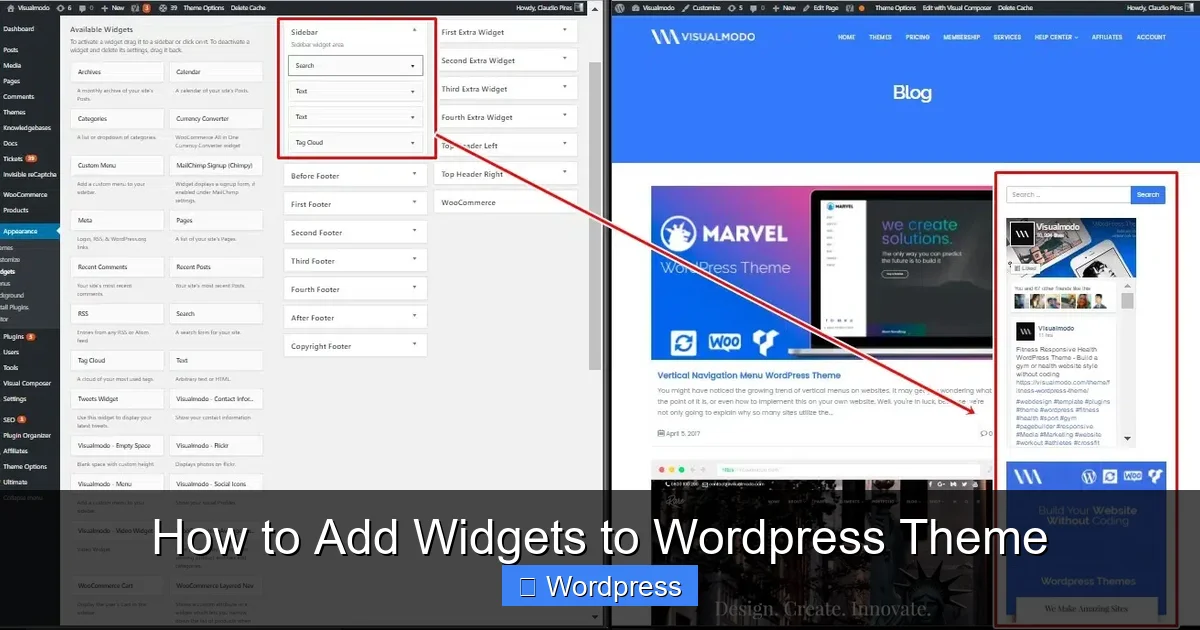
Visual guide about How to Add Widgets to WordPress Theme
Image source: visualmodo.com
Common widget examples include:
- Search bar
- Recent posts
- Categories list
- Social media icons
- Newsletter signup forms
- Custom HTML or text
Most modern WordPress themes come with at least one widget area. However, if your theme doesn’t support widgets or you want more flexibility, you can add custom widget zones using code.
Method 1: Add Widgets Using the WordPress Customizer
The WordPress Customizer is the easiest and most visual way to add widgets. It lets you see changes in real time before publishing.
Step 1: Access the Customizer
Log in to your WordPress dashboard. Go to Appearance > Customize. This opens the live preview editor.
Step 2: Navigate to Widgets
In the left panel, click on Widgets. You’ll see a list of available widget areas (e.g., Sidebar, Footer, Homepage).
Step 3: Add a Widget
Click on the widget area where you want to add content (e.g., “Sidebar”). Then click the + Add a Widget button. A list of available widgets will appear.
Step 4: Choose and Configure
Select a widget (like “Recent Posts” or “Search”). Configure its settings—such as title or number of posts—and click Publish to save.
Tip: You can drag and reorder widgets within a widget area to change their display order.
Method 2: Add Widgets via the Widgets Admin Panel
If you prefer a more traditional interface, use the Widgets admin page.
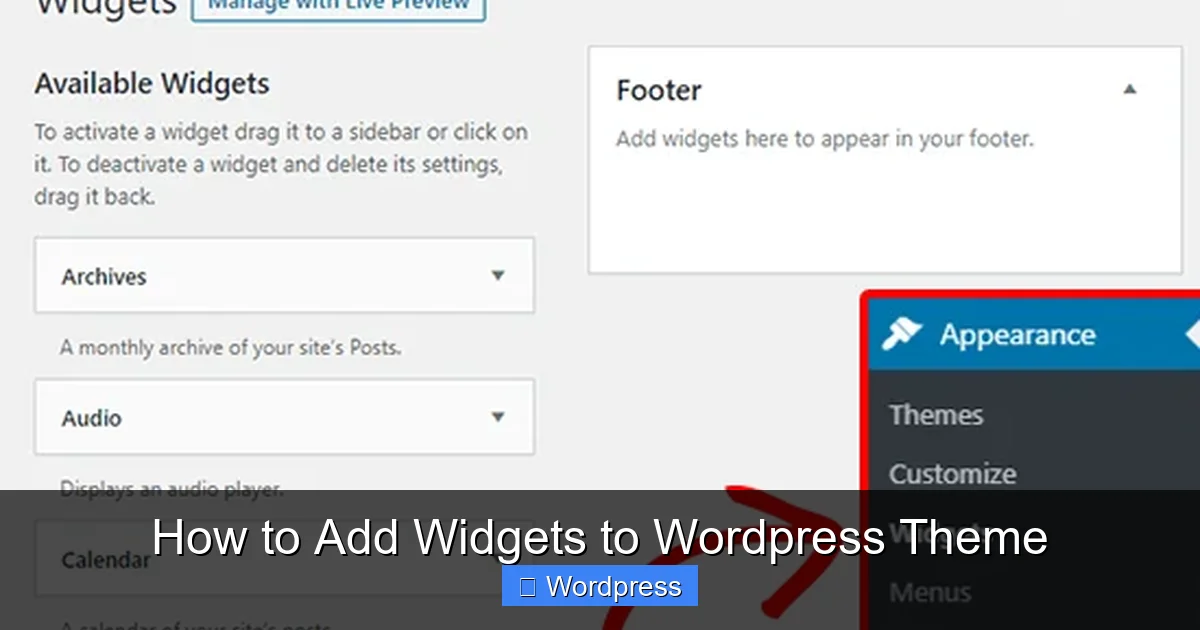
Visual guide about How to Add Widgets to WordPress Theme
Image source: cdn4.wpbeginner.com
Step 1: Go to Appearance > Widgets
In your WordPress dashboard, navigate to Appearance > Widgets. You’ll see a list of available widgets on the left and widget areas on the right.
Step 2: Drag and Drop
Simply drag a widget from the left panel and drop it into your desired widget area (e.g., “Footer 1” or “Sidebar”).
Step 3: Configure Settings
After dropping the widget, click to expand it and adjust settings like title, display options, or content. Click Save when done.
Pro Tip: Some plugins (like Contact Form 7 or Mailchimp) add their own widgets. These will appear in the widget list once installed.
Method 3: Register Custom Widget Areas (For Developers)
If your theme doesn’t have enough widget areas, you can create your own. This requires editing your theme’s functions.php file—preferably in a child theme to avoid losing changes during updates.
Step 1: Use a Child Theme
Always use a child theme when making code changes. If you haven’t created one yet, check out our guide on what is a child theme in WordPress to learn how.
Step 2: Add Code to functions.php
Open your child theme’s functions.php file and add the following code to register a new widget area:
function my_custom_widget_area() {
register_sidebar( array(
'name' => 'Custom Footer Widget',
'id' => 'custom-footer-widget',
'description' => 'A custom widget area in the footer.',
'before_widget' => '',
'before_title' => '',
'after_title' => '
',
) );
}
add_action( 'widgets_init', 'my_custom_widget_area' );
Step 3: Display the Widget Area in Your Theme
To show the new widget area, add this PHP code to your theme file (e.g., footer.php):
Now, go to Appearance > Widgets and you’ll see your new “Custom Footer Widget” area ready to use.
Best Practices for Using Widgets
To get the most out of widgets, follow these best practices:
- Don’t overload widget areas: Too many widgets can slow down your site and confuse visitors.
- Use descriptive titles: Help users understand what each widget does (e.g., “Subscribe to Newsletter” instead of “Form”).
- Optimize for mobile: Test how widgets look on phones and tablets. Some may need CSS adjustments.
- Keep plugins updated: Widgets from plugins can break if not maintained. Regularly update your plugins.
- Use caching plugins: If you have many dynamic widgets, caching can improve performance.
Troubleshooting Common Widget Issues
Sometimes widgets don’t appear or behave as expected. Here’s how to fix common problems:
Widgets Not Showing Up?
Check if your theme supports widgets. Older or custom themes might not include widget areas. You can add support by registering a sidebar (see Method 3).
Widget Area Missing in Admin?
Ensure the widget area is properly registered in functions.php. Also, clear your browser cache or try a different browser.
Changes Not Saving?
This could be due to a plugin conflict. Deactivate plugins one by one to find the culprit. Also, make sure you’re not in “read-only” mode due to file permissions.
Styling Looks Broken?
Widgets may inherit unexpected styles. Use custom CSS to fix alignment, spacing, or colors. Learn more in our guide on the best way to add CSS in WordPress.
Conclusion: Customize Your Site with Confidence
Adding widgets to your WordPress theme is a powerful way to enhance your site’s layout and functionality. Whether you use the Customizer, the Widgets panel, or custom code, you now have the tools to create dynamic, user-friendly designs.
Remember to always use a child theme when making code changes, keep your site optimized, and test on multiple devices. With these skills, you’re ready to take full control of your WordPress site’s appearance and performance.
If you’re using a theme that lacks flexibility, consider exploring how to create a WordPress theme with Elementor for even more design freedom.