This guide walks you through how to build a WordPress theme from the ground up, covering file structure, template hierarchy, and essential functions. Whether you’re a beginner or an experienced developer, you’ll gain practical skills to create custom, responsive themes.
Key Takeaways
- Understand the basics: Learn what a WordPress theme is and how it works with the WordPress core.
- Set up your development environment: Use tools like Local by Flywheel, code editors, and browsers for testing.
- Create essential theme files: Start with style.css, index.php, functions.php, and other core templates.
- Use template hierarchy: Know which files control different parts of your site, like single posts or archives.
- Add dynamic content: Use PHP and WordPress functions to pull in posts, menus, and widgets.
- Ensure responsiveness and accessibility: Build themes that work on all devices and meet web standards.
- Test and launch: Validate your theme, fix bugs, and prepare it for public use.
Introduction: Why Build Your Own WordPress Theme?
WordPress powers over 40% of the web, and while there are thousands of free and premium themes available, building your own gives you full control over design, functionality, and performance. Whether you’re a developer, designer, or blogger, learning how to build a WordPress theme opens up endless possibilities.
In this guide, you’ll learn to create a custom WordPress theme from scratch. We’ll cover everything from setting up your environment to launching your theme. By the end, you’ll have a solid foundation to build professional, responsive, and secure themes.
Step 1: Set Up Your Development Environment
Before writing code, you need a safe place to build and test your theme. A local development environment lets you work offline and experiment without affecting a live site.
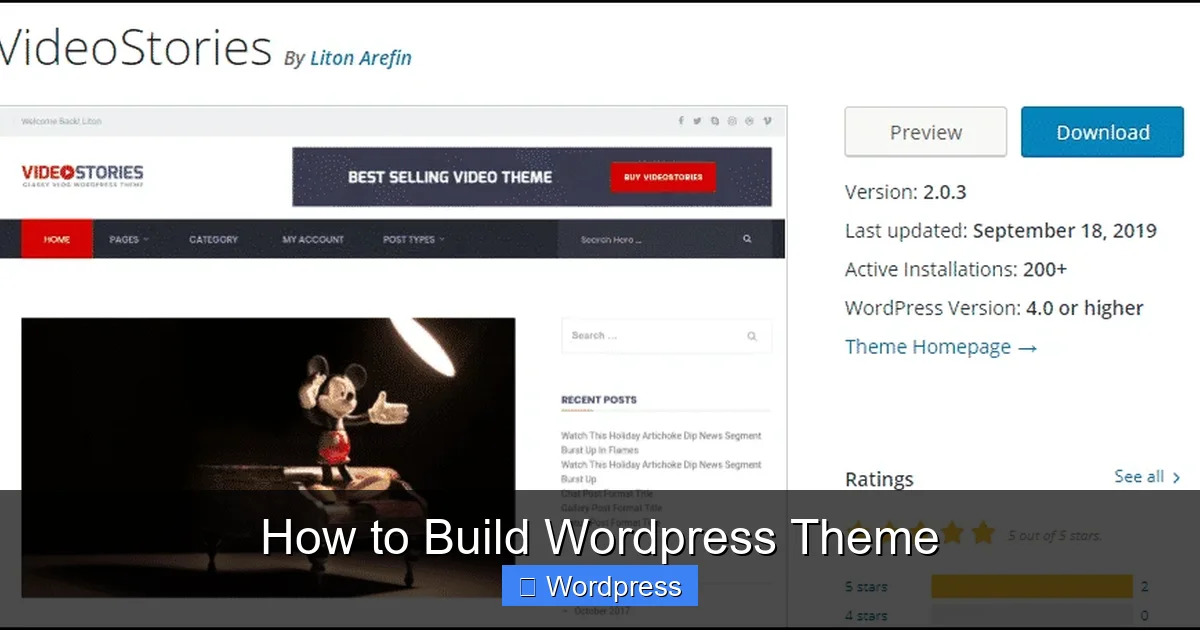
Visual guide about How to Build WordPress Theme
Image source: greengeeks.com
Choose a Local Server Tool
Popular options include:
- Local by Flywheel: User-friendly, great for beginners.
- XAMPP: Cross-platform, works on Windows, Mac, and Linux.
- MAMP: Simple setup for Mac and Windows.
Install one of these tools and create a new WordPress site. This will give you a clean WordPress installation to work with.
Pick a Code Editor
Use a code editor like Visual Studio Code, Sublime Text, or Atom. These tools offer syntax highlighting, auto-completion, and extensions that make coding easier.
Set Up a Theme Folder
Navigate to your WordPress installation’s wp-content/themes/ directory. Create a new folder for your theme—name it something unique, like mycustomtheme.
Step 2: Create the Essential Theme Files
Every WordPress theme needs at least two files: style.css and index.php. Let’s create them.
Create style.css
In your theme folder, create a file named style.css. Add the following header comment at the top:
/*
Theme Name: My Custom Theme
Theme URI: https://example.com/my-custom-theme
Author: Your Name
Author URI: https://example.com
Description: A custom WordPress theme built from scratch.
Version: 1.0
License: GNU General Public License v2 or later
License URI: http://www.gnu.org/licenses/gpl-2.0.html
Text Domain: mycustomtheme
*/
This metadata tells WordPress about your theme. You can add your own styles below this header.
Create index.php
Create an index.php file in the same folder. This is the main template file. Start with a basic HTML structure:
<!DOCTYPE html>
<html >
<head>
<meta charset="">
<meta name="viewport" content="width=device-width, initial-scale=1">
<title></title>
>
<header>
<h1><a href=""></a></h1>
<p></p>
</header>
<main>
</main>
<footer>
<p>© </p>
</footer>
This basic template displays the site title, description, and post content. It uses WordPress functions like bloginfo() and the_content().
Step 3: Add functions.php
The functions.php file is where you add features and customize your theme. Create this file in your theme folder.

Visual guide about How to Build WordPress Theme
Image source: profiletree.com
Enable Theme Features
Add the following code to enable common features:
This code enables featured images, menus, and loads your stylesheet. You can add more features like custom logo support or widget areas later.
Step 4: Use the Template Hierarchy
WordPress uses a template hierarchy to decide which file to load for different pages. Understanding this helps you create more specific templates.
Create Single Post Template
To customize how individual posts look, create a single.php file. Copy the content from index.php and modify it:
<main>
</main>
Now single posts will display the title in an <h2> tag.
Create Page Template
For static pages, create page.php. It can be similar to single.php but tailored for pages.
Create Archive and Category Templates
Create archive.php for category, tag, and date archives. Use category.php for more specific control.
Step 5: Add Dynamic Content and Widgets
Make your theme interactive by adding dynamic elements like menus, sidebars, and widgets.
Add a Navigation Menu
In your header.php (create this file if you split your templates), add:
<nav>
'primary')); ?>
</nav>
This displays the menu you registered in functions.php.
Register a Sidebar
In functions.php, add:
function mytheme_widgets_init() {
register_sidebar(array(
'name' => __('Sidebar', 'mycustomtheme'),
'id' => 'sidebar-1',
'description' => __('Add widgets here.', 'mycustomtheme'),
'before_widget' => '<div class="widget">',
'after_widget' => '</div>',
'before_title' => '<h3 class="widget-title">',
'after_title' => '</h3>',
));
}
add_action('widgets_init', 'mytheme_widgets_init');
Then, in your sidebar.php file (create it), add:
<aside id="sidebar">
</aside>
Include this sidebar in your index.php or other templates using get_sidebar();.
Step 6: Make Your Theme Responsive and Accessible
A good theme works on all devices and is accessible to all users.
Use Responsive CSS
In your style.css, add media queries:
@media (max-width: 768px) {
header, main, footer {
padding: 10px;
}
nav ul {
flex-direction: column;
}
}
This ensures your layout adapts to smaller screens.
Follow Accessibility Best Practices
Use semantic HTML, proper heading structure, and ARIA labels where needed. Test your theme with screen readers and keyboard navigation.
Step 7: Test and Launch Your Theme
Before using your theme on a live site, test it thoroughly.
Test on Multiple Devices
Check how your theme looks on phones, tablets, and desktops. Use browser developer tools to simulate different screen sizes.
Validate Your Code
Use tools like the W3C HTML Validator and CSS Validator to check for errors.
Check for PHP Errors
Enable WP_DEBUG in your wp-config.php file to catch PHP errors during development.
Install and Activate
Zip your theme folder and upload it via the WordPress admin panel under Appearance > Themes > Add New > Upload. Activate it and test all features.
Troubleshooting Common Issues
- White screen of death: Usually caused by a PHP error. Check your
functions.phpfor syntax mistakes. - Styles not loading: Make sure
wp_enqueue_style()is correctly called infunctions.php. - Menu not appearing: Ensure the menu is assigned to the correct location in the WordPress admin.
- Widgets not showing: Verify the sidebar is registered and included in your template files.
Conclusion
Building a WordPress theme from scratch gives you complete creative freedom. You’ve learned how to set up your environment, create essential files, use the template hierarchy, add dynamic content, and ensure your theme is responsive and accessible. With practice, you can expand your theme with custom post types, advanced styling, and third-party integrations. Start simple, test often, and keep improving. Happy coding!