Changing theme colors in WordPress is simple with the right tools. This guide walks you through using the Customizer, theme options, and custom CSS to update your site’s look—no coding experience needed.
Key Takeaways
- Use the WordPress Customizer: Most themes allow color changes via Appearance > Customize > Colors.
- Check your theme settings: Premium themes often include dedicated color panels for headers, buttons, and backgrounds.
- Add custom CSS: For advanced control, use Additional CSS in the Customizer to override default styles.
- Child themes protect changes: Always use a child theme when editing code to avoid losing updates.
- Test on mobile: Colors may appear differently on screens—always preview across devices.
- Backup before editing: Save your site before making major design changes.
How to Change Theme Colors in WordPress
Want to refresh your WordPress site’s look without switching themes? Changing theme colors is one of the easiest ways to give your website a personal touch. Whether you’re rebranding, matching a seasonal campaign, or just love a new color palette, WordPress makes it simple—even if you’re not a developer.
In this guide, you’ll learn how to change theme colors in WordPress using built-in tools, theme-specific options, and custom code. We’ll cover everything from beginner-friendly methods to advanced tweaks, so you can confidently update your site’s appearance without breaking anything.
Why Change Your Theme Colors?
Colors influence how visitors feel about your site. The right palette can boost trust, guide attention, and improve readability. Maybe your current colors clash with your logo, or you want to align with your brand guidelines. Whatever the reason, updating colors is a quick win for better user experience.
Plus, it’s completely safe when done correctly. Most methods don’t require coding, and WordPress offers live previews so you can see changes before publishing.
Method 1: Use the WordPress Customizer
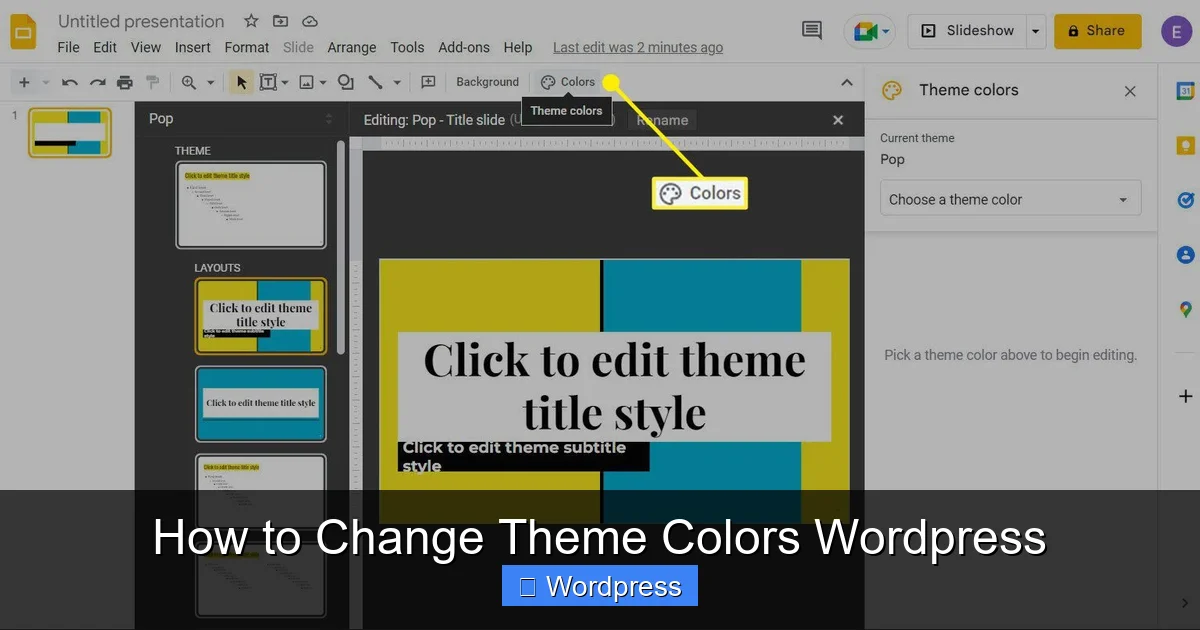
The Customizer is the easiest way to change colors. It’s built into WordPress and works with most modern themes.
Visual guide about How to Change Theme Colors WordPress
Image source: lifewire.com
Step 1: Access the Customizer
Go to your WordPress dashboard. Click Appearance > Customize. This opens the live preview editor.
Step 2: Find the Colors Section
Look for a section labeled Colors, Site Identity, or Theme Options. Click it to expand.
Step 3: Change Background and Text Colors
You’ll usually see options like:
- Background Color: Changes the main page background.
- Header Text Color: Updates your site title and tagline.
- Link Color: Controls hyperlink appearance.
- Accent Color: Often used for buttons and highlights.
Click any color box to open the color picker. Choose a new shade or enter a hex code (like #2A5CAA). The preview updates instantly.
Step 4: Save Your Changes
When you’re happy, click Publish at the top. Your new colors go live immediately.
Tip: Not all themes support every color option. If you don’t see a setting, try Method 2 or 3 below.
Method 2: Use Your Theme’s Built-in Color Settings
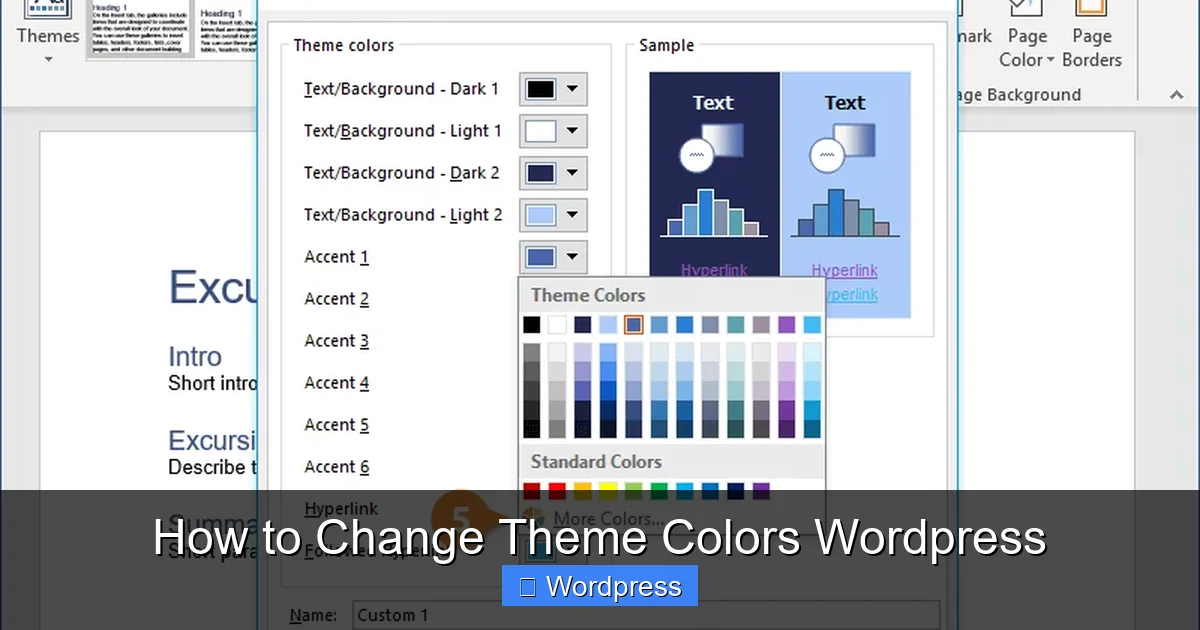
Many premium and free themes include advanced color controls. These are often more detailed than the default Customizer.
Visual guide about How to Change Theme Colors WordPress
Image source: customguide.com
Step 1: Check Your Theme Documentation
Look up your theme’s name plus “color settings” in a search engine. Most developers provide guides. For example, “Astra theme color options” or “GeneratePress color panel.”
Step 2: Navigate to Theme Options
In the Customizer, look for sections like:
- Header Settings
- Typography & Colors
- Global Styles
- Button Styles
These may let you change colors for specific elements—like navigation menus, footers, or call-to-action buttons.
Step 3: Apply Consistent Brand Colors
Use your brand’s official hex codes for accuracy. For example, if your logo uses #FF6B35, apply that to buttons and links for cohesion.
Example: The Astra theme lets you set separate colors for sticky headers, mobile menus, and hover effects—giving you full control.
Method 3: Add Custom CSS
If your theme doesn’t offer enough color options, use custom CSS. This method works for any WordPress site.
Step 1: Open the Additional CSS Panel
In the Customizer, scroll down and click Additional CSS. This opens a code editor.
Step 2: Target Specific Elements
Use CSS selectors to change colors. Here are common examples:
To change all links:
a {
  color: #2A5CAA;
}
To change button backgrounds:
.button, .wp-block-button__link {
  background-color: #FF6B35;
}
To update the header background:
.site-header {
  background-color: #1A1A1A;
}
Step 3: Use !important if Needed
Sometimes themes override your styles. Add !important to force your rule:
a {
  color: #2A5CAA !important;
}
Warning: Use !important sparingly. It can make future edits harder.
Step 4: Save and Test
Click Publish to apply. Then view your site on desktop and mobile to ensure colors look good everywhere.
For help writing CSS, check out our guide on the best way to add CSS in WordPress.
Method 4: Use a Page Builder (Like Elementor)
If you use Elementor, Beaver Builder, or another page builder, you can change colors directly in the editor.
Step 1: Edit a Page with the Builder
Open any page and click “Edit with Elementor” (or your builder’s equivalent).
Step 2: Select an Element
Click a button, heading, or section. Look for the Style tab in the left panel.
Step 3: Change Colors
Update background, text, or border colors using the color picker. Changes apply instantly.
Tip: Use global colors in Elementor to maintain consistency. Set brand colors once and reuse them across the site.
Learn more about building flexible designs with our tutorial on how to create a WordPress theme with Elementor.
Best Practices for Changing Theme Colors
Follow these tips to avoid common mistakes:
- Use a child theme: If editing theme files directly, always use a child theme. This protects your changes during updates. Read what is a child theme in WordPress to learn more.
- Test contrast: Ensure text is readable on backgrounds. Use tools like WebAIM’s Contrast Checker.
- Limit your palette: Stick to 2–4 main colors to avoid visual clutter.
- Preview on all devices: Colors can look different on phones, tablets, and desktops.
- Backup first: Use a plugin like UpdraftPlus to save your site before making changes.
Troubleshooting Common Issues
Stuck? Here’s how to fix frequent problems:
Colors Not Updating?
- Clear your browser cache and WordPress cache (if using a plugin like WP Super Cache).
- Check if a plugin is overriding styles. Disable plugins one by one to test.
- Ensure you clicked Publish in the Customizer.
CSS Not Working?
- Verify your selector is correct. Use browser dev tools (right-click > Inspect) to find the right class.
- Avoid typos in hex codes (e.g., #FF6B35, not #FF6B3G).
- Make sure your CSS is in the Additional CSS panel, not a theme file.
Theme Update Reset My Colors?
- This happens if you edited the parent theme. Always use a child theme or the Customizer for safe changes.
- Learn how to update your WordPress theme without losing customizations.
Conclusion
Changing theme colors in WordPress is a powerful way to personalize your site. Whether you use the Customizer, theme settings, or custom CSS, you can achieve a professional look in minutes. Remember to test your changes, use consistent branding, and protect your work with backups and child themes.
Now that you know how to change theme colors in WordPress, go ahead and give your site a fresh new vibe. Your visitors—and your brand—will thank you.