This guide teaches you how to create a template in WordPress using both code and visual tools. Whether you’re a beginner or developer, you’ll learn to build reusable, professional layouts that enhance your site’s design and functionality.
Key Takeaways
- Understand template types: Learn the difference between page templates, custom post type templates, and theme templates in WordPress.
- Use child themes: Always create templates within a child theme to preserve changes during updates.
- Leverage page builders: Tools like Elementor simplify template creation without coding.
- Edit theme files safely: Use FTP or the WordPress editor to modify PHP, CSS, and HTML files responsibly.
- Test thoroughly: Preview templates on staging sites before going live to avoid breaking your website.
- Reuse templates: Save time by applying custom templates across multiple pages or posts.
- Follow best practices: Keep code clean, use proper file naming, and document your work for future edits.
Introduction: Why Create a Custom Template in WordPress?
WordPress powers over 40% of all websites, and one of its greatest strengths is flexibility. While themes provide a solid foundation, sometimes you need more control over how your pages look and behave. That’s where custom templates come in. Whether you want a unique landing page, a special layout for blog posts, or a custom design for a portfolio section, creating a template gives you full creative freedom.
In this guide, you’ll learn how to create a template in WordPress using two main methods: coding with PHP (for developers) and using visual page builders like Elementor (for non-coders). We’ll walk you through each step, share practical tips, and help you avoid common mistakes. By the end, you’ll be able to design and deploy custom templates confidently.
Understanding WordPress Templates
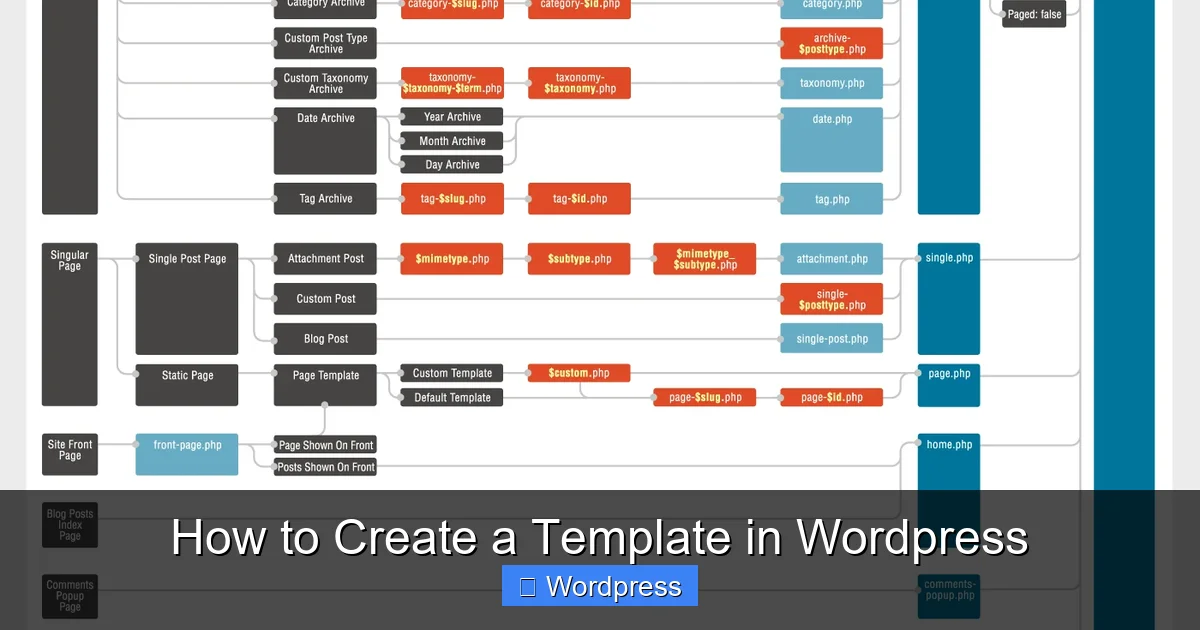
Before diving in, it’s important to understand what a template is in WordPress. A template is a PHP file that controls how content is displayed on your site. WordPress uses a hierarchy of templates to render pages, posts, archives, and more. For example, single.php controls single blog posts, while page.php handles regular pages.
Custom templates allow you to override these defaults for specific pages or post types. You can create a template for a single page, a category archive, or even a custom post type like “Testimonials” or “Events.”
Types of Templates You Can Create
- Page Templates: Custom layouts for individual pages (e.g., About Us, Contact).
- Custom Post Type Templates: Unique designs for custom content types.
- Archive Templates: Control how lists of posts or products appear.
- Single Post Templates: Customize how individual posts are displayed.
Method 1: Creating a Template with Code (PHP)
If you’re comfortable with basic PHP and HTML, creating a template from scratch gives you the most control. Here’s how to do it safely.
Visual guide about How to Create a Template in WordPress
Image source: templateshub.net
Step 1: Use a Child Theme
Never edit your main theme files directly. Instead, create a child theme to preserve your changes when the parent theme updates. A child theme inherits all functionality from the parent but allows you to override specific files—like templates.
To create a child theme:
- Create a new folder in
/wp-content/themes/(e.g.,mytheme-child). - Add a
style.cssfile with a header like:
/*
Theme Name: MyTheme Child
Template: mytheme
*/
- Add a
functions.phpfile to enqueue parent and child styles.
Step 2: Create a New Template File
In your child theme folder, create a new PHP file. Name it something descriptive, like template-landing.php.
At the top of the file, add this comment to register it as a template:
This tells WordPress that this file is a selectable page template.
Step 3: Add Template Content
Below the header, add your HTML and PHP code. For example:
You can include WordPress functions like the_content(), the_title(), or custom loops to display dynamic content.
Step 4: Apply the Template to a Page
Go to your WordPress dashboard, create or edit a page, and look for the “Template” dropdown in the Page Attributes box. Select “Landing Page” and publish. Your custom template is now active!
Method 2: Creating a Template with Elementor
If you prefer a visual approach, Elementor is a powerful drag-and-drop page builder that lets you create templates without coding.
Visual guide about How to Create a Template in WordPress
Image source: torquemag-hhvm.s3.amazonaws.com
Step 1: Install and Activate Elementor
Go to Plugins > Add New, search for “Elementor,” install it, and activate. For advanced template features, consider Elementor Pro.
Step 2: Create a New Template
In your dashboard, go to Templates > Add New. Choose “Page” as the template type.
Step 3: Design Your Layout
Use Elementor’s visual editor to drag and drop widgets like headings, images, buttons, and forms. You can create sections, columns, and responsive designs with ease.
For example, build a landing page with:
- A full-width hero section with a background image and call-to-action button.
- A features section with icons and text.
- A contact form at the bottom.
Step 4: Save and Reuse the Template
Once satisfied, click “Publish.” You can now insert this template into any page using the Elementor editor. Just click “Add Template” and select your saved design.
Customizing Templates with CSS
To fine-tune your template’s appearance, add custom CSS. You can do this in several ways:
- Customizer: Go to Appearance > Customize > Additional CSS.
- Child theme: Add CSS to your child theme’s
style.cssfile. - Plugin: Use a plugin like “Simple Custom CSS.”
For example, to style your landing page hero:
.landing-hero {
  background: #0073aa;
  color: white;
  padding: 100px 20px;
  text-align: center;
}
Learn more about adding CSS in WordPress for advanced styling options.
Troubleshooting Common Issues
Creating templates can sometimes lead to problems. Here’s how to fix the most common ones:
Template Not Showing in Dropdown
- Ensure the template file is in your active theme (or child theme) folder.
- Check that the
Template Namecomment is correctly formatted. - Clear your cache if using a caching plugin.
White Screen or Broken Layout
- Check for PHP syntax errors. Use a code editor with syntax highlighting.
- Ensure all PHP tags are properly opened and closed.
- Test on a staging site first to avoid disrupting your live site.
Changes Not Appearing
- Make sure you’re editing the correct theme (especially if using a child theme).
- Disable caching plugins temporarily.
- Hard refresh your browser (Ctrl + F5).
Best Practices for Template Creation
To ensure your templates are effective and maintainable:
- Use descriptive file names: Like
template-portfolio.phpinstead ofpage2.php. - Comment your code: Explain complex sections for future reference.
- Test on multiple devices: Ensure responsiveness on mobile, tablet, and desktop.
- Backup regularly: Use a plugin or manual backups before making major changes.
- Keep it lightweight: Avoid bloating templates with unnecessary code or plugins.
Conclusion: Unlock Your Site’s Potential
Learning how to create a template in WordPress opens up endless possibilities for customizing your website. Whether you’re building a unique landing page, a portfolio layout, or a custom blog design, templates give you the power to stand out.
You now have two reliable methods: coding with PHP for full control, or using Elementor for a no-code solution. Remember to always use a child theme, test your work, and follow best practices. With these skills, you’re well on your way to creating professional, high-performing WordPress sites.