This guide shows you how to duplicate a page in WordPress quickly and easily—whether you’re using the native editor or a plugin. Save time and maintain consistency across your site by reusing content, layouts, and settings without starting from scratch.
Key Takeaways
- WordPress doesn’t have a built-in “duplicate” button, but there are simple workarounds using plugins or manual methods.
- Using a plugin like Duplicate Page or Yoast Duplicate Post is the fastest and most reliable way to clone pages.
- You can manually copy content from the editor if you prefer not to install additional plugins.
- Always update the title, slug, and SEO settings after duplicating to avoid duplicate content issues.
- Test the duplicated page before publishing to ensure all elements (images, links, forms) work correctly.
- Some page builders like Elementor or Divi have their own duplication features—check your builder’s settings first.
- Back up your site before making bulk changes or installing new plugins.
Why Duplicate a Page in WordPress?
Whether you’re building a landing page, creating a new service offer, or launching a seasonal promotion, duplicating an existing page saves time and effort. Instead of rebuilding layouts, copying text, and reconfiguring settings from scratch, you can clone a page with one click and customize it for your new purpose.
Duplicating pages is especially useful when:
- You want consistent design across similar pages (e.g., product pages or team bios).
- You’re A/B testing different versions of a page.
- You’re launching a new campaign that mirrors a previous successful one.
- You need to preserve the original while making experimental changes.
While WordPress doesn’t include a native “duplicate” button in the page editor, there are several effective ways to do it—ranging from free plugins to manual copying. Let’s explore the best methods.
Method 1: Use a Duplicate Page Plugin (Recommended)
The easiest and most popular way to duplicate a page in WordPress is by using a dedicated plugin. These tools add a “Duplicate” or “Clone” option directly in your page list, making the process fast and user-friendly.
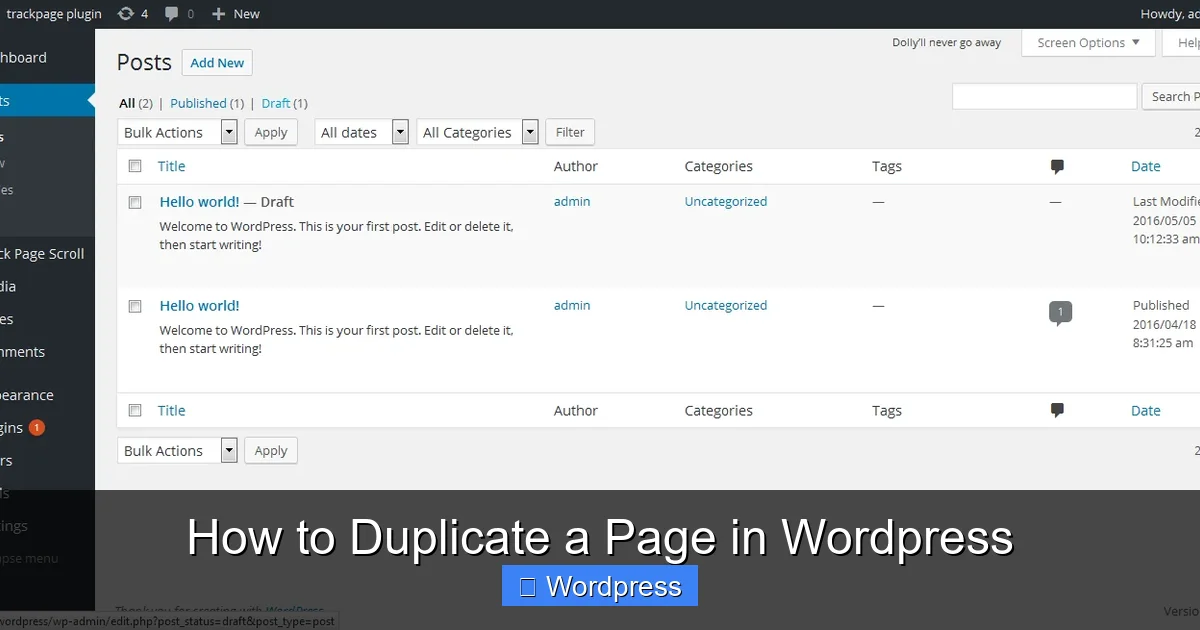
Visual guide about How to Duplicate a Page in WordPress
Image source: ps.w.org
Step 1: Install a Duplicate Page Plugin
Go to your WordPress dashboard and navigate to Plugins > Add New. In the search bar, type “Duplicate Page” or “Duplicate Post.” Two top-rated options are:
- Duplicate Page – Lightweight and simple.
- Yoast Duplicate Post – More advanced, with scheduling and user role controls.
Click Install Now on your preferred plugin, then click Activate.
Step 2: Duplicate Your Page
Once activated, go to Pages > All Pages. Hover over the page you want to duplicate. You’ll now see a new option: Duplicate This (or similar, depending on the plugin).
Click it, and WordPress will instantly create a copy of the page. The duplicated page will appear in your list with a status of “Draft” and a title like “Copy of [Original Page Name].”
Step 3: Edit and Publish the Duplicate
Click Edit on the new draft to open it in the editor. Here’s what to update:
- Title: Change it to reflect the new content.
- Permalink (URL slug): Update it to avoid conflicts. For example, change
yourdomain.com/servicestoyourdomain.com/new-service. - Content: Replace text, images, and calls to action as needed.
- SEO settings: If you use an SEO plugin like Yoast or Rank Math, update the meta title and description to avoid duplicate content penalties.
Once you’re satisfied, click Publish to make the page live.
Pro Tip: Bulk Duplication
Some plugins allow you to duplicate multiple pages at once. This is helpful if you’re setting up a new section of your site. Check your plugin’s settings for bulk actions or use the “Clone” option on each page individually.
Method 2: Manually Copy and Paste Content
If you prefer not to install a plugin, you can duplicate a page manually. This method works well for simple pages but may not preserve complex layouts or dynamic elements.
Step 1: Create a New Page
Go to Pages > Add New. Give it a temporary title like “Draft Copy.”
Step 2: Copy Content from the Original Page
Open the original page in a new browser tab. Switch to the Block Editor (Gutenberg) or Classic Editor, depending on your setup.
Select all content (Ctrl+A or Cmd+A), then copy it (Ctrl+C or Cmd+C).
Step 3: Paste into the New Page
Return to your new draft page and paste the content (Ctrl+V or Cmd+V). The text, images, and basic formatting should transfer over.
Step 4: Rebuild Missing Elements
Some elements—like custom CSS, shortcodes, or dynamic blocks—may not copy correctly. You’ll need to:
- Re-add images if they didn’t transfer.
- Reconfigure forms (e.g., Contact Form 7 or WPForms).
- Reapply custom CSS if you use a plugin like Best Way to Add CSS in WordPress Website.
This method is slower and less reliable than using a plugin, but it’s a good option if you’re avoiding plugin bloat.
Method 3: Use Your Page Builder’s Duplicate Feature
If you use a visual page builder like Elementor, Divi, or WPBakery, check if it has a built-in duplication tool. These builders often include their own “Duplicate” or “Clone” buttons.
Example: Duplicating in Elementor
Open the page in Elementor. In the panel on the left, click the three dots (⋮) next to the page name. Select Duplicate. A copy will appear in your Pages list.
For more advanced control, consider using How to Create WordPress Theme With Elementor to build reusable templates.
Example: Duplicating in Divi
In the Divi Builder, click the hamburger menu (☰) in the bottom left. Choose Duplicate Page. The copy will be saved as a draft.
Always verify that all modules, styles, and responsive settings transferred correctly.
Method 4: Use the WordPress REST API (Advanced)
For developers or advanced users, you can duplicate pages programmatically using the WordPress REST API. This method requires coding knowledge and is not recommended for beginners.
You would create a custom script that fetches the original page’s content and metadata, then creates a new page with that data. This is useful for automating site migrations or bulk content creation.
If you’re managing themes or custom code, also consider learning about What Is a Child Theme in WordPress to safely modify your site without losing changes during updates.
Troubleshooting Common Issues
Even with the best methods, you might run into problems. Here’s how to fix common issues:
Issue: Duplicated Page Shows a 404 Error
This usually happens if the permalink (URL) wasn’t updated or if the page wasn’t published. Go to Settings > Permalinks and click Save Changes to refresh the rewrite rules. Then verify the page status is “Published.”
Issue: Images or Media Are Missing
If images didn’t copy over, they may be linked from the original page’s media library. Re-upload them or update the image URLs. Also, check if your theme or plugin handles media differently—some require manual reattachment.
Issue: Plugin Conflicts
If the duplication button doesn’t appear, another plugin might be interfering. Try deactivating plugins one by one to find the culprit. For help managing plugins, see How To Deactivate A Theme In WordPress for guidance on safe troubleshooting.
Issue: Duplicate Content SEO Penalties
Search engines may flag identical content across pages. Always change the title, meta description, and at least 30% of the body content. Use canonical tags if needed, and consider redirecting old pages if they’re no longer relevant.
Best Practices for Duplicating Pages
- Always back up your site before making major changes. Use a plugin like UpdraftPlus or your hosting provider’s backup tool.
- Use descriptive titles and slugs to keep your content organized.
- Test on a staging site first if you’re working on a live website.
- Limit plugin use—only install trusted plugins from reputable developers.
- Update internal links if the new page replaces or redirects the old one.
Conclusion
Duplicating a page in WordPress doesn’t have to be complicated. Whether you use a plugin, copy content manually, or rely on your page builder’s tools, you can quickly create consistent, high-quality pages without starting from zero. The key is choosing the method that fits your workflow and technical comfort level.
For most users, a plugin like Duplicate Page or Yoast Duplicate Post offers the best balance of speed and reliability. Just remember to customize the duplicate—don’t publish an exact copy. With these tips, you’ll save time, reduce errors, and keep your site looking professional.