This guide walks you through how to edit footer in WordPress Elementor, whether you’re using a theme builder or the free version. You’ll learn to customize content, adjust styling, and troubleshoot common issues—all without touching code.
Key Takeaways
- Elementor’s Theme Builder lets you design global footers: Create reusable footer templates that apply site-wide with dynamic content support.
- You can edit footers without coding: Use drag-and-drop widgets like HTML, images, menus, and social icons for full customization.
- Footer editing depends on your theme setup: Some themes use Elementor’s native footer system, while others require manual integration via hooks or shortcodes.
- Styling options include spacing, colors, and typography: Fine-tune your footer’s look using Elementor’s advanced design controls.
- Always test responsiveness: Ensure your footer looks great on mobile, tablet, and desktop views before publishing.
- Troubleshooting tips help fix common issues: From missing footers to layout breaks, we cover solutions to keep your site running smoothly.
Introduction: Why Editing Your Footer Matters
Your website’s footer might seem like an afterthought, but it plays a crucial role in user experience and SEO. It’s often where visitors look for contact info, legal pages, social links, or site navigation. With Elementor, one of the most popular page builders for WordPress, editing your footer has never been easier—even if you’re not a developer.
In this guide, you’ll learn exactly how to edit footer in WordPress Elementor, whether you’re using Elementor Free or Pro. We’ll cover everything from accessing the footer editor to styling it professionally and fixing common problems. By the end, you’ll have a polished, functional footer that enhances your site’s professionalism and usability.
Prerequisites: What You Need Before Starting
Before diving in, make sure you have:
- WordPress installed on your hosting account.
- Elementor plugin activated (Free version works for basic edits; Pro unlocks Theme Builder).
- A compatible theme—most modern themes (like Hello Elementor, Astra, or GeneratePress) work seamlessly with Elementor.
If you’re using a theme that doesn’t support Elementor’s Theme Builder (like older themes), you may need to use alternative methods—we’ll cover those too.
> 💡 Pro Tip: Always back up your site before making major changes. Use a plugin like UpdraftPlus or your host’s backup tool.
Method 1: Edit Footer Using Elementor Theme Builder (Pro Required)
If you have Elementor Pro, the Theme Builder is the best way to create and manage global footers. Here’s how:
Step 1: Access the Theme Builder
Go to your WordPress dashboard → Elementor → Theme Builder. Click “Add New” and select “Footer.”
Step 2: Design Your Footer Layout
You’ll enter the Elementor editor with a blank canvas. Use widgets like:
- Heading – for titles like “Contact Us” or “Follow Us”
- Text Editor – for copyright text or descriptions
- Menu – to add navigation links
- Social Icons – for Facebook, Instagram, etc.
- HTML – for custom code (e.g., newsletter signup forms)
- Image – to add your logo
Drag and drop these into sections. Use columns to organize content—for example, three columns for links, contact info, and social media.
Step 3: Set Display Conditions
After designing, click “Publish.” Elementor will ask where to show this footer. Choose “Entire Site” for a global footer, or select specific pages if needed.
Step 4: Style Your Footer
Use the Style tab to:
- Change background color (e.g., dark gray or black for contrast)
- Adjust padding and margins for spacing
- Set font size and color for readability
- Add borders or shadows for visual depth
> 🎨 Design Tip: Keep your footer consistent with your brand. Use your brand colors and fonts for a cohesive look.
Method 2: Edit Footer Without Elementor Pro (Free Version)
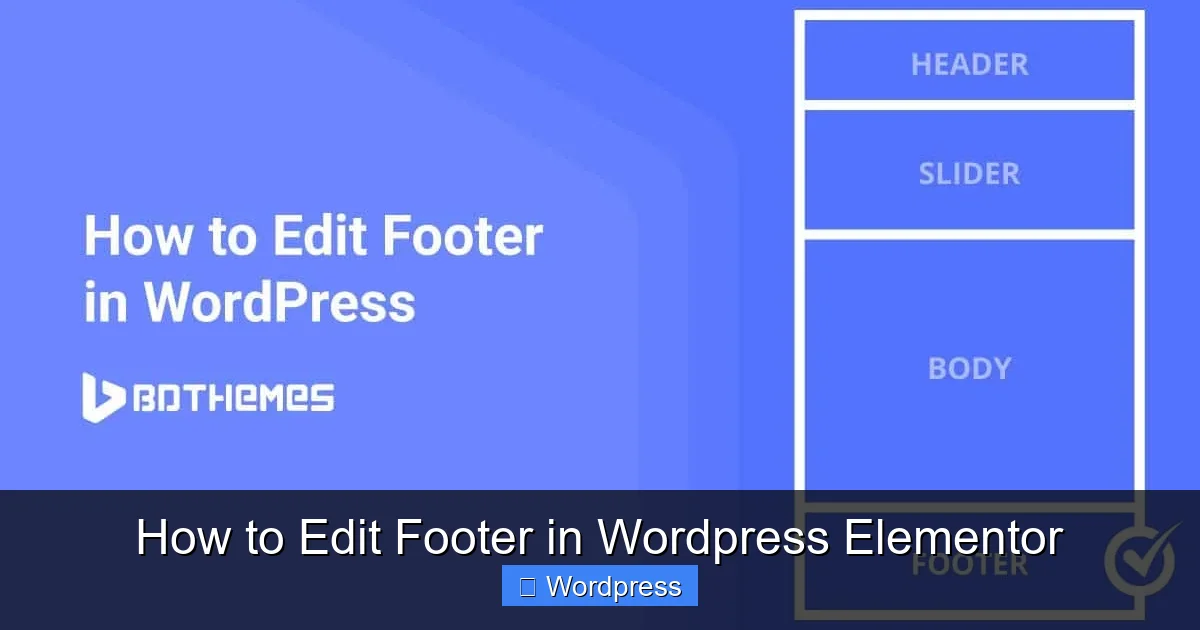
Visual guide about How to Edit Footer in WordPress Elementor
Image source: elementpack.pro
No Pro? No problem! You can still customize your footer using these workarounds.
Option A: Use Your Theme’s Built-in Footer Editor
Many themes (like Astra or GeneratePress) include a customizer footer editor. Go to Appearance → Customize → Footer. Add widgets, text, or menus directly.
Option B: Replace Footer via Elementor Page Editor
Some themes allow you to override the footer by editing individual pages with Elementor:
- Edit a page with Elementor.
- Scroll to the bottom and look for a “Footer” section.
- If editable, customize it like any other section.
- Note: This only affects that page—not globally.
Option C: Use a Footer Widget Area
If your theme supports widgetized footers:
- Go to Appearance → Widgets.
- Find the “Footer” widget area.
- Add Text, Custom HTML, or Navigation Menu widgets.
- Style them using your theme’s settings or custom CSS.
> 🔧 Need more control? Consider creating a custom footer template with Elementor Free and inserting it via shortcode (requires a plugin like “AnyWhere Elementor”).
Advanced Customization: Adding Custom Code or Plugins
Sometimes, you need more than widgets. Here’s how to go further:
Add Custom CSS
To tweak spacing, alignment, or animations:
- In Elementor, select your footer section.
- Go to Advanced → Custom CSS.
- Add code like:
padding: 40px 0;
border-top: 1px solid #eee;
For site-wide CSS, use the WordPress Customizer (Appearance → Customize → Additional CSS) or a plugin like “Simple Custom CSS.”
> 📌 Related: Learn more about the best way to add CSS in WordPress for cleaner, maintainable code.
Insert Third-Party Forms or Scripts
Use the HTML widget to embed:
- Mailchimp or ConvertKit signup forms
- Google Analytics tracking codes
- Live chat widgets (e.g., Tidio or Crisp)
Just paste the provided script into the HTML widget—no coding needed.
Troubleshooting Common Footer Issues
Even experts run into problems. Here’s how to fix them:
Footer Not Showing Up
- Check if your theme supports Elementor footers. Try switching to Hello Elementor temporarily.
- Ensure display conditions are set correctly in Theme Builder.
- Clear cache (plugin, browser, or host-level).
Footer Looks Broken on Mobile
- In Elementor, switch to mobile view (bottom-left icon).
- Adjust column stacking, font sizes, or hide non-essential elements.
- Use responsive controls to set different padding or margins per device.
Changes Not Saving
- Make sure you clicked “Update” or “Publish.”
- Check for JavaScript errors (open browser console with F12).
- Disable conflicting plugins temporarily.
Footer Overlaps Content
This usually happens due to incorrect z-index or fixed positioning. Add this CSS to your footer section:
position: relative;
z-index: 10;
> 🛠️ Still stuck? Visit the Elementor community forum or check our guide on fixing common WordPress errors for broader troubleshooting tips.
Best Practices for a Professional Footer
A great footer balances function and design. Follow these tips:
- Keep it clean: Avoid clutter. Use 2–4 columns max.
- Include essential links: Privacy Policy, Terms of Service, Contact, and Sitemap.
- Add trust signals: Certifications, payment icons, or “As seen on” logos.
- Make it accessible: Use sufficient color contrast and readable fonts.
- Update regularly: Keep copyright year current and links working.
> 🔗 Pro Move: Link your footer menus to important pages. This improves SEO and helps users navigate.
Conclusion: Master Your Footer with Elementor
Editing your footer in WordPress with Elementor doesn’t have to be complicated. Whether you’re using Elementor Pro’s powerful Theme Builder or working within the limits of the free version, you now have the tools to create a footer that’s both beautiful and functional.
Remember: your footer is more than just a formality—it’s a key part of your site’s identity and usability. Take the time to design it well, test it across devices, and keep it updated.
Ready to take your WordPress skills further? Explore how to create a WordPress theme with Elementor or learn how to update your WordPress theme safely without losing customizations.
With these steps, you’re well on your way to mastering Elementor—and building WordPress sites that truly stand out.