
This guide walks you through how to edit WordPress site content, themes, and settings using the built-in tools. Whether you’re updating text, changing layouts, or customizing your design, you’ll find clear, beginner-friendly steps to make your site look and work exactly how you want.
Key Takeaways
- Access the WordPress Dashboard: Log in to your admin panel to start editing your site.
- Use the Block Editor (Gutenberg): Edit pages and posts with drag-and-drop blocks for text, images, and more.
- Customize Your Theme: Use the Customizer or switch themes to change your site’s appearance.
- Edit Menus and Widgets: Update navigation and sidebar content easily from the Appearance menu.
- Install Plugins for Extra Features: Extend functionality with tools for SEO, forms, and security.
- Always Backup Before Major Changes: Protect your site from errors by creating backups before editing.
- Troubleshoot Common Issues: Fix login problems, broken layouts, or update conflicts quickly.
How to Edit WordPress Site: A Complete Beginner’s Guide
If you’ve ever wondered how to edit WordPress site content without breaking anything, you’re in the right place. WordPress is one of the most user-friendly content management systems (CMS) available, and editing your site doesn’t require coding skills. Whether you’re updating a blog post, changing your homepage, or tweaking your site’s design, this guide will walk you through every step.
In this guide, you’ll learn how to edit text, images, menus, themes, and more using WordPress’s built-in tools. We’ll also cover best practices to keep your site safe and running smoothly. By the end, you’ll feel confident making changes to your WordPress site like a pro.
Step 1: Log In to Your WordPress Dashboard
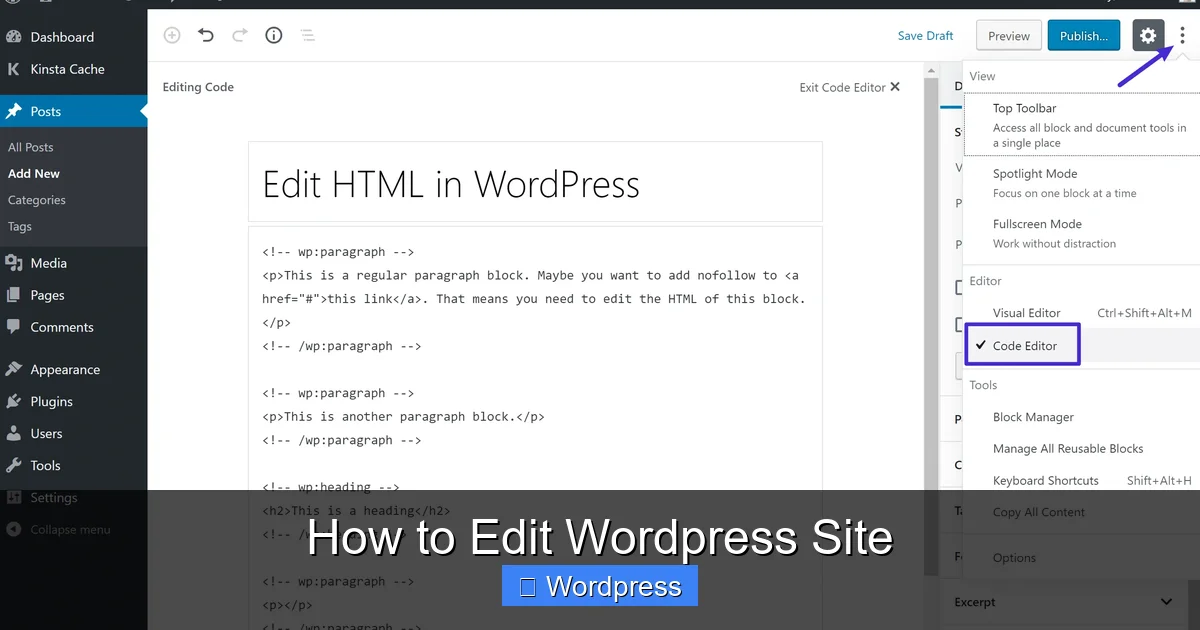
Visual guide about How to Edit WordPress Site
Image source: kinsta.com
Before you can edit anything, you need access to your WordPress admin area—also known as the Dashboard.
Access Your Admin Panel
Go to your website’s login page by typing yoursite.com/wp-admin into your browser. Enter your username and password. If you’ve forgotten them, use the “Lost your password?” link to reset.
Navigate the Dashboard
Once logged in, you’ll see the WordPress Dashboard. This is your control center. From here, you can manage posts, pages, themes, plugins, and settings. The left-hand menu lists all major areas—click on any to start editing.
Step 2: Edit Pages and Posts Using the Block Editor
WordPress uses the Gutenberg Block Editor to create and edit content. It’s intuitive and powerful, letting you build pages with blocks for text, images, buttons, and more.
Open a Page or Post
Go to Pages or Posts in the left menu. Click on the title of the item you want to edit, or click “Add New” to create fresh content.
Add and Edit Blocks
Each piece of content is made up of blocks. To add a new block, click the + button. Choose from options like Paragraph, Heading, Image, or Button. Click on any block to edit its content. For example, click a paragraph block to type or format text.
Format Text and Media
Use the toolbar above each block to make text bold, italic, or add links. To insert an image, select the Image block, then upload a file or choose from your media library. You can resize images and add captions directly in the editor.
Preview and Publish
Click the Preview button to see how your changes look on the front end. When you’re happy, click Update (for existing content) or Publish (for new content).
Step 3: Customize Your Site’s Appearance
Want to change your site’s look? WordPress makes it easy with themes and the Customizer.
Choose a New Theme
Go to Appearance > Themes. Click “Add New” to browse free themes, or upload a premium one. Preview themes before activating. Once you find one you like, click Activate.
Need help picking the right look? Check out our guide on the best WordPress theme for SEO and speed to find a fast, modern option.
Use the WordPress Customizer
Go to Appearance > Customize. This opens a live preview of your site with editing options on the left. You can change colors, fonts, header images, and layout settings. Changes appear in real time—no guessing!
Edit Menus
In the Customizer or under Appearance > Menus, you can create and edit navigation menus. Add pages, posts, or custom links. Drag items to reorder them. Assign the menu to a location like “Primary” or “Footer.”
Manage Widgets
Widgets are small content blocks in sidebars or footers. Go to Appearance > Widgets to add, remove, or rearrange them. Common widgets include search bars, recent posts, and social media icons.
Step 4: Install and Use Plugins
Plugins add new features to your site—like contact forms, SEO tools, or backups.
Find and Install Plugins
Go to Plugins > Add New. Search for a plugin (e.g., “Contact Form 7” or “Yoast SEO”). Click Install Now, then Activate.
Too many plugins can slow your site. Learn more in our article: how many plugins should you use.
Configure Plugin Settings
After activation, most plugins add a new menu item in the Dashboard. Click on it to set up features. For example, configure a contact form or connect to Google Analytics.
Step 5: Edit Theme Files (Advanced)
For deeper customization, you can edit theme files—but only if you’re comfortable with code.
Access Theme Editor
Go to Appearance > Theme File Editor. Here, you can modify PHP, CSS, and template files. Warning: A mistake can break your site. Always backup first.
Add Custom CSS
For safer styling changes, go to Appearance > Customize > Additional CSS. Add custom code here—it won’t be lost when you update your theme. For example:
body { background-color: #f0f0f0; }
Need more control? See our guide on the best way to add CSS in WordPress website.
Step 6: Organize Content with Categories and Tags
Keep your content organized using categories and tags.
Assign Categories
When editing a post, look for the Categories box on the right. Check existing categories or add a new one. Categories are broad topics (e.g., “Recipes” or “Travel”).
Add Tags
Tags are more specific keywords (e.g., “vegan,” “budget travel”). Add them in the Tags box. Separate multiple tags with commas.
Learn more in our detailed post: WordPress categories.
Troubleshooting Common Editing Issues
Even with the best tools, problems can happen. Here’s how to fix common issues.
Can’t Log In?
Double-check your username and password. If you’re locked out, reset your password via email or use phpMyAdmin to update it in the database.
Site Looks Broken After an Update?
This often happens after a theme or plugin update. Try switching to a default theme (like Twenty Twenty-Four) under Appearance > Themes. If the site looks normal, the issue is with your theme. Reinstall it or check for updates.
For help, read our guide on how to update theme on WordPress.
Changes Not Showing?
Clear your browser cache and any caching plugins. Also, check if you’re editing the correct page or post.
White Screen of Death?
This usually means a PHP error. Disable all plugins via FTP by renaming the plugins folder. If the site loads, reactivate plugins one by one to find the culprit.
Best Practices for Safe Editing
Editing your site is fun—but safety first!
- Backup Regularly: Use a plugin like UpdraftPlus to save your site’s files and database.
- Use a Staging Site: Test major changes on a copy of your site before going live.
- Update Carefully: Always backup before updating WordPress, themes, or plugins.
- Limit Admin Access: Only give admin rights to trusted users.
Conclusion
Editing your WordPress site doesn’t have to be scary. With the tools and steps in this guide, you can confidently update content, change designs, and add new features. Remember to use the Block Editor for posts and pages, the Customizer for design tweaks, and plugins for extra functionality. Always backup before making big changes, and don’t hesitate to test updates on a staging site.
Now that you know how to edit WordPress site like a pro, it’s time to make your website truly yours. Start small, experiment, and watch your site grow!