This guide teaches you how to edit WordPress theme HTML code without breaking your site. You’ll learn safe methods like using a child theme, the built-in theme editor, and FTP access, plus best practices to avoid common mistakes.
Key Takeaways
- Always use a child theme: Editing the parent theme directly can cause changes to be lost during updates. A child theme keeps your customizations safe.
- Backup your site first: Before making any code changes, create a full backup to restore your site if something goes wrong.
- Use the WordPress Theme Editor carefully: It’s convenient but risky—small syntax errors can crash your site. Only use it for minor tweaks.
- FTP access gives full control: For advanced edits, use FTP or a file manager to modify theme files directly on the server.
- Test changes on a staging site: Never edit live sites directly. Use a staging environment to preview and test your HTML changes safely.
- Know your file structure: Understand key theme files like header.php, footer.php, and page.php to target the right areas for editing.
- Revert changes quickly: Keep a copy of original files so you can restore them if your edits cause issues.
How to Edit WordPress Theme Html Code
If you’ve ever wanted to customize your WordPress website beyond what the theme options allow, editing the HTML code is a powerful way to do it. Whether you’re tweaking a header, adding custom content, or adjusting layout elements, knowing how to edit WordPress theme HTML code gives you full creative control.
But here’s the catch: editing theme files directly can be risky. One wrong character can break your site. That’s why this guide walks you through safe, effective methods to modify your theme’s HTML without losing your work or crashing your website.
By the end of this guide, you’ll know how to edit HTML in WordPress using a child theme, the built-in theme editor, and FTP—plus how to avoid common pitfalls.
Why Edit WordPress Theme HTML?
Visual guide about How to Edit WordPress Theme Html Code
Image source: i.ytimg.com
You might want to edit your theme’s HTML to:
- Add custom sections (like a banner or call-to-action)
- Change the structure of pages or posts
- Insert custom scripts or tracking codes
- Fix layout issues not addressed by the theme settings
- Improve SEO by adjusting heading tags or meta structures
While many changes can be made with page builders or plugins, direct HTML editing offers precision and performance benefits.
Method 1: Use a Child Theme (Recommended)
The safest way to edit WordPress theme HTML is by using a child theme. A child theme inherits all the functionality and styling of the parent theme but allows you to make customizations that won’t be overwritten during updates.
Step 1: Create a Child Theme
If you don’t already have one, create a child theme. You can do this manually or use a plugin like “Child Theme Configurator” or “One-Click Child Theme.”
For manual creation:
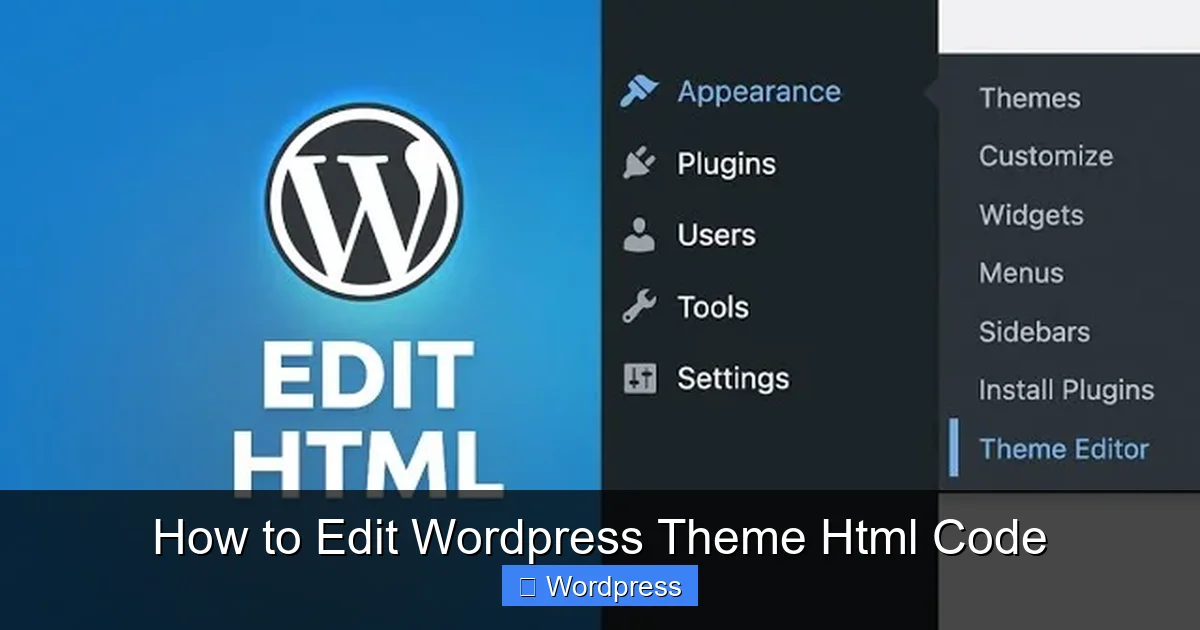
- Go to Appearance > Theme File Editor in your WordPress dashboard.
- Navigate to your active theme folder (e.g., /wp-content/themes/twentytwentyfour/).
- Create a new folder in the themes directory named yourtheme-child (e.g., twentytwentyfour-child).
- Add a style.css file with the following header:
/*
Theme Name: Twenty Twenty-Four Child
Template: twentytwentyfour
*/
- Add a functions.php file to enqueue the parent theme’s styles:
Now activate your child theme under Appearance > Themes.
Step 2: Copy and Edit HTML Files
To edit HTML, copy the file you want to modify from the parent theme into your child theme folder. For example:
- To edit the header, copy header.php from the parent theme to your child theme.
- To edit the footer, copy footer.php.
- To edit a page template, copy page.php or single.php.
Once copied, open the file in a code editor and make your HTML changes. WordPress will use the version in your child theme instead of the parent.
Step 3: Test Your Changes
After editing, visit your site to see the changes. If something looks off, double-check your HTML syntax. Use your browser’s developer tools (right-click > Inspect) to debug layout issues.
Method 2: Use the WordPress Theme Editor
Visual guide about How to Edit WordPress Theme Html Code
Image source: portotheme.com
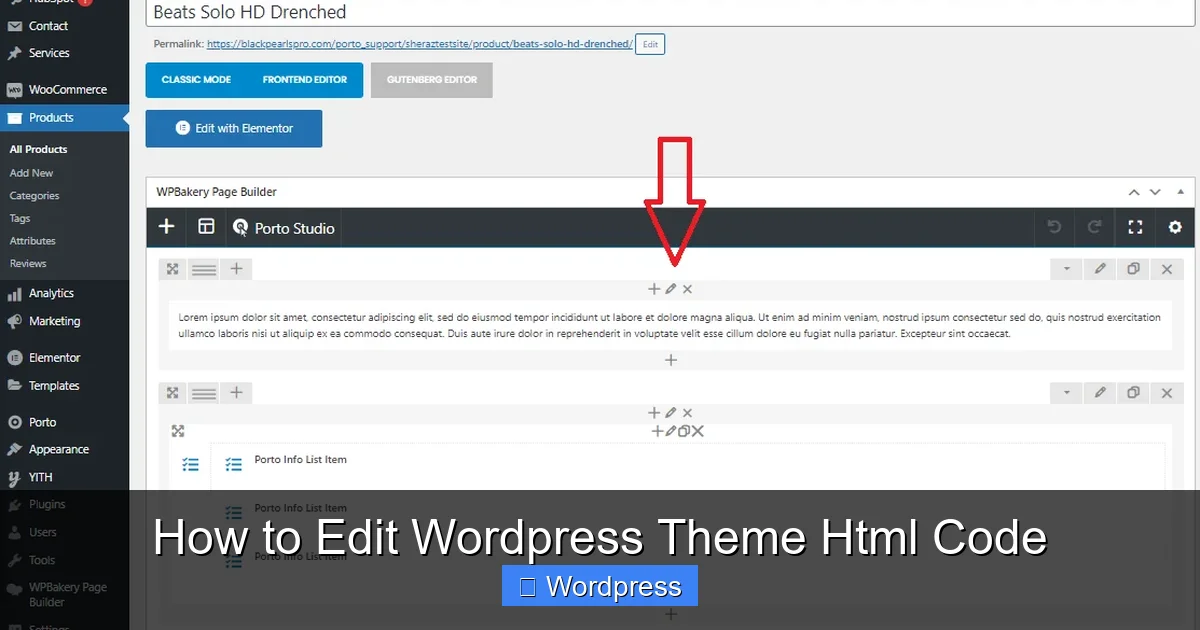
WordPress includes a built-in theme editor that lets you edit theme files directly from the dashboard.
Step 1: Access the Theme Editor
Go to Appearance > Theme File Editor. You’ll see a list of theme files on the right.
Step 2: Select the File to Edit
Choose the HTML file you want to modify, such as:
- header.php – Contains the site header and navigation
- footer.php – Contains the footer content
- page.php – Controls the structure of pages
- single.php – Controls single blog posts
Step 3: Make and Save Changes
Edit the HTML code directly in the editor. For example, to add a custom message above the header, insert:
<div class="custom-banner">Welcome to our site!</div>
above the <header> tag.
Click Update File to save.
Warning: Risks of the Theme Editor
The theme editor is convenient but dangerous. A single typo can cause a “white screen of death.” To reduce risk:
- Always backup your site before editing.
- Copy the original code before making changes.
- Use a child theme instead when possible.
Method 3: Edit via FTP or File Manager
For more control, use FTP (File Transfer Protocol) or your hosting provider’s file manager.
Step 1: Connect to Your Site
Use an FTP client like FileZilla or access the file manager in your hosting control panel (e.g., cPanel).
Step 2: Navigate to Theme Files
Go to:
/wp-content/themes/your-theme-name/
Locate the HTML file you want to edit (e.g., header.php).
Step 3: Download, Edit, and Upload
- Download the file to your computer.
- Open it in a code editor (like VS Code or Sublime Text).
- Make your HTML changes.
- Save and upload the file back to the server, overwriting the original.
This method is best for advanced users who need to edit multiple files or work offline.
Best Practices for Editing HTML in WordPress
1. Always Backup First
Before editing any file, create a full site backup. Use a plugin like UpdraftPlus or your hosting provider’s backup tool. This lets you restore your site if something goes wrong.
2. Use a Staging Site
Never edit your live site directly. Set up a staging site (many hosts offer one-click staging) to test changes safely. Once everything works, apply the changes to your live site.
3. Validate Your HTML
After editing, check your HTML for errors using the W3C Validator. Fix any syntax issues to ensure compatibility across browsers.
4. Avoid Editing Parent Themes
As mentioned earlier, always use a child theme. If you edit the parent theme and update it, your changes will be lost. For more on this, see our guide on how to update a WordPress theme safely.
5. Document Your Changes
Keep a log of what you changed and why. This helps you remember modifications and makes troubleshooting easier.
Troubleshooting Common Issues
White Screen After Editing
This usually means a PHP or HTML syntax error. To fix:
- Access your site via FTP.
- Navigate to the theme folder.
- Rename the theme folder (e.g., from “mytheme” to “mytheme-old”).
- This forces WordPress to revert to a default theme.
- Fix the error in the file and restore the folder name.
Changes Not Showing Up
Clear your browser cache and any caching plugins (like WP Super Cache or W3 Total Cache). Also, ensure you’re editing the correct file in the active theme.
Broken Layout
Use your browser’s developer tools to inspect elements and identify missing or conflicting CSS. Adjust your HTML structure or add custom CSS via Appearance > Customize > Additional CSS.
Conclusion
Editing WordPress theme HTML code opens up endless customization possibilities. Whether you’re adjusting a header, adding custom content, or improving SEO, knowing how to safely modify theme files is a valuable skill.
Remember: always use a child theme, backup your site, and test changes on a staging environment. Avoid editing parent themes directly, and consider using FTP for more control.
With these methods and best practices, you can confidently customize your WordPress site’s HTML without fear of breaking it. For more tips on managing themes, check out our guide on how to apply a WordPress theme or learn how to identify any WordPress theme.