
This guide walks you through how to install Facebook Pixel in WordPress using multiple methods—plugin, manual code, and theme integration. Perfect for beginners and advanced users, it covers setup, testing, and troubleshooting.
Key Takeaways
- Facebook Pixel tracks user behavior on your WordPress site, helping you measure ad performance and retarget visitors.
- You can install Pixel via plugin, manual code, or theme settings—choose the method that fits your comfort level.
- Always test your Pixel after installation using Facebook’s Event Setup Tool to ensure it’s working correctly.
- Use standard events like “PageView” and “Purchase” to track key actions and improve ad targeting.
- Keep your Pixel ID secure and avoid duplicating code across multiple plugins or themes.
- Child themes are safer for manual edits—learn why in our guide on what is a child theme in WordPress.
Introduction: Why You Need Facebook Pixel on Your WordPress Site
If you’re running Facebook ads or planning to, installing Facebook Pixel on your WordPress website is a must. This small piece of JavaScript code lets you track what visitors do on your site—like which pages they view, items they add to cart, or purchases they complete. With this data, you can measure ad effectiveness, build custom audiences, and retarget visitors who showed interest but didn’t convert.
In this guide, you’ll learn how to install Facebook Pixel in WordPress using three reliable methods: a plugin, manual code insertion, and theme-specific options. Whether you’re a beginner or comfortable with code, we’ve got you covered. By the end, you’ll have Pixel up and running—and your ads working smarter.
Step 1: Create Your Facebook Pixel

Visual guide about How to Install Facebook Pixel in WordPress
Image source: brandonawrey.com
Before installing anything on WordPress, you need to create the Pixel in your Facebook Events Manager.
Log into Facebook Business Manager
Go to business.facebook.com and log in with your business account. If you don’t have one, create it first—it’s free and required for Pixel access.
Navigate to Events Manager
Click on “Events Manager” in the left-hand menu. Then, click “Connect Data Sources” and select “Web.”
Choose “Facebook Pixel” and Create It
Click “Get Started” under Facebook Pixel. Enter a name for your Pixel (e.g., “My WordPress Site Pixel”) and your website URL. Click “Create.”
Copy Your Pixel ID
Once created, you’ll see your unique Pixel ID—a string of numbers like 123456789012345. Copy this ID. You’ll need it for all installation methods.
Step 2: Install Facebook Pixel Using a Plugin (Easiest Method)
Visual guide about How to Install Facebook Pixel in WordPress
Image source: mkscdn-9b59.kxcdn.com
For most WordPress users, using a plugin is the fastest and safest way to install Facebook Pixel.
Choose a Reliable Plugin
We recommend PixelYourSite or Facebook for WordPress (official plugin by Meta). Both are free, well-supported, and easy to use.
Install and Activate the Plugin
Go to your WordPress dashboard → Plugins → Add New. Search for “PixelYourSite” or “Facebook for WordPress.” Click “Install Now,” then “Activate.”
Configure the Plugin
After activation, go to the plugin’s settings (usually under Settings or a new menu item). Paste your Pixel ID into the designated field. Enable tracking options like “PageView,” “AddToCart,” and “Purchase” if available.
Save and Test
Click “Save Changes.” Then, visit your site and use the Facebook Pixel Helper Chrome extension to verify the Pixel is firing.
Step 3: Install Facebook Pixel Manually (For Advanced Users)
If you prefer full control or don’t want to use a plugin, you can add the Pixel code manually.
Access Your Theme Files
Go to Appearance → Theme File Editor in WordPress. Or, use an FTP client or file manager in your hosting control panel.
Edit the header.php File
Locate header.php in your active theme. Important: If you’re not using a child theme, consider creating one first. Editing the parent theme directly can cause issues during updates. Learn more about what is a child theme in WordPress and why it’s safer.
Paste the Pixel Code
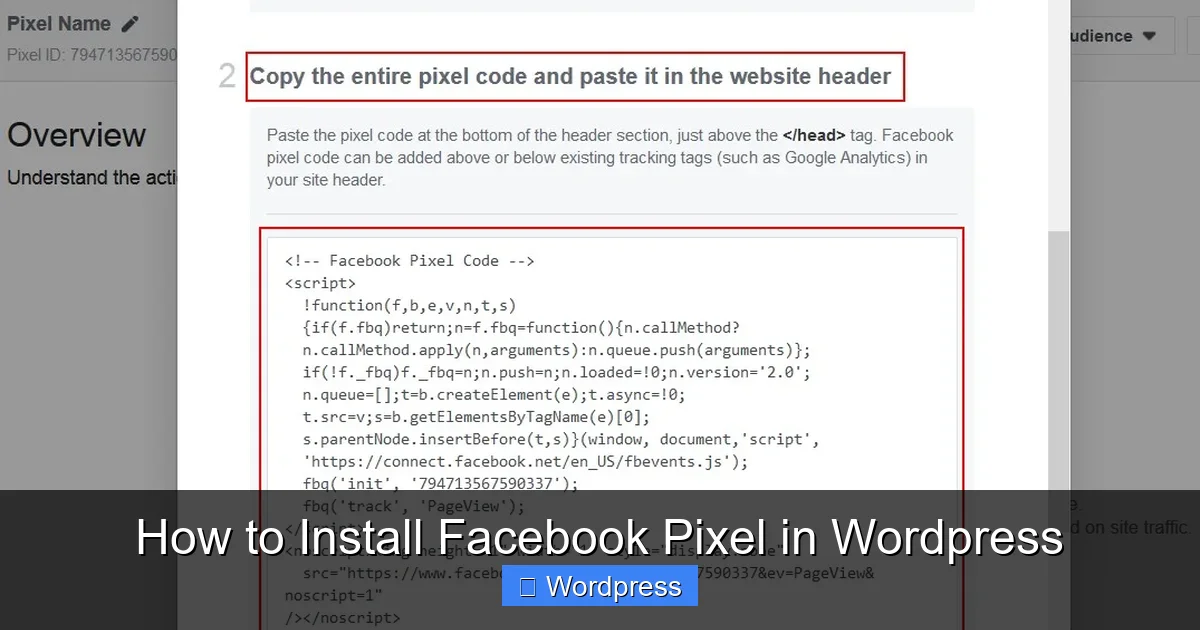
Go back to Facebook Events Manager, click “Continue Setup,” and choose “Manually Install Code.” Copy the entire Pixel base code.
Paste this code just after the opening <head> tag in header.php. It should look like this:
<!-- Facebook Pixel Code -->
<script>
  !function(f,b,e,v,n,t,s)
  {if(f.fbq)return;n=f.fbq=function(){n.callMethod?
  n.callMethod.apply(n,arguments):n.queue.push(arguments)};
  if(!f._fbq)f._fbq=n;n.push=n;n.loaded=!0;n.version='2.0';
  n.queue=[];t=b.createElement(e);t.async=!0;
  t.src=v;s=b.getElementsByTagName(e)[0];
  s.parentNode.insertBefore(t,s)}(window, document,'script',
  'https://connect.facebook.net/en_US/fbevents.js');
  fbq('init', 'YOUR_PIXEL_ID');
  fbq('track', 'PageView');
</script>
<noscript>
  <img height="1" width="1" style="display:none"
  src="https://www.facebook.com/tr?id=YOUR_PIXEL_ID&ev=PageView&noscript=1"/>
</noscript>
<!-- End Facebook Pixel Code -->
Replace YOUR_PIXEL_ID with your actual Pixel ID.
Save and Clear Cache
Save the file. If you use a caching plugin, clear the cache so the new code loads immediately.
Step 4: Install Pixel via Theme Settings (If Supported)
Some premium WordPress themes—like Astra, GeneratePress, or Divi—include built-in options to add tracking codes.
Check Your Theme’s Customizer
Go to Appearance → Customize. Look for sections like “Header,” “Scripts,” or “Tracking Codes.”
Paste the Pixel Code
If available, paste the full Pixel code into the designated field. Save changes.
Verify Installation
Use the Facebook Pixel Helper to confirm the Pixel is active on your site.
Step 5: Test Your Facebook Pixel
Installing the code isn’t enough—you must verify it’s working.
Use Facebook Pixel Helper
Install the Facebook Pixel Helper Chrome extension. Visit your site and click the extension icon. It will show if your Pixel is detected and firing correctly.
Check for Errors
The tool will alert you to issues like duplicate Pixels, missing events, or incorrect IDs.
Test Key Events
If you’re tracking purchases or form submissions, trigger those actions and confirm the events appear in Events Manager under “Test Events.”
Troubleshooting Common Issues
Pixel Not Detected
– Double-check the Pixel ID.
– Ensure the code is in the <head> section.
– Clear cache and test in incognito mode.
Duplicate Pixels
This happens when multiple plugins or themes inject the code. Deactivate conflicting plugins or remove duplicate code from theme files.
Events Not Firing
Make sure standard events (like “Purchase”) are added to relevant pages. For WooCommerce, use plugins like PixelYourSite for automatic event tracking.
Theme Updates Overwrite Code
If you edited header.php directly, updates may erase your changes. Always use a child theme for manual edits.
Conclusion: Start Tracking and Optimizing
You’ve now learned how to install Facebook Pixel in WordPress using plugins, manual code, or theme settings. Whether you chose the easy plugin route or went hands-on with code, your site is now ready to track visitor behavior and supercharge your Facebook ads.
Remember: Test your Pixel after installation, avoid duplicates, and use standard events to get the most from your data. With Pixel active, you can retarget visitors, measure ROI, and scale your campaigns with confidence.
For more WordPress tips, check out our guide on best way to add CSS in WordPress website or learn how to apply a WordPress theme for a polished look.