
This guide walks you through how to install Google Analytics on a WordPress website using two reliable methods: a plugin and manual code insertion. You’ll learn how to set up tracking, verify installation, and start analyzing your site’s performance right away.
Key Takeaways
- Google Analytics helps you track website traffic and understand user behavior so you can improve your content and marketing.
- You can install Google Analytics on WordPress using a plugin (easiest) or by manually adding the tracking code to your theme.
- Always verify the installation using Google’s Real-Time reports to ensure data is being collected correctly.
- Use the Site Kit by Google plugin for a seamless, official integration that also connects other Google services like Search Console.
- Avoid duplicate tracking by not installing multiple analytics codes or plugins that do the same thing.
- Keep your theme updated to prevent issues if you manually added the tracking code to theme files.
- Check your privacy policy to comply with data protection laws when collecting user data through analytics.
Why Install Google Analytics on Your WordPress Website?
If you run a WordPress website, knowing how visitors interact with your content is essential. That’s where Google Analytics comes in. It’s a free, powerful tool that shows you how many people visit your site, where they come from, which pages they view, how long they stay, and much more.
Whether you’re a blogger, small business owner, or marketer, this data helps you make smarter decisions. For example, if you see that most visitors leave after reading one page, you might improve your navigation or content layout. Or if a blog post gets tons of traffic from social media, you can create more content like it.
In this guide, you’ll learn how to install Google Analytics on WordPress using two simple methods. We’ll also cover how to check if it’s working and what to avoid. Let’s get started!
Method 1: Install Google Analytics Using a Plugin (Recommended)

Visual guide about How to Install Google Analytics on WordPress Website
Image source: rightlydigital.com
The easiest and most reliable way to add Google Analytics to your WordPress site is by using a plugin. We recommend Site Kit by Google, an official plugin developed by Google itself. It’s free, secure, and connects not only Analytics but also Google Search Console, AdSense, and PageSpeed Insights.
Step 1: Install and Activate Site Kit by Google
Go to your WordPress dashboard. Click on Plugins > Add New. In the search bar, type “Site Kit by Google”. When you see it in the results, click Install Now, then Activate.
Step 2: Set Up Site Kit
After activation, you’ll see a new “Site Kit” menu in your dashboard. Click on it and then click Start Setup. You’ll be asked to sign in with your Google account. Choose the Google account you want to use for Analytics.
Step 3: Connect Google Analytics
Site Kit will guide you through connecting your site to Google services. When it asks if you want to set up Google Analytics, click Allow. If you already have a Google Analytics property for your site, select it. If not, Site Kit can help you create one automatically.
Tip: Make sure the website URL in Google Analytics matches your WordPress site’s URL exactly (including http/https and www or non-www).
Step 4: Verify Installation
Once connected, Site Kit will show a success message. To double-check, go to Google Analytics > Real-Time reports. Visit your website in another browser tab. You should see your visit appear in the Real-Time dashboard within seconds.
Method 2: Manually Add Google Analytics Tracking Code
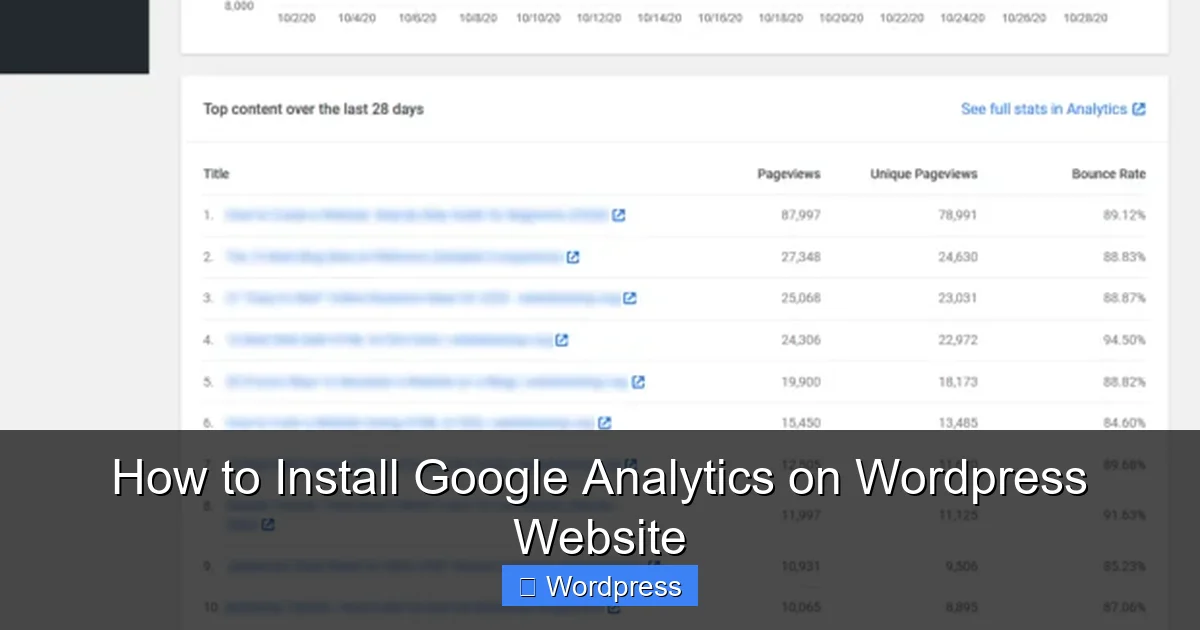
Visual guide about How to Install Google Analytics on WordPress Website
Image source: websitesetup.org
If you prefer not to use a plugin, you can manually insert the Google Analytics tracking code into your WordPress theme. This method gives you more control but requires a bit more technical care.
Step 1: Get Your Google Analytics Tracking Code
First, you need a Google Analytics account. If you don’t have one, visit analytics.google.com and sign up with your Google account. Follow the prompts to create a new property for your website.
Once set up, Google will provide a tracking code that looks something like this:
GA_MEASUREMENT_ID (e.g., G-XXXXXXXXXX). You’ll also see a full JavaScript snippet. Copy the entire code block.
Step 2: Add the Code to Your WordPress Theme
There are two safe ways to add the tracking code: using your theme’s header.php file or using a custom plugin or child theme. We recommend using a child theme to avoid losing changes when your theme updates.
To add it via the header:
1. In your WordPress dashboard, go to Appearance > Theme File Editor.
2. On the right, find and click header.php.
3. Paste the Google Analytics code just before the closing </head> tag.
4. Click Update File.
Important: If you’re not using a child theme, your changes may be overwritten during a theme update. To avoid this, consider using a plugin like “Insert Headers and Footers” instead.
Step 3: Use the Insert Headers and Footers Plugin (Alternative)
This is a safer and easier option than editing theme files directly.
1. Go to Plugins > Add New.
2. Search for “Insert Headers and Footers” by WPBeginner.
3. Install and activate it.
4. Go to Settings > Insert Headers and Footers.
5. Paste your Google Analytics code into the “Scripts in Header” box.
6. Save changes.
This method works with any theme and won’t be affected by updates.
How to Verify Google Analytics Is Working
After installation, it’s crucial to confirm that data is being collected. Here’s how:
Check Real-Time Reports in Google Analytics
1. Log in to your Google Analytics account.
2. Go to Real-Time > Overview.
3. Open your website in a new browser tab (or incognito window).
4. Return to Analytics. You should see at least one active user (you) on your site.
If you don’t see activity, wait a few minutes and refresh. If it still doesn’t appear, double-check that the tracking code was added correctly and that there are no typos.
Use Google Tag Assistant (Optional)
Download the Google Tag Assistant Chrome extension. It scans your site and confirms whether Google Analytics is installed properly. It also alerts you to common issues like duplicate tags.
Troubleshooting Common Issues
Even with careful setup, problems can occur. Here are solutions to the most common ones:
No Data in Google Analytics
– Make sure the tracking code is placed in the <head> section of every page.
– Check that your site isn’t blocking scripts (some security plugins do this).
– Ensure your Google Analytics property is set to the correct time zone and currency.
Duplicate Tracking
This happens when you install multiple plugins or add the code more than once. For example, if your theme already includes Analytics and you add it again via a plugin, you’ll skew your data. To fix this:
– Deactivate any duplicate plugins.
– Remove extra tracking codes from your theme or header settings.
– Use Google Tag Assistant to detect duplicates.
Tracking Code Disappears After Theme Update
If you edited header.php directly and your theme updated, your changes are likely gone. Always use a child theme or the “Insert Headers and Footers” plugin to avoid this. For help managing themes safely, check out our guide on how to update themes on WordPress without losing customizations.
Best Practices for Using Google Analytics on WordPress
Now that you’ve installed Google Analytics, here’s how to get the most out of it:
- Set up goals to track conversions like form submissions, purchases, or newsletter signups.
- Enable enhanced measurement in Google Analytics 4 to automatically track page views, scrolls, and outbound clicks.
- Link Google Search Console to see which search queries bring traffic to your site.
- Create custom dashboards to monitor the metrics that matter most to your business.
- Review reports weekly to spot trends and adjust your content or marketing strategy.
For more on optimizing your WordPress site’s performance, see our article on the best way to add CSS in WordPress to improve page speed and user experience.
Conclusion
Installing Google Analytics on your WordPress website is a smart move that pays off with valuable insights. Whether you use the Site Kit plugin for a quick setup or manually add the tracking code for more control, you’ll be able to monitor your site’s performance and grow your audience.
Remember to verify the installation, avoid duplicate tracking, and keep your setup updated. With the right data, you can make informed decisions that boost engagement, conversions, and overall success.
Ready to dive deeper? Learn how to create a Google Analytics account from scratch if you’re starting fresh, or explore how to check your WordPress theme to ensure compatibility with tracking tools.