This guide shows you how to restore the default WordPress dashboard when it’s been altered by themes, plugins, or custom code. Whether your admin looks broken or unfamiliar, we’ll walk you through safe, effective solutions to get back to the clean, original interface.
Key Takeaways
- Identify the cause: Most dashboard changes come from active themes or plugins—disable them to isolate the issue.
- Switch to a default theme: Activate Twenty Twenty-Four or another default WordPress theme to reset visual elements.
- Deactivate all plugins: Use safe mode or FTP to turn off plugins that may be altering your dashboard.
- Clear custom code: Remove any custom CSS, JavaScript, or functions added via theme files or plugins.
- Reset via WP-CLI (optional): Advanced users can use command-line tools for a full dashboard reset.
- Backup first: Always create a full site backup before making changes to avoid data loss.
- Use trusted tools: Plugins like WP Reset can safely restore dashboard settings without affecting content.
Why Restore the Default WordPress Dashboard?
The WordPress dashboard is your control center. When it looks different—missing menus, strange layouts, or broken widgets—it can slow down your work and cause confusion. This often happens after installing a new theme, activating a plugin, or adding custom code.
Restoring the default dashboard brings back the familiar, clean interface designed by WordPress. It helps you work efficiently and ensures compatibility with tutorials, updates, and support resources. In this guide, you’ll learn how to restore the default WordPress dashboard using simple, safe methods—no coding expertise required.
Step 1: Backup Your Website
Before making any changes, always back up your site. This protects your content, settings, and media in case something goes wrong.
How to Create a Backup
- Use a plugin like UpdraftPlus, BackupBuddy, or Jetpack to save your files and database.
- Download the backup to your computer or cloud storage.
- Verify the backup by checking the file size and date.
Tip: Many hosting providers offer one-click backups—check your control panel (e.g., cPanel or Plesk).
Step 2: Switch to a Default WordPress Theme
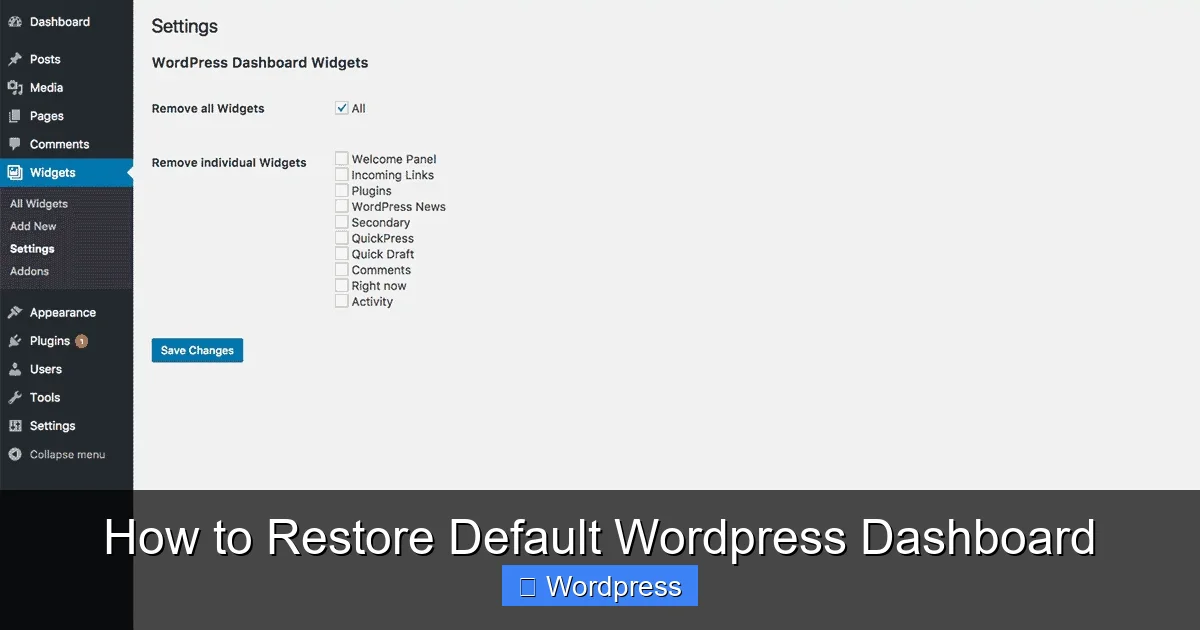
Visual guide about How to Restore Default WordPress Dashboard
Image source: ultimatedashboard.io
Custom themes often change the dashboard appearance. Switching to a default theme like Twenty Twenty-Four can instantly restore the original look.
Method A: From the WordPress Admin
- Log in to your WordPress dashboard.
- Go to Appearance > Themes.
- Find a default theme (e.g., Twenty Twenty-Four, Twenty Twenty-Three).
- Click Activate.
If the dashboard looks normal now, the issue was caused by your previous theme.
Method B: Via FTP or File Manager
If you can’t access the dashboard:
- Connect to your site using FTP (e.g., FileZilla) or your host’s file manager.
- Navigate to
/wp-content/themes/. - Rename your current theme folder (e.g., change
my-custom-themetomy-custom-theme-old). - WordPress will automatically fall back to a default theme.
Note: This method forces a theme switch but won’t delete your theme—just rename it back later if needed.
For more details on managing themes, see our guide on how to set a default theme in WordPress.
Step 3: Deactivate All Plugins
Plugins are a common cause of dashboard issues. Some add admin menus, modify layouts, or inject custom scripts.
Method A: From the Dashboard
- Go to Plugins > Installed Plugins.
- Select all plugins (click the top checkbox).
- Choose Deactivate from the dropdown and click Apply.
Check if the dashboard returns to normal. If it does, reactivate plugins one by one to find the culprit.
Method B: Via FTP
If the dashboard is inaccessible:
- Use FTP to go to
/wp-content/plugins/. - Rename the
pluginsfolder toplugins-old. - WordPress will deactivate all plugins automatically.
- Create a new empty
pluginsfolder. - Move plugins back one by one, testing the dashboard after each.
Tip: Start with essential plugins like SEO tools or security plugins last.
Step 4: Clear Custom Code and Functions
Custom code in your theme’s functions.php file or via a plugin can alter the dashboard.
Check functions.php
- Go to Appearance > Theme File Editor (or use FTP).
- Open
functions.phpin your active theme. - Look for code that modifies the admin area, such as
add_menu_page(),remove_menu_page(), or custom CSS injections. - Comment out or remove suspicious lines (use
//to comment). - Save changes and refresh the dashboard.
Remove Custom CSS or JavaScript
Some themes or plugins add custom styles to the admin panel. To remove them:
- Go to Appearance > Customize > Additional CSS and delete any admin-related code.
- Check plugin settings for “Admin Styling” options and disable them.
For advanced users, our guide on the best way to add CSS in WordPress explains safe styling practices.
Step 5: Reset Dashboard Settings (Optional)
If the dashboard still looks wrong, user-specific settings might be corrupted.
Reset Screen Options
- Go to any admin page (e.g., Posts or Pages).
- Click the Screen Options tab at the top right.
- Uncheck all boxes, then recheck only what you need.
- Refresh the page to see if the layout improves.
Use a Reset Plugin
Plugins like WP Reset can restore default dashboard settings without affecting your content.
- Install and activate WP Reset from the plugin directory.
- Go to Tools > WP Reset.
- Under “Reset Theme Mods” or “Reset Options,” click the reset button.
- Confirm the action.
Warning: Only use trusted plugins. Read reviews and avoid tools that claim to “reset everything” unless you’ve backed up.
Learn more in our detailed guide on how to use WP Reset plugin.
Troubleshooting Common Issues
Dashboard Still Looks Wrong After All Steps?
- Clear your browser cache and cookies.
- Try accessing the dashboard in incognito mode or a different browser.
- Check for JavaScript errors using the browser console (F12 > Console).
White Screen or 500 Error?
This usually means a PHP error.
- Enable debugging by adding this to
wp-config.php:
define('WP_DEBUG', true); - Check the error log for clues.
- Restore from backup if needed.
Can’t Access Admin at All?
- Use FTP to rename the
pluginsand active theme folders as described earlier. - Contact your hosting provider for assistance.
Preventing Future Dashboard Issues
To avoid repeating this problem:
- Test changes on a staging site before applying them to your live site.
- Update themes and plugins regularly to ensure compatibility.
- Avoid unnecessary plugins—each one adds potential risk. For tips, read our article on how many plugins should you use.
- Use child themes for customizations instead of editing theme files directly.
Conclusion
Restoring the default WordPress dashboard is usually straightforward once you identify the cause. Start with a backup, switch to a default theme, deactivate plugins, and clear custom code. Most issues resolve within minutes.
Remember, the default dashboard is designed for usability and compatibility. While customizations can enhance functionality, they sometimes introduce instability. By following this guide, you’ve learned how to restore the default WordPress dashboard safely and efficiently—keeping your site running smoothly and your workflow uninterrupted.
If you’re managing multiple themes or need to clean up old installations, check out our guide on how to delete a theme in WordPress to keep your site tidy.