If your WordPress appearance menus are not showing, it’s often due to theme support issues, user permissions, or plugin conflicts. This guide walks you through step-by-step troubleshooting to get your navigation menus back in the admin panel.
Have you ever logged into your WordPress dashboard, clicked on “Appearance,” and realized the “Menus” option is completely missing? You’re not alone. This frustrating issue affects both beginners and experienced users alike. Whether you’re building a new site or maintaining an existing one, navigation menus are essential—they guide visitors, improve SEO, and shape your site’s structure. So when they vanish from the admin area, it can feel like hitting a wall.
The good news? In most cases, this problem is fixable with a few targeted steps. The “Menus” option under Appearance disappears for several common reasons—ranging from simple user settings to deeper technical issues like theme compatibility or plugin interference. Instead of panicking or reinstalling WordPress, you can usually resolve it by checking a handful of key areas. This guide will walk you through each possibility, offering clear, actionable solutions so you can restore your menu settings and get back to designing your site.
Key Takeaways
- Theme support is required: Your active theme must declare support for menus using
add_theme_support('menus'). - User role matters: Only administrators and editors typically see the Menus option under Appearance.
- Plugin conflicts are common: A poorly coded plugin can hide or break menu functionality.
- Screen options may be off: The Menus panel might be hidden via the Screen Options tab.
- Customizer access is an alternative: Use the Customizer to manage menus if the admin menu is missing.
- Child themes prevent breakage: Always use a child theme when modifying theme files to avoid losing changes on updates.
Quick Answers to Common Questions
Why can’t I see the Menus option in WordPress?
The most common reasons are missing theme support, insufficient user permissions, or a plugin conflict. Check your theme’s functions.php file and user role first.
Can a plugin hide the WordPress menu settings?
Yes. Some plugins modify the admin interface or deregister menu support. Deactivate all plugins to test for conflicts.
Do all WordPress themes support custom menus?
No. Only themes that include add_theme_support('menus') enable the Menus option. Check your theme’s documentation or code.
How do I restore the Menus option without coding?
Try switching to a default theme, deactivating plugins, or using the Customizer. These methods often resolve the issue without touching code.
Is it safe to edit the functions.php file?
Only if you use a child theme. Editing the parent theme directly can lead to lost changes during updates.
📑 Table of Contents
Why Are My WordPress Appearance Menus Not Showing?
There’s no single cause for missing menus in WordPress—but there are a few usual suspects. Understanding why this happens is the first step toward fixing it. The “Menus” option appears under Appearance only when certain conditions are met. If any of these conditions aren’t satisfied, the menu simply won’t show up.
One of the most common reasons is that your current theme doesn’t support custom menus. Not all themes enable this feature by default. Another frequent culprit is user role restrictions—if you’re logged in as a subscriber or author, you won’t see the Menus option. Sometimes, a plugin conflict or a corrupted WordPress core file can also hide the menu. And in rare cases, it’s as simple as a hidden panel in the Screen Options.
Let’s break down each potential cause and how to address it.
Check Your Active Theme’s Menu Support
WordPress themes must explicitly declare support for custom menus. If your theme doesn’t include this declaration, the Menus option won’t appear—even if the theme looks modern and fully featured.
To check, go to your theme’s functions.php file (via Appearance > Theme File Editor or FTP). Look for a line like this:
add_theme_support('menus');
If it’s missing, your theme doesn’t support menus. You can add it manually, but be cautious—editing theme files directly can break your site if done incorrectly.
A safer approach is to use a child theme. This allows you to add menu support without modifying the parent theme. Simply create a child theme (if you don’t have one), then add the following code to its functions.php:
function mytheme_setup() {
    add_theme_support('menus');
}
add_action('after_setup_theme', 'mytheme_setup');
After saving, refresh your dashboard. The Menus option should now appear under Appearance.
Verify Your User Role and Permissions
WordPress restricts certain admin features based on user roles. Only users with the “manage_nav_menus” capability—typically administrators and editors—can access the Menus section.
If you’re logged in as a contributor, author, or subscriber, you won’t see the Menus option, even if the theme supports it. To confirm your role, go to Users > Your Profile. Look for the “Role” field near the top.
If you need to grant menu access to another user, consider using a plugin like WordPress Role Manager. This tool lets you customize user capabilities without touching code.
Check Screen Options in the Admin Panel
Sometimes, the Menus option is present but hidden due to a collapsed panel. WordPress includes a “Screen Options” tab at the top-right of most admin pages. Clicking it reveals checkboxes for various interface elements.
Go to Appearance > Widgets or Appearance > Customize. Look for the Screen Options tab. If you see a “Menus” checkbox that’s unchecked, tick it. This won’t always restore the main Menus link, but it can reveal hidden menu-related panels.
Note: This won’t fix the issue if the menu is missing entirely—only if it’s been accidentally hidden.
Common Fixes for Missing Menus
Once you’ve ruled out theme support and user roles, it’s time to dig deeper. Plugin conflicts, corrupted files, and database issues can all interfere with menu visibility.
Deactivate All Plugins
Plugins are a common source of conflicts. A poorly coded plugin might deregister menu support or interfere with WordPress core functions.
To test this, go to Plugins > Installed Plugins and deactivate all plugins. Then, refresh your dashboard and check if the Menus option appears under Appearance.
If it does, reactivate plugins one by one, checking the menu after each activation. When the menu disappears again, you’ve found the culprit. Replace or update that plugin, or contact its developer for support.
Switch to a Default Theme
If deactivating plugins doesn’t help, switch to a default WordPress theme like Twenty Twenty-Four. Go to Appearance > Themes, activate a default theme, and check if the Menus option appears.
If it does, the issue lies with your original theme. You may need to update it, contact the theme developer, or switch to a more reliable option. For recommendations, see our guide on the best WordPress theme for SEO and speed.
Check for Database Corruption
In rare cases, database issues can break menu functionality. WordPress stores menu settings in the wp_options and wp_posts tables. If these become corrupted, menus may not load.
You can repair your database by adding this line to your wp-config.php file:
define('WP_ALLOW_REPAIR', true);
Then visit yoursite.com/wp-admin/maint/repair.php and follow the prompts.
Remove the line after repair to prevent unauthorized access.
Alternative Ways to Manage Menus
Even if the Menus option is missing, you’re not out of options. WordPress offers alternative ways to manage navigation.
Use the Customizer
Go to Appearance > Customize. Most themes include a “Menus” section in the Customizer. Here, you can create, edit, and assign menus just like in the admin panel.
This is especially useful if the main Menus link is broken but theme support exists.
Edit Menus via Code
Advanced users can manage menus directly in the database or via code. Use the wp_nav_menu() function in your theme files to display menus, and register menu locations in functions.php:
register_nav_menus(array(
    'primary' => __('Primary Menu', 'your-theme'),
    'footer'  => __('Footer Menu', 'your-theme'),
));
Then, use a plugin like “Custom Menu Wizard” or “Nav Menu Roles” to manage visibility.
Preventing Future Menu Issues
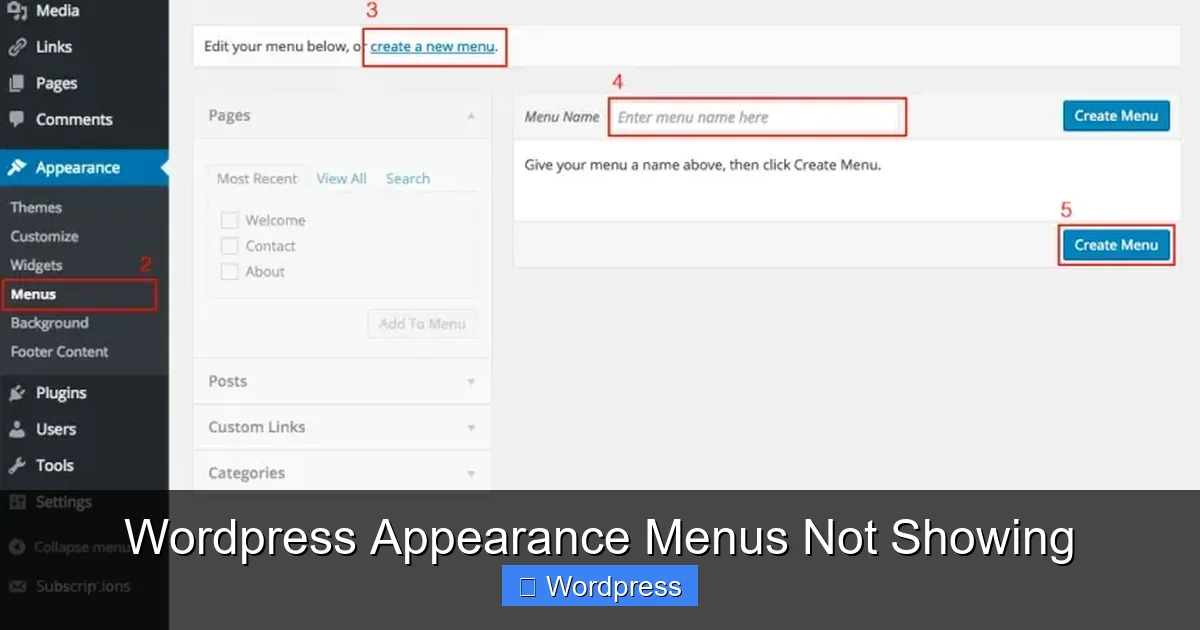
Visual guide about WordPress Appearance Menus Not Showing
Image source: i0.wp.com
Once your menus are back, take steps to avoid recurrence.
Always use a child theme for customizations. This protects your changes during theme updates.
Keep plugins and themes updated. Outdated software is more likely to cause conflicts.
Regularly back up your site. If menus disappear after an update, you can restore a working version quickly.
Finally, test changes on a staging site before applying them to your live site.
When to Seek Professional Help
If you’ve tried all the above steps and the Menus option still won’t appear, it may be time to consult a developer. This could indicate a deeper issue—such as a hacked site, corrupted core files, or a custom theme with serious flaws.
Look for signs like unexpected admin users, strange code in theme files, or sudden performance drops. In such cases, professional cleanup may be necessary.
Frequently Asked Questions
What should I do if the Menus option is missing after a WordPress update?
First, clear your browser cache and check if the issue persists. Then, switch to a default theme and deactivate plugins to rule out conflicts. If the problem remains, your theme may need an update.
Can I manage menus if the Appearance > Menus option is gone?
Yes. Use the Customizer (Appearance > Customize) or edit menu locations directly in your theme’s code using register_nav_menus().
Why did my menus disappear after installing a new plugin?
The plugin may have deregistered menu support or caused a JavaScript conflict in the admin area. Deactivate the plugin and check if the menu returns.
Do I need a plugin to create navigation menus in WordPress?
No. WordPress includes built-in menu functionality. Plugins are only needed for advanced features like conditional menus or mega menus.
Can a hacked WordPress site cause missing menus?
Yes. Malware can alter theme files or user roles. Run a security scan using a plugin like Sucuri and check for unauthorized admin users.
How do I add menu support to a theme that doesn’t have it?
Add add_theme_support('menus'); to your theme’s functions.php file. Always use a child theme to avoid losing changes on update.