The WordPress footer template is more than just a bottom section—it’s a powerful tool for branding, navigation, and user engagement. Whether you’re building a blog, business site, or online store, mastering your footer can boost usability and SEO.
If you’ve ever scrolled to the bottom of a website and seen links to “Privacy Policy,” “Contact Us,” or social media icons, you’ve encountered a WordPress footer template. It might seem like a small detail, but this often-overlooked section plays a big role in how users experience your site. From boosting SEO to reinforcing your brand, the footer is your website’s final impression—and it deserves attention.
Think of your footer as the closing chapter of a book. It wraps up the user journey with useful information, quick navigation, and trust signals. Whether you’re running a personal blog or a large e-commerce store, a well-designed footer can reduce bounce rates, improve accessibility, and even help with legal compliance. And the best part? You don’t need to be a developer to customize it. With WordPress’s flexible tools and themes, anyone can create a professional-looking footer that works across all devices.
Key Takeaways
- What it is: The footer template is a reusable section at the bottom of every page, typically containing links, copyright info, and widgets.
- Customization options: You can edit it via the WordPress Customizer, theme files, or page builders like Elementor.
- SEO benefits: A well-structured footer improves site navigation and helps search engines crawl your site more effectively.
- Design flexibility: Modern themes allow drag-and-drop footer builders for unique layouts without coding.
- Performance matters: Avoid cluttering your footer with too many widgets or scripts to keep your site fast.
- Best practices: Include essential links, social icons, and a clear copyright notice for professionalism and compliance.
- Child themes recommended: Always use a child theme when editing footer.php to preserve changes during updates.
Quick Answers to Common Questions
Can I have different footers on different pages?
Yes! With page builders like Elementor or conditional logic plugins, you can create multiple footer templates and assign them to specific pages, posts, or categories.
Do I need to code to edit the footer?
Not necessarily. Many themes allow footer editing through the Customizer or widget areas. Coding is only needed for advanced customization.
Where is the footer.php file located?
It’s in your active theme folder: /wp-content/themes/your-theme/footer.php. Always back up before editing.
How do I add a newsletter signup to my footer?
Use a plugin like Mailchimp for WordPress or Newsletter. Add the form widget to a footer widget area via Appearance → Widgets.
Is the footer important for SEO?
Yes, indirectly. It helps with site navigation, internal linking, and crawlability—all factors that support SEO performance.
📑 Table of Contents
What Is a WordPress Footer Template?
At its core, the WordPress footer template is a PHP file—usually named footer.php—that defines the content and structure appearing at the bottom of your site’s pages. This file is part of your active theme and is loaded on every page through the get_footer() function in your theme’s template files.
The footer typically includes static elements like copyright text, site credits, and legal links, but it can also support dynamic content through widgets. Many modern themes divide the footer into widget-ready areas (also called “footer sidebars” or “footer widget zones”), allowing you to add custom menus, recent posts, newsletter signups, or social media feeds without touching code.
For example, a typical footer might look like this:
- A three-column layout with “About Us,” “Quick Links,” and “Newsletter Signup”
- Social media icons linking to your profiles
- A copyright line: “© 2024 Your Site Name. All rights reserved.”
Understanding this structure is the first step to making meaningful changes. Whether you’re tweaking text or rebuilding the entire layout, knowing where the footer lives in your theme helps you work smarter.
How to Access and Edit the Footer Template
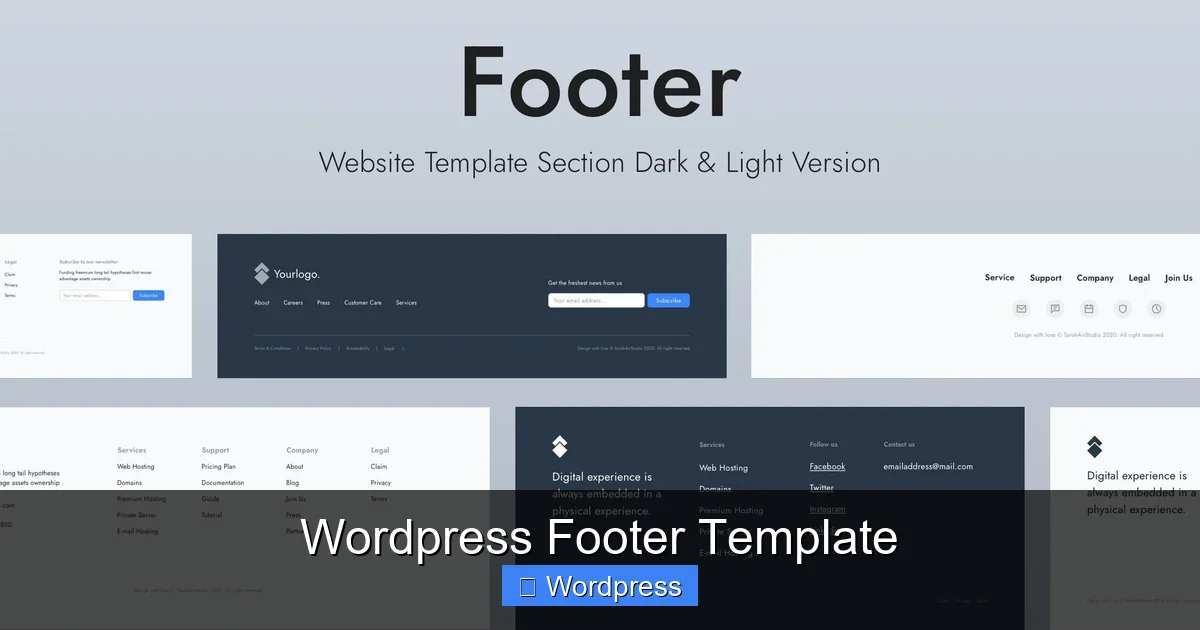
Visual guide about WordPress Footer Template
Image source: i.pinimg.com
There are several ways to edit your WordPress footer, depending on your comfort level with code and the tools available in your theme.
Using the WordPress Customizer
Many themes support footer customization directly in the Appearance → Customize menu. Look for sections like “Footer Settings,” “Footer Widgets,” or “Footer Layout.” Here, you can often:
- Add or remove widget areas
- Change background colors or fonts
- Edit copyright text
- Toggle visibility of elements like site title or tagline
This method is ideal for beginners because it’s visual, safe, and doesn’t require coding.
Editing footer.php Directly
For more control, you can edit the footer.php file directly. Go to Appearance → Theme File Editor (or use FTP/SFTP to access your theme files). Locate footer.php in your theme folder and make changes carefully.
⚠️ Important: Always use a child theme when editing theme files. This ensures your changes aren’t lost when the parent theme updates.
For instance, to change the copyright text, you might find a line like:
© . All rights reserved.
You can replace with your brand name or add a custom message.
Using Page Builders
If you’re using a page builder like Elementor, Beaver Builder, or Divi, you can often design your footer visually. Some themes even include a dedicated footer builder. With Elementor, for example, you can create a global footer template and assign it site-wide—no coding needed.
This approach is perfect if you want a unique design that matches your header or hero section. You can add buttons, images, forms, and animations just like any other page section.
Customizing Footer Content and Layout
Now that you know how to access the footer, let’s talk about what to put in it.
Essential Footer Elements
A good footer should include:
- Copyright notice: Protects your content and looks professional.
- Legal pages: Link to Privacy Policy, Terms of Service, and Cookie Policy (especially important for GDPR compliance).
- Contact information: Email, phone, or a link to your contact form.
- Social media links: Help users follow you on platforms like Instagram, Twitter, or LinkedIn.
- Quick navigation: Repeat key menu items (e.g., Home, About, Services) for easy access.
Widget Areas and Layouts
Most themes support multiple footer widget areas. A common setup is three or four columns, but you can adjust this based on your needs. For example:
- Column 1: Company info and logo
- Column 2: Site navigation menu
- Column 3: Newsletter signup form
- Column 4: Social icons and contact details
To add widgets, go to Appearance → Widgets and drag elements into your footer widget zones. You can use built-in widgets like “Custom HTML,” “Navigation Menu,” or “Social Icons,” or install plugins for advanced features like email capture.
Styling Your Footer
Want your footer to match your brand? Use custom CSS to change colors, fonts, spacing, and more. For example:
.site-footer {
  background-color: #2c3e50;
  color: #ecf0f1;
  padding: 40px 0;
  font-size: 14px;
}
You can add this in Appearance → Customize → Additional CSS or via a plugin like Simple Custom CSS.
Footer Template Best Practices
Not all footers are created equal. Here’s how to make yours effective and user-friendly.
Keep It Clean and Organized
Avoid overcrowding your footer with too many links or widgets. A cluttered footer confuses users and slows down your site. Stick to 3–5 key sections and use clear headings.
Make It Mobile-Friendly
Over 60% of web traffic comes from mobile devices. Test your footer on phones and tablets to ensure it’s readable and touch-friendly. Use responsive design techniques or a theme that’s already optimized for mobile.
Optimize for SEO
While footer links don’t carry as much weight as main navigation, they still help search engines understand your site structure. Include relevant internal links (e.g., to popular blog posts or service pages) to improve crawlability.
Also, avoid keyword stuffing. Use natural anchor text like “Read our Privacy Policy” instead of “Best WordPress Privacy Policy Template 2024.”
Ensure Accessibility
Your footer should be accessible to all users, including those using screen readers. Use proper HTML structure (<footer>, <nav>), add alt text to images, and ensure sufficient color contrast.
Common Footer Mistakes to Avoid
Even experienced developers make footer errors. Watch out for these pitfalls:
- Broken links: Regularly check that all footer links work. Use a plugin like Broken Link Checker to automate this.
- Outdated copyright year: Use
©to auto-update the year. - Missing legal pages: If you collect user data, you need a Privacy Policy. Use a generator if you’re unsure.
- Too many scripts: Avoid loading heavy scripts (like pop-ups or ads) in the footer unless necessary. They can slow down page load times.
- Ignoring performance: A bloated footer with multiple widgets and images can hurt your site speed. Optimize images and limit third-party embeds.
Conclusion
The WordPress footer template may sit at the bottom of your site, but its impact is far from minor. It’s a strategic space for branding, navigation, compliance, and user trust. Whether you’re editing via the Customizer, tweaking code in a child theme, or designing with a page builder, taking the time to optimize your footer pays off in better user experience and stronger SEO.
Start simple: add your copyright, key links, and social icons. Then, as your site grows, experiment with layouts, widgets, and styling. Remember, a great footer doesn’t shout—it supports. It guides users gently to the next step, whether that’s subscribing, contacting you, or simply feeling confident in your brand.
And if you’re building a new site, consider choosing a WordPress theme optimized for SEO and speed—many include flexible footer options right out of the box. With the right approach, your footer can be one of your site’s quietest strengths.
Frequently Asked Questions
What is a WordPress footer template?
A WordPress footer template is a PHP file (usually footer.php) that defines the content at the bottom of your site. It typically includes copyright info, links, and widgets, and appears on every page.
How do I change the copyright text in my footer?
Edit the footer.php file in your theme or use the Customizer if your theme supports it. Look for the copyright line and replace the text or use dynamic PHP code for the current year.
Can I add widgets to my footer?
Yes, most themes support footer widget areas. Go to Appearance → Widgets and drag widgets into the footer sections to add content like menus, forms, or social icons.
Should I use a child theme to edit the footer?
Yes, always. Editing the parent theme’s footer.php directly risks losing changes during updates. A child theme preserves your customizations safely.
How do I make my footer responsive?
Use a responsive theme or add custom CSS with media queries. Test on mobile devices and adjust column layouts or font sizes as needed for readability.
Can I remove the footer entirely?
Technically yes, but it’s not recommended. The footer provides important navigation and legal links. Instead, simplify it or hide elements you don’t need while keeping essential content.