Editing a WordPress site is easier than you think—even if you’re not a developer. This guide walks you through logging in, using the block editor, updating themes, and making safe customizations. You’ll gain confidence managing your site like a pro.
Key Takeaways
- Access your dashboard: Log in via /wp-admin to start editing your site.
- Use the Block Editor (Gutenberg): Edit pages and posts visually with drag-and-drop blocks.
- Customize your theme safely: Use a child theme or the Customizer to avoid losing changes during updates.
- Manage plugins wisely: Only install trusted plugins and keep them updated.
- Preview before publishing: Always check how changes look on desktop and mobile.
- Back up regularly: Protect your work with automatic backups before major edits.
- Troubleshoot common issues: Clear cache, check permissions, and revert to default themes if needed.
How Do I Edit a WordPress Site? A Complete Beginner’s Guide
If you’ve ever asked, “How do I edit a WordPress site?”—you’re not alone. Whether you’re updating a blog post, changing your homepage layout, or tweaking your site’s colors, WordPress makes it surprisingly simple. You don’t need to be a coder. With the right steps, anyone can confidently manage their website.
In this guide, you’ll learn how to log into your WordPress dashboard, edit content using the built-in editor, customize your theme, manage plugins, and troubleshoot common problems. By the end, you’ll feel empowered to make changes safely and effectively.
Step 1: Log Into Your WordPress Dashboard
Everything starts here. Your WordPress dashboard is the control center for your entire site.
Find Your Login Page
Go to your website’s login page by typing yoursite.com/wp-admin into your browser. For example, if your site is example.com, visit example.com/wp-admin.
Visual guide about How Do I Edit a WordPress Site
Image source: wpexplorer.com
Enter Your Credentials
Type in your username and password. If you forgot them, click “Lost your password?” to reset via email.
Navigate the Dashboard
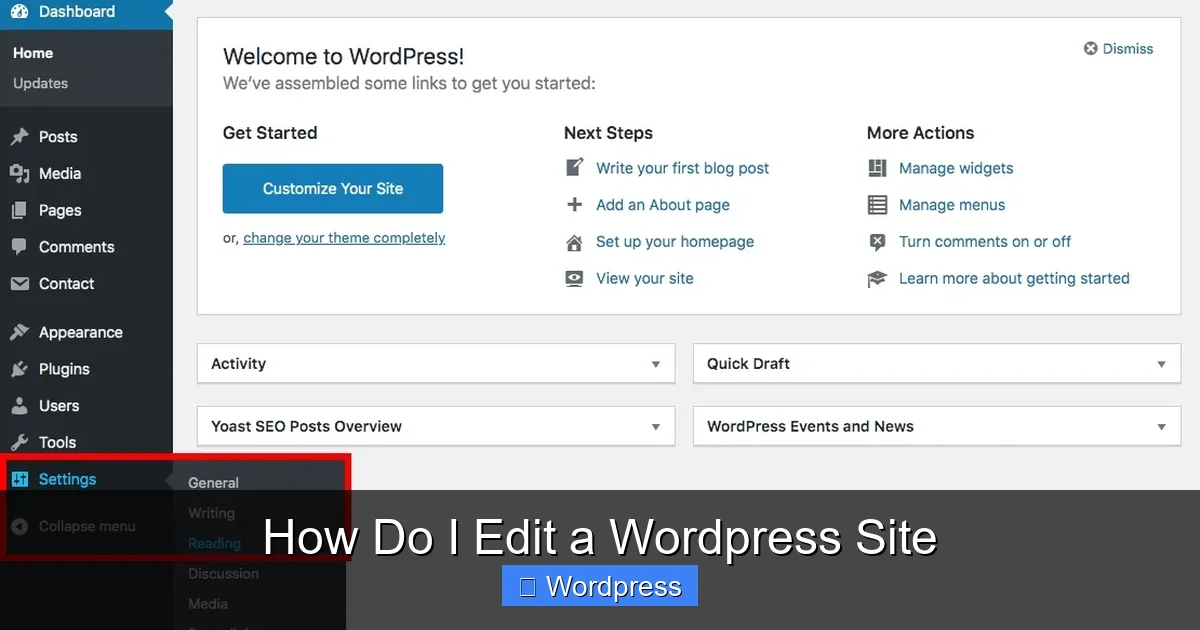
Once logged in, you’ll see the WordPress admin panel. On the left sidebar, you’ll find options like Posts, Pages, Appearance, and Plugins. These are your main editing tools.
Step 2: Edit Pages and Posts Using the Block Editor
WordPress uses the Gutenberg Block Editor—a visual, user-friendly tool for creating and editing content.
Edit an Existing Page or Post
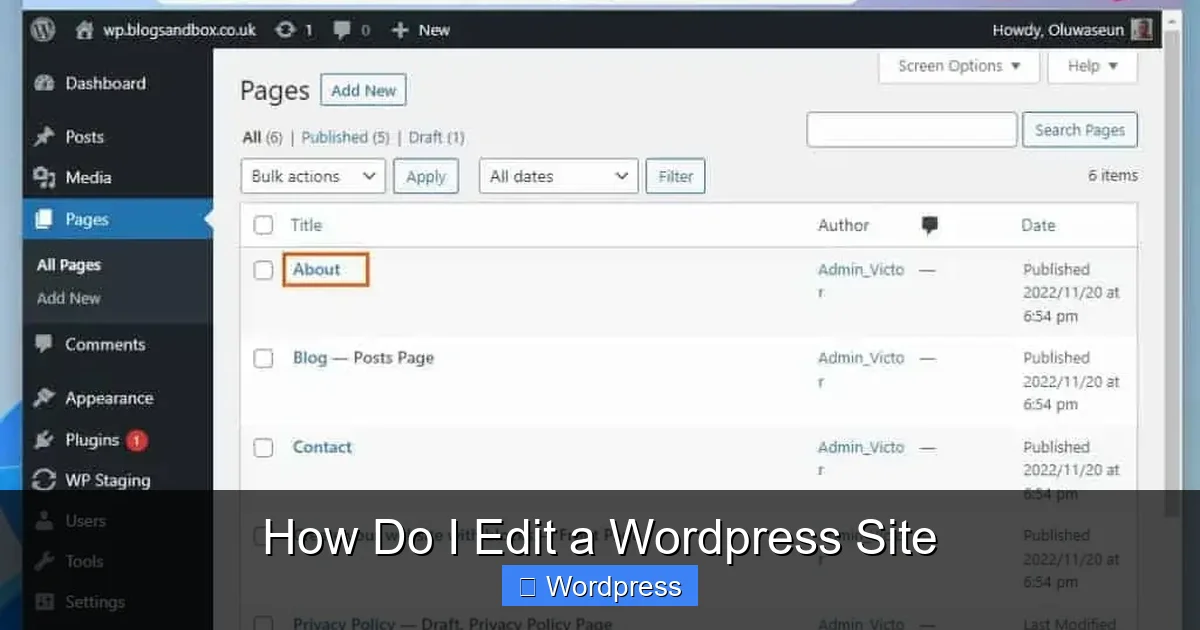
Go to Pages > All Pages or Posts > All Posts. Hover over the title you want to change and click Edit.
Visual guide about How Do I Edit a WordPress Site
Image source: itechguides.com
Add or Modify Content with Blocks
The editor works with “blocks”—individual elements like paragraphs, images, buttons, and headings. To add a new block, click the + button. Choose from text, media, layout, or widget blocks.
For example, to add an image:
- Click the + button.
- Search for “Image” and select it.
- Upload a photo or choose one from your media library.
- Adjust size, alignment, and add alt text for SEO.
Format Text and Add Links
Highlight any text to see formatting options: bold, italic, links, and more. To add a link, highlight the text, click the link icon, and paste the URL.
Preview and Publish
Always click Preview to see how your changes look on desktop and mobile. When satisfied, click Update (for existing content) or Publish (for new content).
Step 3: Customize Your WordPress Theme
Your theme controls your site’s design—colors, fonts, layout, and more. You can tweak it without touching code.
Use the WordPress Customizer
Go to Appearance > Customize. This opens a live preview of your site with editing options on the left.
Common customization areas include:
- Site Identity: Change your logo, site title, and tagline.
- Colors: Adjust background and text colors.
- Menus: Create or edit navigation menus.
- Widgets: Add content to sidebars or footers (like recent posts or search bars).
- Homepage Settings: Choose to show a static page or latest posts.
Switch or Update Your Theme
To change your theme, go to Appearance > Themes. Click Add New to browse free themes, or upload a premium one.
Important: Before switching themes, back up your site. Some themes may not support all your current features. After installing, click Activate.
For safer updates, consider using a child theme. This lets you customize your design without losing changes when the parent theme updates. Learn more about what is a child theme in WordPress and why it’s essential for long-term editing.
Upgrade Your Theme Safely
Always keep your theme updated for security and performance. Go to Dashboard > Updates and click Update Now next to your theme. If you’ve made custom changes, use a child theme to preserve them. For detailed steps, see our guide on how to update a theme on WordPress.
Step 4: Manage Plugins for Added Functionality
Plugins extend your site’s features—like contact forms, SEO tools, or backups.
Install a Plugin
Go to Plugins > Add New. Search for a plugin (e.g., “Contact Form 7” or “Yoast SEO”). Click Install Now, then Activate.
Edit Plugin Settings
After activation, most plugins add a new menu item in your dashboard. Click it to configure settings. For example, set up email notifications for a contact form or adjust SEO titles.
Keep Plugins Updated
Outdated plugins can break your site or create security risks. Regularly check Dashboard > Updates and update plugins. Remove any you no longer use.
Not sure how many plugins are too many? Read our article on how many plugins should you use to keep your site fast and secure.
Step 5: Add Custom CSS (Optional)
Want to tweak styles beyond the Customizer? You can add custom CSS.
Access the Custom CSS Editor
Go to Appearance > Customize > Additional CSS. This opens a code box where you can write CSS rules.
Example: Change Button Color
Paste this code to make all buttons blue:
.wp-block-button__link { background-color: #0073aa; }Click Publish to apply. This method is safer than editing theme files directly.
For more advanced styling tips, check out our guide on the best way to add CSS in WordPress.
Troubleshooting Common Editing Issues
Even experienced users run into problems. Here’s how to fix the most common ones.
“I Can’t See My Changes”
This is usually a caching issue. Clear your browser cache and any plugin cache (like WP Super Cache). Also, check if your hosting provider has server-side caching.
“My Site Looks Broken After a Theme Update”
If your design broke after updating, you likely edited the parent theme directly. Always use a child theme for customizations. If you didn’t, you may need to reapply changes or restore from a backup.
“I Accidentally Deleted Something Important”
WordPress keeps revisions of your posts and pages. Go to the editor, click Post > Revisions, and restore a previous version. For full site recovery, use a backup plugin like UpdraftPlus.
“I Can’t Access the Dashboard”
If you’re locked out, try resetting your password via email. If that fails, contact your hosting provider. They can often restore access or help diagnose the issue.
Best Practices for Safe Editing
Editing your site doesn’t have to be risky. Follow these tips to stay safe:
- Back up before major changes: Use a plugin like UpdraftPlus to create automatic backups.
- Use a staging site: Test big changes on a copy of your site before going live.
- Limit admin access: Only give admin rights to trusted users. Use roles like “Editor” or “Author” for others.
- Keep everything updated: Themes, plugins, and WordPress core should always be current.
- Preview on mobile: Over 50% of web traffic is mobile—always check responsiveness.
Conclusion
Editing a WordPress site is not only possible—it’s empowering. Whether you’re updating a blog post, changing your theme, or adding a new plugin, WordPress gives you the tools to do it all without coding.
Start by logging into your dashboard, explore the block editor, and customize your site step by step. Use child themes for safe design changes, keep plugins minimal and updated, and always back up your work.
With practice, you’ll move from asking “How do I edit a WordPress site?” to confidently managing your website like a pro. Remember: every expert was once a beginner. Take it one edit at a time.