
Creating a WordPress contact form without plugin is easier than you think. With basic HTML, CSS, and a bit of PHP, you can build a secure, fast-loading form that integrates seamlessly into your site—no bloat, no third-party dependencies.
So, you want a contact form on your WordPress site—but you’re tired of bloated plugins, slow load times, and limited customization. You’re not alone. Many WordPress users are turning to WordPress contact form without plugin solutions to keep their sites lean, fast, and secure.
While plugins like Contact Form 7 or WPForms are popular, they often come with extra features you don’t need—and sometimes, they break after updates. Building your own form gives you full control. It’s simpler than it sounds, and once you understand the basics, you’ll wonder why you didn’t do it sooner. In this guide, we’ll walk you through creating a clean, functional contact form using only HTML, CSS, and a little PHP—no plugins required.
Key Takeaways
- No plugins needed: Build a fully functional contact form using core WordPress features and custom code.
- Better performance: Avoid plugin bloat and improve site speed by eliminating unnecessary scripts.
- Full customization: Style and structure the form exactly how you want with HTML and CSS.
- Enhanced security: Reduce vulnerability risks by minimizing third-party code and using built-in WordPress security practices.
- Email delivery control: Use PHP’s mail function or integrate with SMTP for reliable message delivery.
- Easy integration: Add the form to any page or post using a shortcode or template file.
- Spam protection: Implement basic anti-spam measures like honeypot fields or CAPTCHA without plugins.
Quick Answers to Common Questions
Can I create a contact form in WordPress without a plugin?
Yes! You can build a fully functional contact form using HTML, CSS, and PHP directly in WordPress—no plugin required.
Is a custom contact form secure?
Yes, if you use proper validation, sanitization, and spam protection like honeypot fields or CAPTCHA.
Will a custom form slow down my site?
No—in fact, it’s faster than most plugins because it doesn’t load extra scripts or styles.
How do I style my custom contact form?
Use CSS in your theme’s stylesheet or the Customizer’s “Additional CSS” section to match your site’s design.
Can I add the form to multiple pages?
Yes! Turn it into a shortcode and use [custom_contact_form] anywhere on your site.
📑 Table of Contents
Why Go Plugin-Free for Your Contact Form?
Plugins are great—until they’re not. They can slow down your site, introduce security vulnerabilities, and sometimes stop working after a WordPress update. A WordPress contact form without plugin avoids all that. You’re in charge of the code, the styling, and the functionality.
Plus, custom forms are lightweight. They don’t load extra JavaScript or CSS files. This means faster page speeds, better SEO, and a smoother user experience. And if you’re running a simple site—like a portfolio, small business page, or personal blog—a custom form is more than enough.
Performance Benefits
Every plugin adds HTTP requests, scripts, and stylesheets. Over time, this adds up. A custom form uses only what you need. No hidden bloat. No unnecessary database queries. Just clean, efficient code.
Security Advantages
Third-party plugins can be hacked. By writing your own form, you reduce the attack surface. You can implement security measures like input validation, sanitization, and spam protection directly in your code—without relying on a plugin’s update cycle.
Setting Up Your Custom Contact Form
Let’s get hands-on. We’ll create a simple contact form that collects a name, email, and message. Then, we’ll process it using PHP and send the data to your email address.
Step 1: Create the HTML Form
First, add this HTML to a WordPress page using the block editor. Switch to the “Custom HTML” block and paste the following:
<form method="post" action="" class="custom-contact-form">
  <label for="name">Name:</label>
  <input type="text" id="name" name="name" required>

  <label for="email">Email:</label>
  <input type="email" id="email" name="email" required>

  <label for="message">Message:</label>
  <textarea id="message" name="message" rows="5" required></textarea>

  <!-- Honeypot field for spam protection -->
  <input type="text" name="honeypot" style="display:none">

  <button type="submit" name="submit_form">Send Message</button>
</form>
This form includes basic fields and a hidden honeypot field to catch spam bots. We’ll use this later in our PHP logic.
Step 2: Add PHP to Process the Form
Now, we need to handle the form submission. The best place to add this code is in your theme’s functions.php file. But be careful—editing theme files directly can cause issues during updates. For safety, consider using a child theme.
Add this PHP code to your functions.php:
function handle_custom_contact_form() {
  if (isset($_POST['submit_form'])) {
    // Honeypot check
    if (!empty($_POST['honeypot'])) {
      wp_die('Spam detected.');
    }

    $name = sanitize_text_field($_POST['name']);
    $email = sanitize_email($_POST['email']);
    $message = esc_textarea($_POST['message']);

    if (empty($name) || empty($email) || empty($message)) {
      echo '<p class="form-error">Please fill in all fields.</p>';
      return;
    }

    if (!is_email($email)) {
      echo '<p class="form-error">Please enter a valid email address.</p>';
      return;
    }

    $to = get_option('admin_email');
    $subject = 'New Contact Form Submission from ' . $name;
    $headers = array('Content-Type: text/html; charset=UTF-8', 'Reply-To: ' . $email);

    $body = "<p><strong>Name:</strong> $name</p>";
    $body .= "<p><strong>Email:</strong> $email</p>";
    $body .= "<p><strong>Message:</strong><br>$message</p>";

    if (wp_mail($to, $subject, $body, $headers)) {
      echo '<p class="form-success">Thank you! Your message has been sent.</p>';
    } else {
      echo '<p class="form-error">Sorry, there was an error sending your message. Please try again.</p>';
    }
  }
}
add_action('wp', 'handle_custom_contact_form');
This code checks for spam, validates input, and sends the email using WordPress’s built-in wp_mail() function. It’s secure, simple, and effective.
Styling Your Contact Form
Now that your form works, let’s make it look good. Add this CSS to your theme’s stylesheet or via the Customizer under Appearance > Customize > Additional CSS:
.custom-contact-form {
  max-width: 500px;
  margin: 0 auto;
  padding: 20px;
  background: #f9f9f9;
  border-radius: 8px;
  font-family: Arial, sans-serif;
}

.custom-contact-form label {
  display: block;
  margin: 15px 0 5px;
  font-weight: bold;
}

.custom-contact-form input,
.custom-contact-form textarea {
  width: 100%;
  padding: 10px;
  border: 1px solid #ccc;
  border-radius: 4px;
  font-size: 16px;
}

.custom-contact-form button {
  margin-top: 15px;
  padding: 10px 20px;
  background: #0073aa;
  color: white;
  border: none;
  border-radius: 4px;
  cursor: pointer;
  font-size: 16px;
}

.custom-contact-form button:hover {
  background: #005177;
}

.form-success {
  color: green;
  margin-top: 10px;
}

.form-error {
  color: red;
  margin-top: 10px;
}
This gives your form a clean, modern look. You can tweak colors, fonts, and spacing to match your site’s design.
Improving Security and Spam Protection
Even without plugins, you can protect your form from spam and abuse. Here are a few tips:
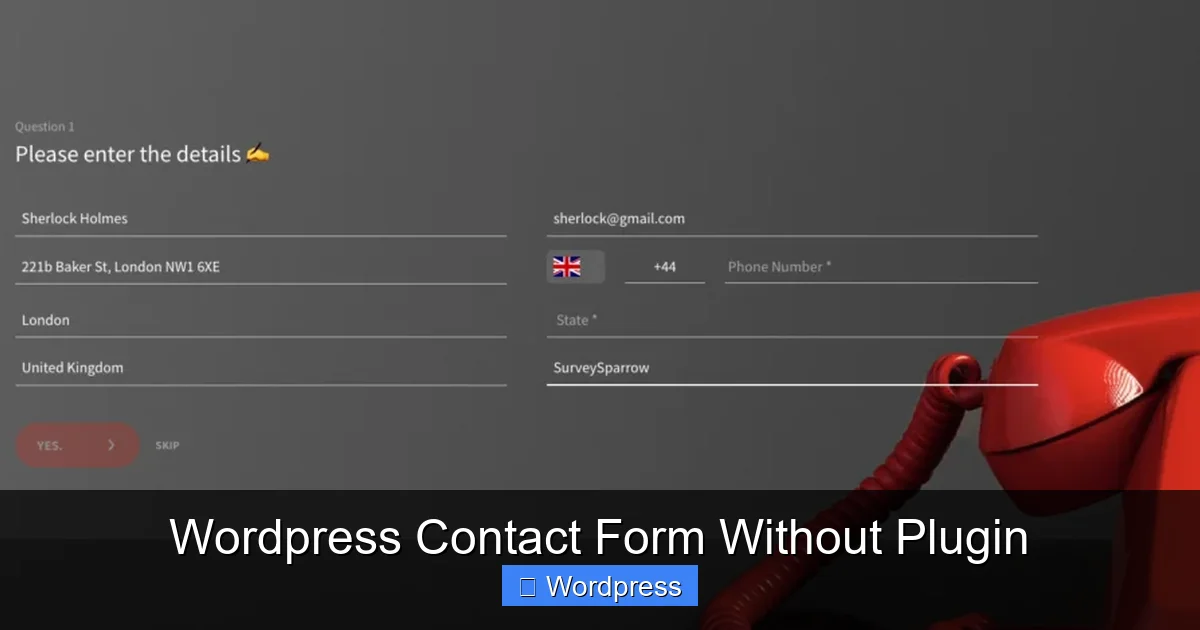
Visual guide about WordPress Contact Form Without Plugin
Image source: site.surveysparrow.com
Use a Honeypot Field
We already added a hidden honeypot field. Most spam bots fill in all form fields—including hidden ones. If the honeypot is filled, we reject the submission.
Add a Simple CAPTCHA
For extra protection, add a basic math question:
<label for="captcha">What is 3 + 4?</label>
<input type="text" id="captcha" name="captcha" required>
Then, in your PHP:
$captcha = sanitize_text_field($_POST['captcha']);

if ($captcha !
Frequently Asked Questions
Do I need to know coding to create a contact form without a plugin?
Basic knowledge of HTML and PHP helps, but the code provided in this guide is simple and well-commented. You can copy and paste it with minimal changes.
What if my emails aren’t sending?
This is often due to server configuration. Consider using an SMTP plugin or service like SendGrid to improve email delivery. You can also check your spam folder.
Can I add file uploads to my custom form?
Yes, but it requires additional PHP to handle file uploads securely. Make sure to validate file types and sizes to prevent abuse.
Is it safe to edit functions.php?
Editing functions.php directly can break your site if done incorrectly. Always use a child theme and back up your site first.
Can I use this method on any WordPress theme?
Yes, this method works with any theme because it uses core WordPress functions and standard HTML/CSS.
What’s the advantage over Contact Form 7?
A custom form is lighter, faster, and more secure. You avoid plugin updates, compatibility issues, and unnecessary features.