Customizing your WordPress theme lets you personalize your site’s design, layout, and features without coding. This guide walks you through safe, effective methods using the Customizer, child themes, and plugins to make your site truly yours.
Key Takeaways
- Use the WordPress Customizer: Easily change colors, fonts, and layouts in real time with no coding needed.
- Always use a child theme: Protect your customizations from being overwritten during theme updates.
- Leverage page builders: Tools like Elementor simplify drag-and-drop design for beginners and pros alike.
- Edit CSS safely: Add custom styles via the Additional CSS panel or your child theme’s style.css file.
- Backup before making changes: Prevent data loss by creating backups before major edits.
- Test on a staging site: Try big changes on a copy of your site first to avoid breaking the live version.
- Keep performance in mind: Avoid overloading your theme with too many plugins or heavy custom code.
Introduction: Why Customize Your WordPress Theme?
Your WordPress theme controls how your website looks and feels. While many themes come with great default designs, customizing your WordPress theme helps you stand out, match your brand, and improve user experience. Whether you’re running a blog, portfolio, or online store, personalization builds trust and engagement.
In this guide, you’ll learn safe, practical ways to tweak your theme—without breaking your site. We’ll cover built-in tools, child themes, CSS tweaks, and more. By the end, you’ll confidently shape your site to fit your vision.
Step 1: Use the WordPress Customizer
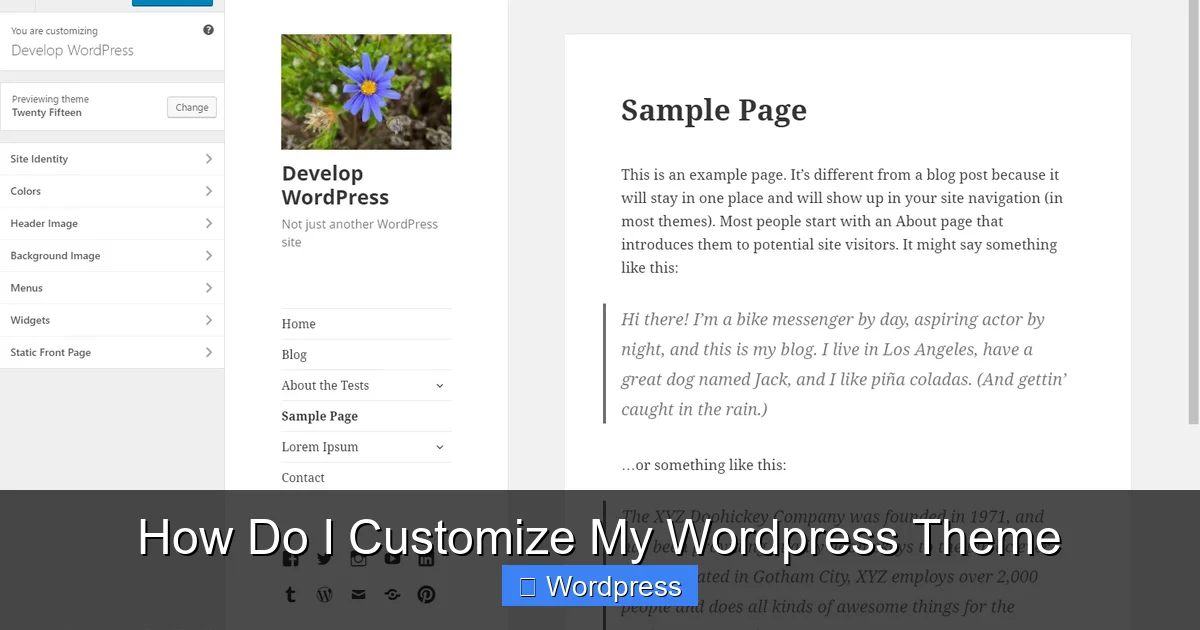
The WordPress Customizer is the easiest way to make visual changes. It lets you preview edits in real time before publishing.
Visual guide about How Do I Customize My WordPress Theme
Image source: hostafrica.ke
Access the Customizer
Go to your WordPress dashboard. Click Appearance > Customize. This opens the Customizer interface.
Common Customization Options
- Site Identity: Change your site title, tagline, and upload a logo.
- Colors: Adjust background, text, and accent colors to match your brand.
- Typography: Some themes let you pick fonts and adjust font sizes.
- Header & Footer: Modify layouts, add widgets, or insert custom HTML.
- Menus: Create or rearrange navigation menus.
- Widgets: Add content blocks like search bars, recent posts, or social icons to sidebars or footers.
After making changes, click Publish to save them. If you’re unhappy, use the Reset option (if available) or revert manually.
Step 2: Use a Child Theme for Safe Editing
Editing your main theme directly is risky. When you update the theme, your changes disappear. That’s why using a child theme is essential.
Visual guide about How Do I Customize My WordPress Theme
Image source: developer.wordpress.org
What Is a Child Theme?
A child theme inherits all features from its parent theme but allows you to override files safely. It’s like a safety net for your custom code.
Learn more about how child themes work in our detailed guide: What Is a Child Theme in WordPress?
How to Create a Child Theme
- Install a plugin like Child Theme Configurator or use a manual method.
- Activate the child theme under Appearance > Themes.
- Make edits in the child theme’s files—never the parent.
Once active, you can modify templates, styles, and functions without fear of losing work during updates.
Step 3: Customize with Page Builders
Page builders turn complex design into simple drag-and-drop tasks. They’re perfect if you want advanced layouts without coding.
Popular Page Builders
- Elementor: User-friendly with a free version and deep customization.
- WPBakery: Works well with many themes but has a steeper learning curve.
- Gutenberg Blocks: WordPress’s built-in block editor—great for basic layouts.
For example, How to Create a WordPress Theme with Elementor shows how to build full themes visually.
Tips for Using Page Builders
- Start with pre-designed templates to save time.
- Use global styles for consistent colors and fonts.
- Avoid overloading pages with too many elements—it slows down your site.
Step 4: Add Custom CSS
CSS (Cascading Style Sheets) controls colors, spacing, fonts, and more. You can add custom CSS without touching theme files.
Where to Add CSS
- Customizer > Additional CSS: Best for small tweaks. Changes are saved in the database.
- Child theme’s style.css: Ideal for larger style updates. More control and better organization.
Example: To change all headings to blue, add this in the Additional CSS box:
h1, h2, h3 {
  color: #0066cc;
}
Our guide on Best Way to Add CSS in WordPress Website covers more methods and best practices.
CSS Tips
- Use browser developer tools (right-click > Inspect) to test styles before applying.
- Always include comments in your code for future reference.
- Test on mobile—some styles may need media queries for responsiveness.
Step 5: Modify Theme Files (Advanced)
If you need to change PHP templates (like header.php or footer.php), do it in your child theme.
How to Edit Theme Files
- Go to Appearance > Theme File Editor (or use FTP/SFTP).
- Navigate to your child theme folder.
- Copy the file you want to edit from the parent theme into the child theme.
- Make your changes and save.
Common edits include adding custom scripts, changing layout structures, or inserting dynamic content.
Safety First
- Never edit parent theme files directly.
- Back up your site before editing code.
- Use a staging site for testing major changes.
Step 6: Use Plugins to Extend Functionality
Plugins can add features that your theme doesn’t support—like custom post types, sliders, or contact forms.
Recommended Plugins for Customization
- Customify: Adds header/footer builders and global style controls.
- Header Footer Code Manager: Lets you insert scripts in specific areas.
- WPForms: Create beautiful contact forms easily.
But remember: How Many Plugins Should You Use? Too many can slow down your site or cause conflicts.
Troubleshooting Common Issues
Customizing themes can sometimes lead to problems. Here’s how to fix the most common ones.
White Screen After Editing
This usually means a PHP error. Restore your site via FTP by renaming the theme folder—WordPress will revert to a default theme. Then fix the error in your child theme.
Changes Not Showing
- Clear your browser and site cache.
- Check if you’re editing the correct theme (especially if using a staging site).
- Ensure your child theme is active.
Mobile Layout Looks Broken
Use responsive design principles. Add media queries in your CSS:
@media (max-width: 768px) {
  .header { padding: 10px; }
}
Also, test your site on real devices or use browser tools.
Conclusion: Make Your Theme Uniquely Yours
Customizing your WordPress theme doesn’t require advanced skills—just the right tools and mindset. Start with the Customizer for quick wins, use a child theme for safety, and explore page builders or CSS for deeper control.
Always back up your site, test changes, and prioritize performance. With these steps, you’ll create a site that looks professional, reflects your brand, and delights your visitors.