This guide walks you through how to add a logo to your WordPress theme using built-in tools, theme options, or custom code. Whether you’re using a block theme or a classic one, you’ll find clear, beginner-friendly steps to personalize your site’s branding.
Key Takeaways
- Most modern WordPress themes support logo uploads via the Customizer, making it easy for non-coders.
- Logos should be optimized for web—use PNG or SVG formats with a transparent background when possible.
- Always use a child theme if editing theme files directly to avoid losing changes during updates.
- Logo size matters—check your theme’s recommended dimensions to avoid blurry or stretched images.
- Test your logo on mobile to ensure it displays correctly across devices.
- Some themes require manual code edits if they don’t support the WordPress Custom Logo feature.
- Backup your site before making any file changes to prevent accidental breakage.
How to Add Logo to WordPress Theme
Adding a logo to your WordPress site is one of the simplest yet most impactful ways to strengthen your brand identity. Whether you’re launching a blog, business site, or portfolio, a professional logo builds trust and recognition. The good news? WordPress makes it easy—no coding required in most cases.
In this guide, you’ll learn how to add a logo to your WordPress theme using three reliable methods: the WordPress Customizer, theme-specific settings, and manual code insertion. We’ll also cover best practices for logo design, troubleshooting tips, and how to ensure your logo looks sharp on all devices.
Let’s get started!
Method 1: Add Logo Using the WordPress Customizer
The WordPress Customizer is the easiest and most common way to upload a logo. Most modern themes—especially those built with the Block Editor (Gutenberg) in mind—support this feature out of the box.
Step 1: Access the Customizer
Log in to your WordPress dashboard. From the left-hand menu, go to Appearance > Customize. This opens the live preview editor where you can see changes in real time.
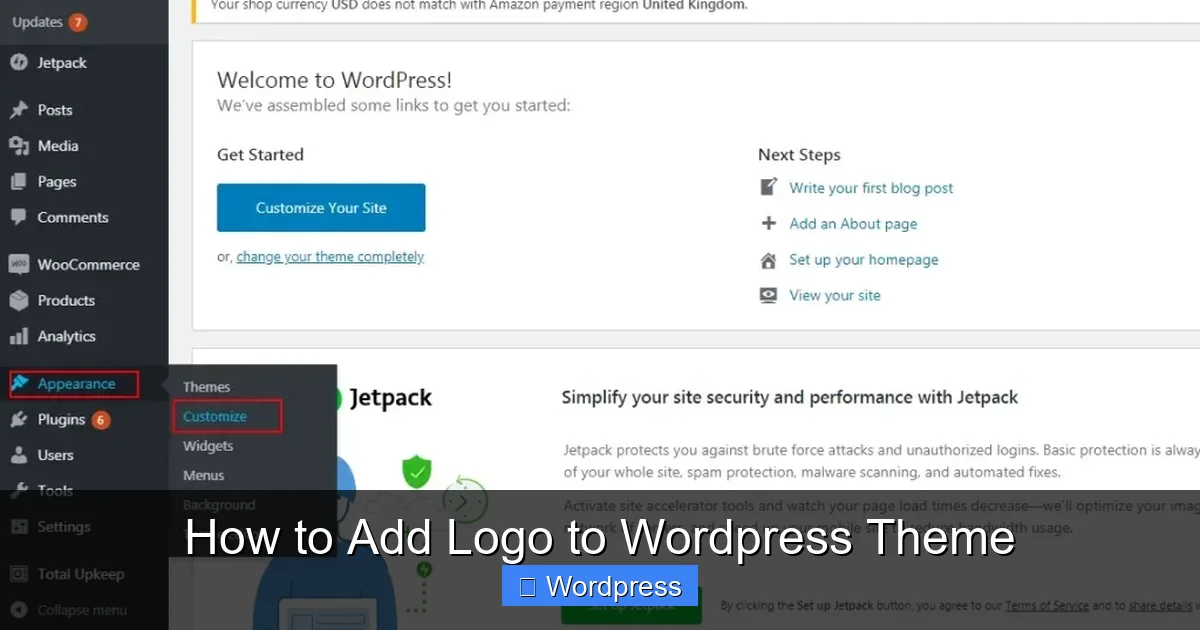
Visual guide about How to Add Logo to WordPress Theme
Image source: inmotionhosting.com
Step 2: Find the Logo Option
In the Customizer panel, look for a section labeled Site Identity or Logo. Click on it to expand the options.
Step 3: Upload Your Logo
Click the Select Logo button. This opens the WordPress Media Library. You can either upload a new image or choose one you’ve already added.
After selecting your logo, click Select. WordPress will automatically apply it to your site’s header.
Step 4: Adjust Logo Size and Position
Some themes allow you to resize the logo directly in the Customizer. Look for sliders or input fields under “Logo Width” or “Header Settings.” Adjust until it looks balanced with your site title and menu.
Step 5: Publish Your Changes
Once you’re happy with the preview, click the Publish button at the top of the Customizer. Your logo is now live!
Pro Tip: If you don’t see a logo option, your theme might not support it natively. Don’t worry—we’ll cover workarounds below.
Method 2: Add Logo via Theme Settings
Some premium or custom themes include their own logo uploader in the theme options panel. This is common with frameworks like Astra, GeneratePress, or Divi.
Step 1: Go to Theme Options
In your WordPress dashboard, navigate to Appearance > Theme Settings or a similarly named menu (e.g., “Astra Options” or “Customize”).

Visual guide about How to Add Logo to WordPress Theme
Image source: trialreach.files.wordpress.com
Step 2: Locate the Header or Branding Section
Look for tabs or sections labeled Header, Branding, or Logo. Click to expand.
Step 3: Upload and Configure
Click the upload button, select your logo from the Media Library, and save. Some themes let you upload separate logos for desktop and mobile, or even a dark/light version for different color schemes.
Step 4: Save and Preview
Always click Save Changes or Update before leaving the page. Then, visit your site to confirm the logo appears correctly.
Example: In the Astra theme, go to Customize > Header > Site Identity to upload and resize your logo with pixel-perfect control.
Method 3: Add Logo Manually with Code
If your theme doesn’t support logo uploads, you can add one manually by editing theme files. This method requires caution—always use a child theme to avoid losing changes when the parent theme updates.
Step 1: Create or Use a Child Theme
If you haven’t already, set up a child theme. This ensures your customizations remain safe during theme updates.
Step 2: Enable Custom Logo Support
Open your child theme’s functions.php file. Add this code to enable WordPress’s built-in logo feature:
add_theme_support( 'custom-logo', array(
    'height'      => 100,
    'width'       => 400,
    'flex-height' => true,
    'flex-width'  => true,
) );
Adjust the height and width to match your logo’s dimensions. The flex-height and flex-width options allow the logo to scale responsively.
Step 3: Insert the Logo in Your Header
Open your child theme’s header.php file. Find the section where the site title is displayed (usually inside a <h1> or <div class="site-title"> tag).
Replace or wrap the title with this code:
This tells WordPress to display the logo if one is uploaded via the Customizer.
Step 4: Upload via Customizer
Now go back to Appearance > Customize > Site Identity. You should see the logo upload option. Add your image and publish.
Note: If you’re using a block theme (like Twenty Twenty-Four), you may need to edit the header template in the Site Editor instead.
Best Practices for Logo Design and Usage
A great logo isn’t just about looks—it needs to work well across devices and backgrounds.
- Use the right format: PNG for transparency, SVG for scalability (ideal for high-res screens).
- Keep it simple: Avoid tiny text or intricate details that disappear on mobile.
- Optimize file size: Compress your logo using tools like TinyPNG to improve page speed.
- Test on dark and light backgrounds: Ensure visibility in all color schemes.
- Set a max width: Use CSS to prevent oversized logos from breaking your layout.
For example, add this to your child theme’s CSS to limit logo width:
.custom-logo {
    max-width: 200px;
    height: auto;
}
Troubleshooting Common Issues
Logo Not Showing Up?
Double-check that your theme supports custom-logo. If not, add the code snippet from Method 3. Also, clear your cache—both browser and plugin caches (like WP Super Cache).
Logo Looks Blurry?
This usually means the image is too small or stretched. Upload a higher-resolution version (at least 2x the display size) or use an SVG for crisp scaling.
Logo Disappears After Theme Update?
This happens when edits are made directly to the parent theme. Always use a child theme to preserve changes.
Can’t Find the Logo Option?
Some themes hide it under advanced settings. Try searching “logo” in the Customizer. If still missing, your theme may require a plugin or manual code.
Conclusion
Adding a logo to your WordPress theme is a quick win for branding and professionalism. Whether you use the Customizer, theme settings, or custom code, the process is straightforward once you know where to look.
Remember: always optimize your logo for web, test it on mobile, and use a child theme for safety. With these steps, your site will look polished and trustworthy in no time.
Ready to take your site further? Explore how to apply a WordPress theme that better supports your branding needs, or learn the best way to add CSS in WordPress for advanced styling.