This guide explains how to hack WordPress for ethical security testing—not malicious use. You’ll learn about common vulnerabilities, penetration testing tools, and how to strengthen your site’s defenses against real threats.
Key Takeaways
- Ethical hacking is legal and valuable: Testing your own WordPress site for weaknesses helps prevent real attacks.
- Common entry points include outdated plugins and weak passwords: Most breaches happen due to poor maintenance, not advanced exploits.
- Use trusted tools like WPScan and Burp Suite: These help identify vulnerabilities without damaging your site.
- Always test on a staging environment: Never run security tests on a live site unless you have backups and permission.
- Regular updates and strong credentials are your first defense: Keeping WordPress core, themes, and plugins updated blocks 80% of attacks.
- Monitor user roles and file permissions: Limit admin access and restrict file editing to reduce risk.
- Backup before testing: Always create a full backup before attempting any security scan or hack simulation.
Introduction: What Does “Hacking WordPress” Really Mean?
When people ask, “How to hack WordPress,” they often mean two very different things: breaking into someone else’s site (illegal) or testing their own site for security flaws (ethical and recommended). This guide focuses on the latter—ethical hacking—so you can find and fix vulnerabilities before cybercriminals do.
WordPress powers over 43% of all websites, making it a prime target for attackers. But with the right knowledge and tools, you can turn the tables and make your site harder to breach. By the end of this guide, you’ll understand how hackers think, what they look for, and how to stop them—starting with your own WordPress installation.
Step 1: Set Up a Safe Testing Environment
Before you start probing for weaknesses, you need a safe space to experiment. Never test on a live, production website unless you have explicit permission and recent backups.
Visual guide about How to Hack WordPress
Image source: cwatch.comodo.com
Create a Local or Staging Copy
Use tools like Local by Flywheel, XAMPP, or your host’s staging feature (e.g., SiteGround, WP Engine) to clone your site. This lets you run scans and exploits without risking downtime or data loss.
Backup Everything
Even in a test environment, create a full backup of your database and files. If something goes wrong, you can restore quickly. Most hosting providers offer one-click backups, or you can use plugins like UpdraftPlus.
Step 2: Identify Common WordPress Vulnerabilities
Hackers don’t need to write custom code—they exploit known weaknesses. Here are the top targets:
Visual guide about How to Hack WordPress
Image source: cdn.acunetix.com
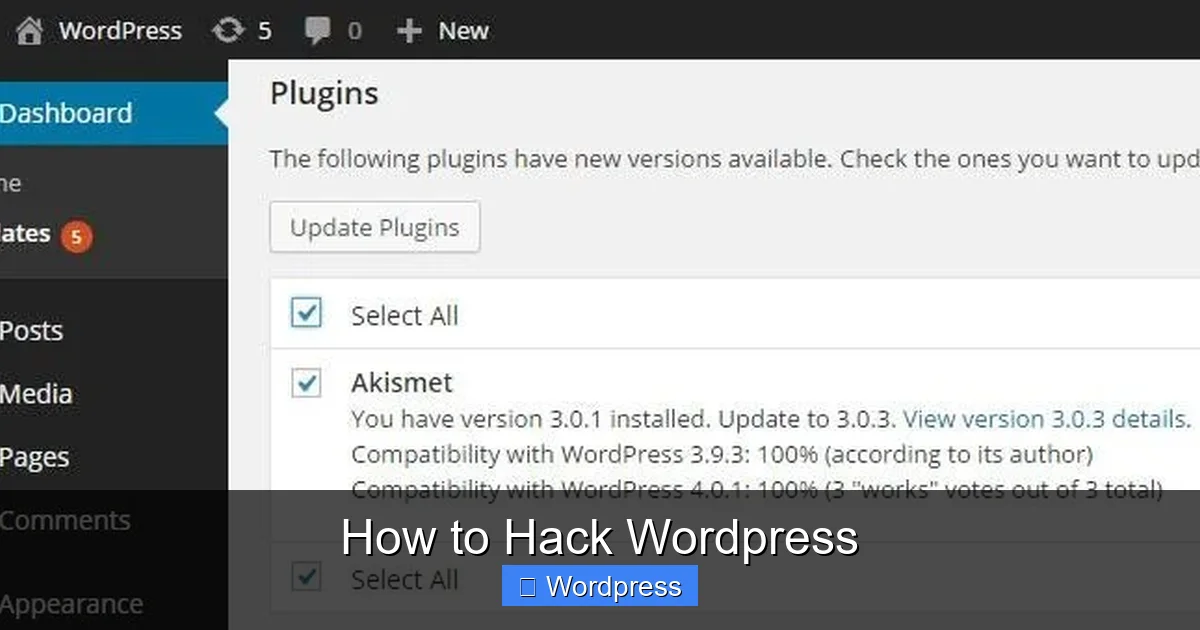
Outdated Themes and Plugins
Old versions often contain unpatched security holes. For example, a vulnerable plugin like WP GDPR Compliance once allowed attackers to delete files remotely. Always keep everything updated. If you’re unsure which theme a site uses, you can check the WordPress theme of any website using online tools or browser inspectors.
Weak Admin Passwords
“admin” + “password123” is still shockingly common. Use strong, unique passwords and enable two-factor authentication (2FA). Tools like WPScan can brute-force weak logins—so don’t give them the chance.
Exposed Login Pages
The default /wp-login.php page is a honeypot for bots. Change it using plugins like WPS Hide Login, or add rate limiting to block repeated attempts.
File Permission Errors
Incorrect file permissions (e.g., 777) let attackers upload malicious scripts. Set directories to 755 and files to 644. Avoid giving write access to the web server unless absolutely necessary.
Step 3: Use Ethical Hacking Tools
Now that you know what to look for, it’s time to scan your site. These tools simulate real attacks—safely and legally.
Run WPScan (WordPress Security Scanner)
WPScan is a free, command-line tool that checks for known vulnerabilities in WordPress core, themes, and plugins. Install it via RubyGems:
gem install wpscan
Then scan your test site:
wpscan --url http://yoursite.test --enumerate vp,vt,u
This checks for vulnerable plugins (vp), themes (vt), and user accounts (u). Review the results and update or remove anything flagged.
Test with Burp Suite (Web Vulnerability Scanner)
Burp Suite Community Edition (free) lets you intercept HTTP requests and test for issues like SQL injection or cross-site scripting (XSS). Set it as a proxy in your browser, log into your WordPress admin, and watch the traffic. Try modifying parameters—for example, change ?post_id=5 to ?post_id=5' OR 1=1-- to test for SQLi flaws.
Check for Misconfigurations with Nikto
Nikto scans web servers for dangerous files, outdated software, and configuration errors. Run:
nikto -h http://yoursite.test
Look for warnings about directory listings, exposed backup files (.bak, .old), or unnecessary services running.
Step 4: Simulate Real-World Attacks (Safely)
Once your tools flag potential issues, simulate attacks to confirm they’re exploitable—and then fix them.
Brute Force the Login Page
Use Hydra or WPScan’s built-in brute-force mode to test password strength:
wpscan --url http://yoursite.test --passwords /path/to/wordlist.txt --usernames admin
If it succeeds with a weak password, enforce stronger credentials immediately. Consider limiting login attempts with plugins like Login LockDown.
Exploit Known Plugin Vulnerabilities
Search the WordPress Plugin Directory or CVE Details for your plugin names + “vulnerability.” For example, if you’re using an old version of Contact Form 7, check if it’s susceptible to stored XSS. Use public proof-of-concept (PoC) code in your test environment—but never on live sites.
Test File Upload Restrictions
Try uploading a PHP shell (e.g., shell.php) through media uploads or vulnerable forms. If it executes, your site is at risk. Disable PHP execution in uploads by adding this to your .htaccess:
<Files *.php>
deny from all
</Files>
Step 5: Fix and Harden Your WordPress Site
Finding flaws is only half the battle—now you must fix them.
Update Everything
Go to Dashboard > Updates and install all available updates. Enable auto-updates for minor core releases and trusted plugins. For themes, consider switching to a well-maintained option. If you need to switch, learn how to deactivate a theme in WordPress safely before activating a new one.
Remove Unused Themes and Plugins
Every inactive theme or plugin is a potential backdoor. Delete them completely—not just deactivate. Need help? See our guide on how to delete a theme in WordPress without breaking your site.
Harden WordPress Security
Add these lines to your wp-config.php to disable file editing and prevent directory browsing:
define('DISALLOW_FILE_EDIT', true);
define('DISALLOW_FILE_MODS', true);
Also, move wp-config.php one directory above your web root if possible, and set strict file permissions.
Install a Security Plugin
Use Wordfence, Sucuri, or iThemes Security to monitor threats, block malicious IPs, and scan for malware. These act as a firewall and early warning system.
Troubleshooting Common Issues
Problem: WPScan returns “Connection refused” or timeouts.
Solution: Ensure your test site is running and accessible. Disable firewalls temporarily during testing, or whitelist your IP.
Problem: Burp Suite doesn’t capture WordPress login traffic.
Solution: Configure your browser to use Burp as a proxy (usually 127.0.0.1:8080) and install Burp’s CA certificate to intercept HTTPS.
Problem: After hardening, your site breaks.
Solution: Restore from backup and apply changes one at a time. Test after each step. Some plugins may conflict with security rules—check error logs.
Conclusion: Hacking WordPress to Protect It
Learning how to hack WordPress isn’t about causing harm—it’s about building resilience. By thinking like an attacker, you uncover hidden risks and close doors before they’re kicked in. Remember: ethical hacking is a skill that protects your data, your users, and your reputation.
Start with a staging site, use tools like WPScan and Burp Suite, simulate real attacks, and apply fixes systematically. Keep your software updated, limit access, and monitor continuously. With these practices, your WordPress site won’t just survive—it will thrive in a dangerous digital world.