A WordPress header template controls the top section of your website, including logos, navigation menus, and branding elements. It’s a reusable part of your theme that ensures consistency across all pages. Customizing it properly improves user experience and site performance.
When you visit any website, the first thing you notice is usually the top part—the header. On a WordPress site, this area is powered by something called a WordPress header template. It’s not just a decorative strip; it’s a critical part of your site’s structure and user experience. Whether you’re running a blog, an online store, or a business website, the header sets the tone for everything that follows.
Think of the header as your website’s front door. It greets visitors, shows your brand identity, and helps them find their way around. A well-crafted header template makes your site look professional and trustworthy. On the flip side, a cluttered or confusing header can turn visitors away in seconds. That’s why understanding how this template works—and how to customize it—is so important for anyone using WordPress.
Key Takeaways
- What it is: The header template is the top section of your WordPress site, typically containing the logo, menu, and call-to-action buttons.
- Where it’s used: It appears on every page and post, providing a consistent look and easy navigation.
- How to edit it: You can modify it via the WordPress Customizer, theme files, or page builders like Elementor.
- Why it matters: A well-designed header improves branding, usability, and SEO by making your site easier to navigate.
- Customization tips: Use a child theme to avoid losing changes during updates, and keep the design clean and mobile-friendly.
- Common mistakes: Overloading the header with too many elements or ignoring mobile responsiveness can hurt user experience.
- Best practices: Keep it simple, use clear navigation, and ensure fast loading times for better performance.
Quick Answers to Common Questions
What is a WordPress header template?
A WordPress header template is a PHP file (usually header.php) that defines the top section of your website, including the logo, menu, and branding elements. It appears on every page for consistency.
Can I edit the header without coding?
Yes! You can use the WordPress Customizer or a page builder like Elementor to modify your header visually, without touching any code.
Why is my header not showing on mobile?
This is usually a responsiveness issue. Check your theme settings, CSS, or use a mobile-friendly page builder to fix the layout on smaller screens.
Should I use a sticky header?
A sticky header (one that stays at the top when scrolling) can improve navigation, but it may distract on long pages. Test it to see if it helps your users.
How do I add a logo to my header?
Go to Appearance > Customize > Site Identity, upload your logo, and adjust the size. Most themes support logo uploads automatically.
📑 Table of Contents
What Is a WordPress Header Template?
The WordPress header template is a PHP file, usually named header.php, that defines the structure and content of the top section of your website. This file is part of your active theme and is loaded on every page and post. It typically includes elements like your site title, logo, navigation menu, search bar, and sometimes social media icons or a call-to-action button.
Every time a visitor lands on your site, WordPress pulls in the header template to display the same top section across all pages. This consistency is key to a smooth user experience. Without a header template, each page would need to be built from scratch, which would be inefficient and hard to maintain.
Key Elements in a Header Template
Most header templates include the following components:
- Site Title and Tagline: These are pulled from your WordPress settings and often appear as text or part of your logo.
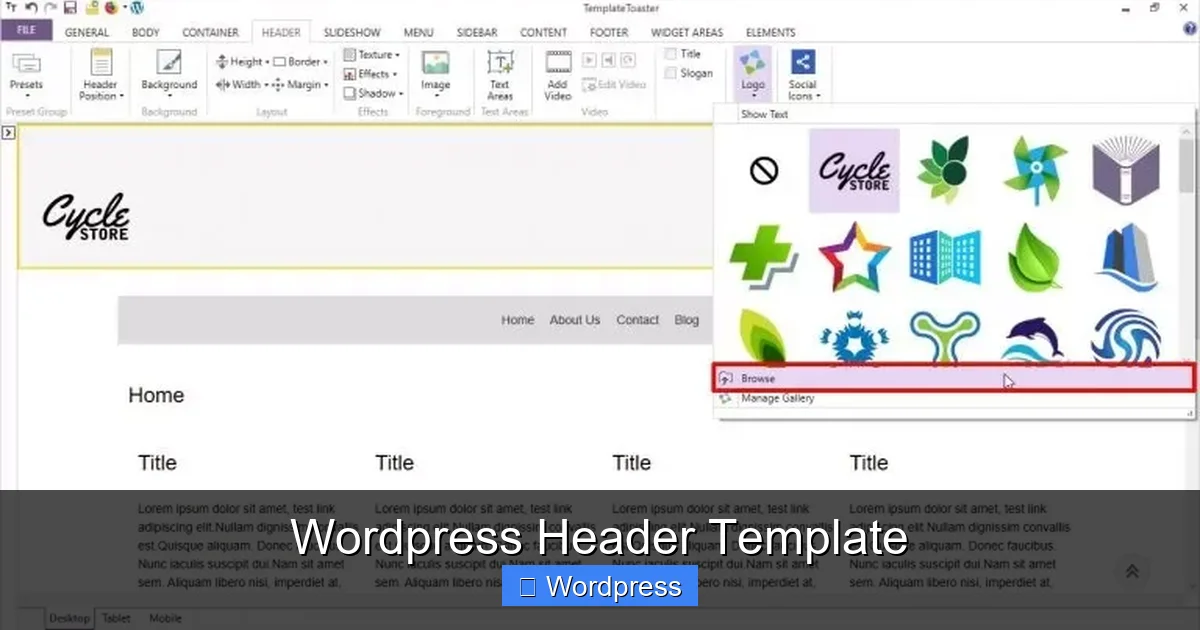
- Logo: A visual representation of your brand, usually linked to the homepage.
- Navigation Menu: A list of links to important pages like Home, About, Services, and Contact.
- Search Bar: Helps users find content quickly.
- Call-to-Action (CTA): A button like “Get Started” or “Sign Up” to encourage engagement.
- Social Icons: Links to your social media profiles.
These elements can vary depending on your theme and design goals, but they all serve the same purpose: to guide visitors and reinforce your brand.
How the Header Template Works in WordPress
Visual guide about WordPress Header Template
Image source: blog.templatetoaster.com
WordPress uses a system of template files to build each page. The header template is one of the core files in this system. When a page loads, WordPress calls the get_header() function, which tells the system to include the header.php file.
This process happens automatically, so you don’t need to manually add the header to every page. It’s part of the theme’s template hierarchy, which determines which files are used for different types of content. For example, your homepage, blog posts, and product pages all use the same header template unless you create custom versions.
Template Hierarchy and the Header
WordPress follows a specific order when deciding which template files to use. The header is usually included in the main template files like index.php, single.php, and page.php. However, you can create custom header files for different sections of your site. For instance, you might have a header-home.php for your homepage and a header-blog.php for your blog section.
To use a custom header, you can call it with get_header('home') in your template file. This flexibility allows you to tailor the header to different parts of your site without affecting the entire design.
How to Customize Your WordPress Header Template
Visual guide about WordPress Header Template
Image source: blog.templatetoaster.com
Customizing the header template can dramatically improve your site’s look and functionality. The good news is that you don’t need to be a coding expert to do it. WordPress offers several ways to edit your header, from simple settings to advanced code changes.
Using the WordPress Customizer
The easiest way to modify your header is through the WordPress Customizer. Go to Appearance > Customize in your dashboard, and look for options like “Site Identity,” “Header Image,” or “Menus.” Here, you can upload a logo, change the site title, adjust colors, and rearrange menu items.
Many modern themes also include a “Header” or “Layout” section in the Customizer, where you can toggle elements on or off, change alignment, or add a sticky header (one that stays at the top as you scroll).
Editing the header.php File
For more control, you can edit the header.php file directly. Go to Appearance > Theme File Editor and select header.php from the list. Be careful—making mistakes here can break your site. Always back up your site before editing theme files.
You can add custom HTML, CSS, or PHP code to include new elements like a banner, notification bar, or dynamic content. For example, you might add a seasonal promotion banner that only appears during holidays.
Using a Page Builder
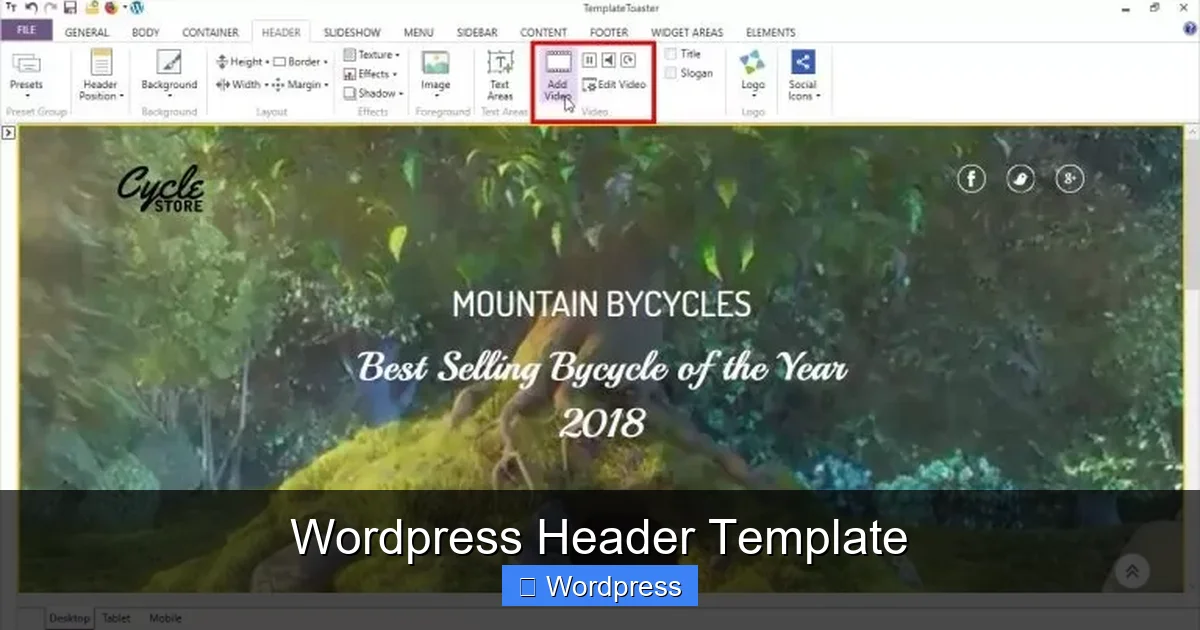
If you’re using a page builder like Elementor, Beaver Builder, or Divi, you can design your header visually. These tools let you drag and drop elements, adjust spacing, and preview changes in real time. Some themes even come with pre-designed header templates you can import and customize.
For advanced users, creating a custom header with Elementor involves using the Theme Builder feature. This allows you to design headers for specific pages or post types and apply them globally.
Best Practices for Designing a Great Header
Visual guide about WordPress Header Template
Image source: blog.templatetoaster.com
A well-designed header does more than look good—it helps visitors navigate your site and take action. Here are some best practices to keep in mind:
Keep It Simple and Clean
Avoid cluttering your header with too many links, buttons, or images. A clean design with plenty of white space makes it easier for users to focus on what matters. Stick to 5–7 main menu items, and use dropdowns for subpages if needed.
Make It Mobile-Friendly
More than half of web traffic comes from mobile devices, so your header must work well on small screens. Use a responsive design that collapses the menu into a hamburger icon on mobile. Test your site on different devices to ensure the header looks good everywhere.
Use a Clear Logo and Branding
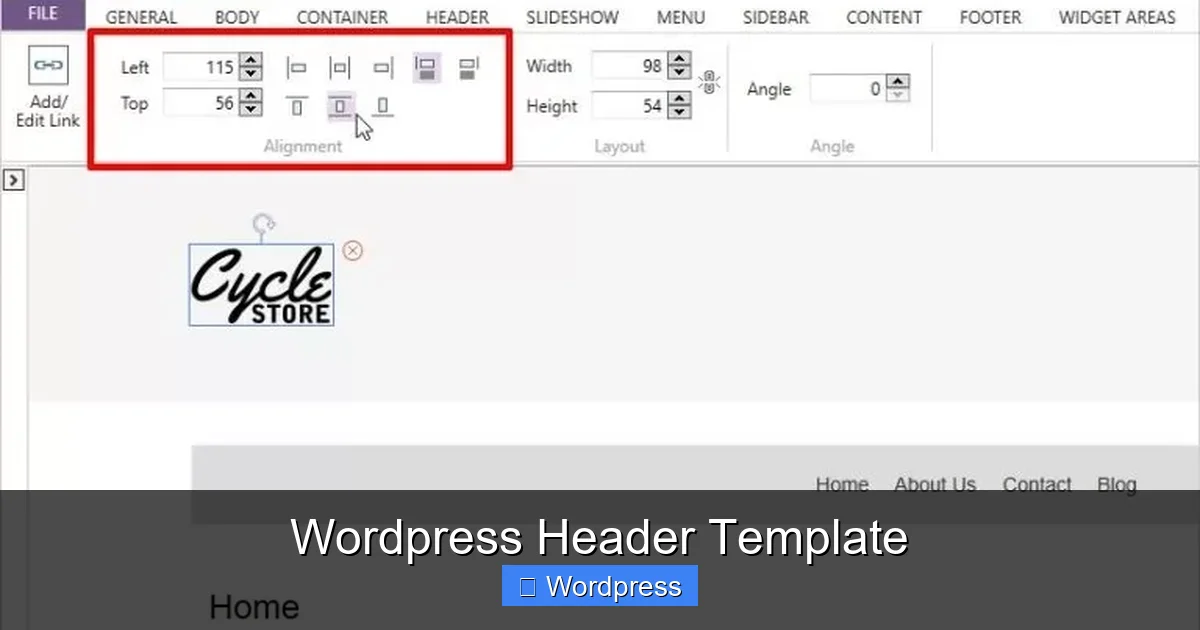
Your logo should be easy to recognize and link back to the homepage. Place it in the top-left corner, which is where users expect to find it. Make sure it’s high resolution and scales well on all devices.
Optimize for Speed
Heavy images or complex scripts in your header can slow down your site. Compress images, minimize code, and avoid unnecessary plugins. A fast-loading header improves user experience and SEO.
Test and Iterate
Use tools like Google Analytics to see how users interact with your header. Are they clicking the menu? Ignoring the CTA? Use A/B testing to try different designs and see what works best.
Common Mistakes to Avoid
Even small errors in your header template can cause big problems. Here are some common pitfalls to watch out for:
- Editing the parent theme directly: Always use a child theme when making code changes. This protects your work during theme updates. Learn more about what a child theme is in WordPress and why it’s essential.
- Ignoring mobile users: A header that looks great on desktop but breaks on mobile frustrates users. Always test responsiveness.
- Overloading with features: Adding too many buttons, pop-ups, or animations can distract visitors and slow down your site.
- Forgetting accessibility: Use proper HTML tags, alt text for images, and keyboard-friendly navigation to make your header accessible to all users.
- Not updating regularly: Your header should evolve with your brand. Review it periodically to ensure it still reflects your goals.
Conclusion
The WordPress header template is a small but powerful part of your website. It shapes first impressions, guides navigation, and supports your brand identity. Whether you’re using the Customizer, editing code, or building with a page builder, taking the time to customize your header properly pays off in better user experience and engagement.
Remember to keep it simple, responsive, and aligned with your overall design. And if you’re using a theme, consider whether it’s optimized for speed and SEO—check out our guide on the best WordPress theme for SEO and speed to find top-performing options. With the right approach, your header can become one of your site’s strongest assets.
Frequently Asked Questions
Can I have different headers for different pages?
Yes, you can create custom header templates (e.g., header-home.php) and call them using get_header(‘home’) in specific template files.
Will editing the header.php file break my site?
It can if done incorrectly. Always back up your site and use a child theme to safely make changes without affecting updates.
Do all WordPress themes use the same header template?
No, each theme has its own header.php file. Some themes offer multiple header styles you can choose from in the Customizer.
How do I make my header load faster?
Optimize images, minimize CSS and JavaScript, and avoid heavy plugins. A lightweight header improves site speed and user experience.
Can I add a search bar to my header?
Yes, most themes support adding a search form. You can enable it in the Customizer or insert the search form code into your header.php file.
Is the header template part of SEO?
Indirectly, yes. A clean, fast-loading header with clear navigation helps users and search engines understand your site structure, which supports SEO.