A WordPress home page template is the foundation of your website’s first impression. Whether you’re building a blog, business site, or online store, choosing the right template ensures fast loading, mobile responsiveness, and easy navigation. With thousands of options available, understanding how to pick and customize the perfect template saves time and boosts conversions.
Key Takeaways
- What it is: A WordPress home page template controls the layout and design of your site’s main page, often built with themes or page builders.
- Why it matters: Your homepage is your digital front door—first impressions count for SEO, engagement, and conversions.
- Customization options: Most templates allow drag-and-drop editing, color changes, and content blocks via tools like Elementor or Gutenberg.
- Responsive design: Always choose a template that looks great on mobile, tablet, and desktop devices.
- Performance impact: Lightweight templates load faster, improving user experience and search rankings.
- SEO-friendly structure: Clean code and proper heading hierarchy in templates help search engines understand your content.
- Free vs. premium: Free templates work for basics, but premium ones offer advanced features, support, and regular updates.
Quick Answers to Common Questions
What is a WordPress home page template?
A WordPress home page template is a pre-designed layout that controls how your website’s main page looks and functions. It includes elements like headers, footers, content blocks, and navigation.
Can I change my homepage template after launching my site?
Yes! You can switch templates anytime by installing a new theme or modifying your current one. Just make sure to back up your site first and test changes on a staging site if possible.
Do I need a page builder to customize my homepage?
No, but page builders like Elementor make customization much easier. You can also use the WordPress Customizer or edit template files directly if you’re comfortable with code.
Are free WordPress home page templates safe to use?
Most free templates from the official WordPress directory are safe and well-coded. However, always download from trusted sources and check reviews to avoid malware or outdated code.
How do I set a static page as my homepage?
Go to Settings > Reading in your WordPress dashboard. Under “Your homepage displays,” select “A static page” and choose the page you want as your homepage.
📑 Table of Contents
What Is a WordPress Home Page Template?
A WordPress home page template is a pre-designed layout that determines how your website’s main page looks and functions. Think of it as the blueprint for your homepage—it defines where your logo, navigation menu, hero image, text, call-to-action buttons, and other elements appear. These templates are typically part of a WordPress theme, but they can also be created or customized using page builders like Elementor, Beaver Builder, or the native Gutenberg editor.
Every WordPress site needs a homepage, and this page often serves as the central hub for visitors. Whether someone lands on your site from a Google search, social media, or an ad, the homepage is usually their first stop. That’s why having a well-structured, visually appealing, and fast-loading template is crucial. A good template doesn’t just look nice—it guides users, communicates your brand, and encourages them to explore further.
Why Your Homepage Template Matters
Your homepage is more than just a pretty layout—it’s a strategic tool. A poorly designed template can confuse visitors, increase bounce rates, and hurt your search engine rankings. On the flip side, a strong template improves user experience, builds trust, and drives conversions.
First Impressions Count
Studies show that users form an opinion about a website in less than a second. If your homepage looks outdated, cluttered, or hard to navigate, visitors will leave—often without scrolling. A clean, modern template with clear messaging and intuitive navigation keeps people engaged.
Mobile Responsiveness Is Non-Negotiable
Over 60% of web traffic comes from mobile devices. If your template isn’t responsive, your site will look broken on phones and tablets. Always test your homepage on different screen sizes. Many modern WordPress themes are built with mobile-first design, but it’s smart to double-check.
Speed and Performance
Slow-loading pages frustrate users and hurt SEO. Templates packed with heavy animations, large images, or unnecessary scripts can drag down performance. Choose lightweight templates optimized for speed. For tips on improving load times, check out our guide on the best WordPress theme for SEO and speed.
Types of WordPress Home Page Templates
Not all home page templates are created equal. Depending on your website’s purpose, you’ll want a template that matches your goals. Here are the most common types:
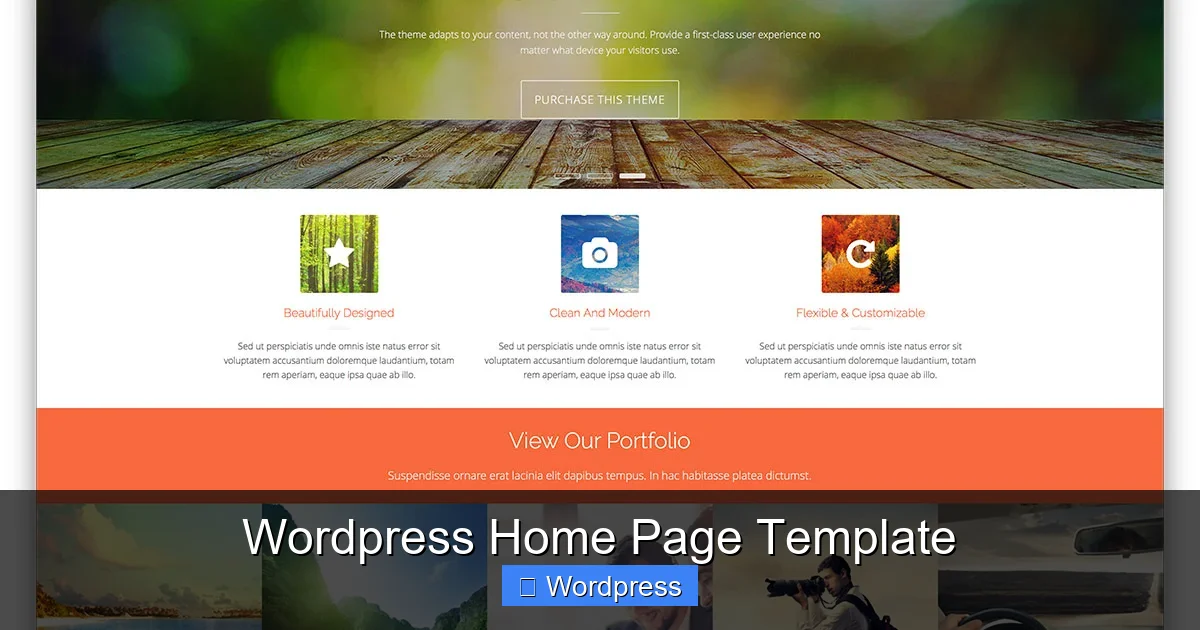
Visual guide about WordPress Home Page Template
Image source: colorlib.com
Static Homepage
A static homepage displays fixed content—like a welcome message, services overview, or company info. It’s ideal for business websites, portfolios, or landing pages. You can set a static page as your homepage in WordPress under Settings > Reading.
Blog Homepage
If your site is content-focused, a blog-style homepage shows your latest posts in reverse chronological order. This works well for news sites, personal blogs, or content marketers. It keeps your audience updated and encourages repeat visits.
Landing Page Template
Designed for conversions, landing page templates focus on a single goal—like signing up for a newsletter, downloading an ebook, or purchasing a product. These templates often include bold headlines, minimal navigation, and strong call-to-action buttons. Learn more about creating effective ones in our article on landing pages in WordPress.
Dynamic or Custom Templates
Built with page builders or custom code, these templates pull in content dynamically—like featured products, recent testimonials, or upcoming events. They’re highly flexible and perfect for complex sites like e-commerce stores or membership platforms.
How to Choose the Right Template
With thousands of free and premium templates available, picking the right one can feel overwhelming. Here’s how to make the best choice for your needs.
Match Your Website’s Purpose
A photography portfolio needs a different template than an online store. Ask yourself: What’s the main goal of my site? If it’s to sell products, look for e-commerce-ready templates with WooCommerce support. For blogs, prioritize readability and post layouts.
Check Compatibility
Make sure the template works with your current WordPress version and plugins. Most reputable themes list compatibility details. Also, verify that it supports your preferred page builder—like Elementor or Gutenberg.
Read Reviews and Ratings
Before downloading a free template or buying a premium one, read user reviews. Look for comments about ease of use, customer support, and update frequency. A highly rated template is more likely to be reliable and well-maintained.
Test the Demo
Most theme providers offer a live demo. Spend time exploring it—check the homepage layout, navigation, mobile view, and loading speed. Does it feel professional? Can you imagine your content in it? If not, keep looking.
Consider Support and Updates
Premium templates often come with documentation, tutorials, and customer support. Free templates may not. If you’re not tech-savvy, investing in a supported template can save headaches down the road. For help choosing, see our guide on how to choose a WordPress theme.
Customizing Your Home Page Template
Once you’ve selected a template, it’s time to make it your own. Customization turns a generic layout into a branded, user-friendly experience.
Use the WordPress Customizer
The built-in Customizer lets you tweak colors, fonts, header images, and layout settings in real time. Go to Appearance > Customize to get started. Changes appear instantly, so you can see how they look before publishing.
Leverage Page Builders
Tools like Elementor, Beaver Builder, or Divi make customization easy—even for beginners. Drag and drop elements, adjust spacing, and add animations without touching code. For step-by-step help, read our tutorial on how to create a WordPress theme with Elementor.
Edit the Template Files (Advanced)
If you’re comfortable with PHP and HTML, you can modify template files directly. Always use a child theme to avoid losing changes when the parent theme updates. This method offers full control but requires technical knowledge.
Add Custom CSS
Need a small tweak that the Customizer doesn’t allow? Add custom CSS under Appearance > Customize > Additional CSS. For example, you can change button colors, adjust font sizes, or hide elements. For more on styling, check out our guide on the best way to add CSS in WordPress.
Best Practices for Homepage Design
A great template is just the start. How you use it determines your site’s success. Follow these best practices to maximize impact.
Keep It Simple
Don’t overcrowd your homepage. Use whitespace, clear headings, and concise text. Focus on one primary message—like “Welcome to Our Store” or “Get Started Today.”
Highlight Key Actions
Make your call-to-action (CTA) buttons stand out. Use contrasting colors and action-oriented text like “Shop Now,” “Download Free Guide,” or “Contact Us.” Place them above the fold so visitors see them immediately.
Optimize for SEO
Your homepage should include relevant keywords in the title, headings, and meta description. Use an SEO plugin like Yoast or Rank Math to guide optimization. Also, ensure your template uses proper heading tags (H1, H2, etc.) for better structure.
Test and Iterate
Use tools like Google Analytics to track how visitors interact with your homepage. Are they clicking your CTAs? How long do they stay? A/B test different layouts or headlines to see what works best.
Conclusion
Your WordPress home page template is more than a design choice—it’s a key part of your website’s success. From first impressions to conversions, the right template sets the tone for everything that follows. Whether you’re using a free theme or a premium page builder, focus on usability, speed, and responsiveness. Take time to customize it thoughtfully, and don’t be afraid to experiment. With the right approach, your homepage can become a powerful tool for engagement, trust, and growth.
Frequently Asked Questions
Can I use multiple home page templates on one WordPress site?
Typically, no—your site uses one homepage template at a time. However, you can create multiple page layouts and assign them to different pages, or use conditional logic in advanced setups.
Do all WordPress themes include a home page template?
Yes, every WordPress theme includes at least one home page template. Some themes offer multiple variations, especially premium ones designed for different industries.
How do I make my homepage mobile-friendly?
Choose a responsive theme and test your site on various devices. Use the Customizer or a page builder to adjust spacing and font sizes for smaller screens.
Can I build a custom home page template without coding?
Absolutely! Page builders like Elementor, Beaver Builder, and Gutenberg allow you to create custom layouts using drag-and-drop interfaces—no coding required.
Why is my homepage loading slowly?
Common causes include heavy images, unoptimized code, or too many plugins. Switch to a lightweight template, compress images, and use a caching plugin to improve speed.
Should I use a landing page template for my homepage?
It depends on your goal. If you want to focus on conversions—like sign-ups or sales—a landing page template works well. For broader content or navigation, a traditional homepage may be better.