Adding a custom domain to your WordPress site gives it a professional look and improves branding. This guide walks you through the entire process—from choosing a domain registrar to updating DNS settings—so your site loads under your own name, not a generic subdomain.
Key Takeaways
- Choose a reliable domain registrar: Pick trusted providers like Namecheap, Google Domains, or GoDaddy to purchase your domain.
- Verify your WordPress hosting type: The setup differs slightly between WordPress.com and self-hosted WordPress.org sites.
- Update DNS records correctly: Point your domain’s A record or nameservers to your hosting provider for proper connection.
- Allow time for propagation: DNS changes can take up to 48 hours to fully activate across the internet.
- Enable SSL for security: Always activate HTTPS after connecting your domain to protect visitor data.
- Test your site thoroughly: Check all pages, links, and media after the switch to ensure everything works.
Why Add a Custom Domain to Your WordPress Site?
Using a custom domain—like yourbusiness.com instead of yourbusiness.wordpress.com—makes your website look more credible and memorable. It strengthens your brand, improves SEO, and gives you full control over your online presence. Whether you’re running a blog, portfolio, or online store, a custom domain is essential for professionalism.
In this guide, we’ll show you exactly how to add a custom domain in WordPress, whether you’re using WordPress.com or a self-hosted WordPress.org site. We’ll cover every step clearly, with practical tips and troubleshooting advice to keep things smooth.
Step 1: Choose and Purchase Your Domain
Before connecting your domain to WordPress, you need to own one. Start by choosing a domain name that reflects your brand, is easy to spell, and ideally ends with .com (though .net, .org, or country-specific extensions like .uk or .ca also work).
Where to Buy a Domain
Popular and trustworthy domain registrars include:
- Namecheap
- Google Domains
- GoDaddy
- Bluehost (if you’re also getting hosting)
During checkout, you’ll provide contact info and pay an annual fee (usually $10–$15 for .com domains). Some hosting providers offer a free domain for the first year when you sign up—check your host’s deals!
Tip: Check Domain Availability Early
Use the registrar’s search tool to see if your desired name is available. If it’s taken, try variations like adding your location (yourbusinessnyc.com) or using a different extension.
Step 2: Understand Your WordPress Setup
The method for adding a custom domain depends on whether you’re using WordPress.com (hosted service) or WordPress.org (self-hosted). Let’s break down both.
For WordPress.com Users
If your site is on WordPress.com (e.g., yoursite.wordpress.com), you’ll need to upgrade to a paid plan (Personal or higher) to connect a custom domain. Free plans don’t support custom domains.
For Self-Hosted WordPress.org Sites
If you installed WordPress on your own hosting (via providers like SiteGround, Hostinger, or Bluehost), you already have full control. You’ll connect your domain through your hosting dashboard and DNS settings.
Step 3: Connect Your Domain to WordPress
Now comes the technical part—linking your domain to your WordPress site. There are two main methods: updating nameservers or modifying DNS records (like A records). We’ll cover both.
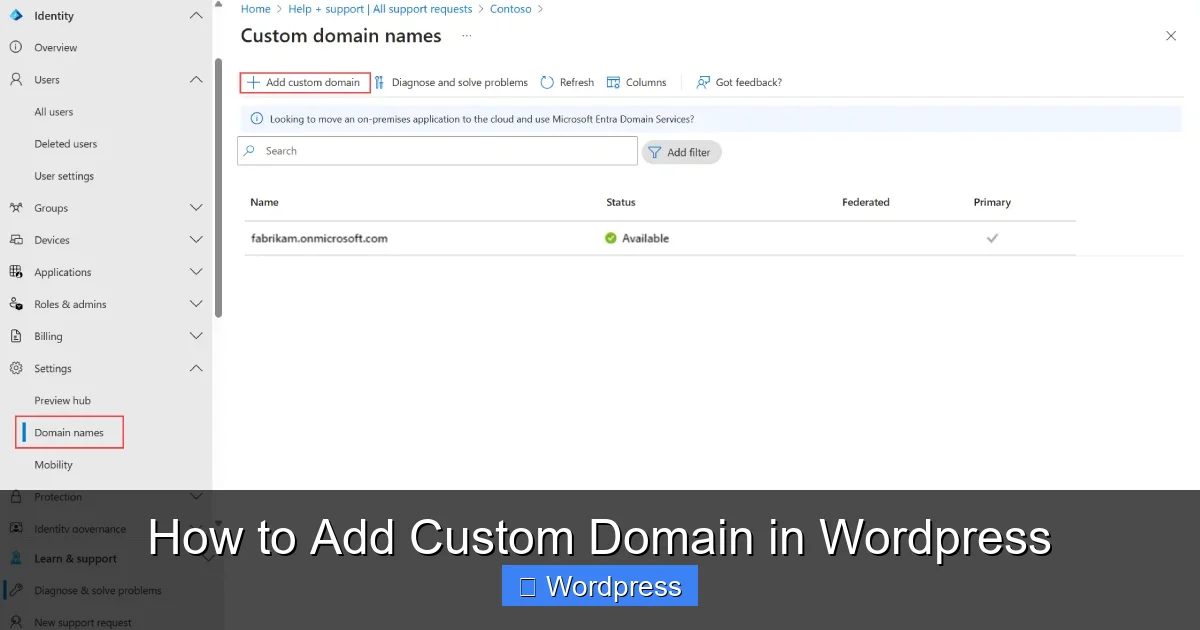
Visual guide about How to Add Custom Domain in WordPress
Image source: learn.microsoft.com
Method A: Update Nameservers (Easiest for Beginners)
This method tells your domain registrar to use your hosting company’s servers. It’s simple and recommended if you’re new to DNS.
- Log in to your domain registrar’s dashboard (e.g., Namecheap).
- Find the domain you want to connect and look for “Nameservers” or “DNS Settings.”
- Replace the default nameservers with those provided by your WordPress host. For example:
- ns1.yourhost.com
- ns2.yourhost.com
- Save changes.
Note: Your hosting provider will give you these nameserver addresses—check their setup guide or support docs.
Method B: Point A Record to Your Hosting IP
If you prefer more control (or your host recommends it), point your domain’s A record to your server’s IP address.
- Get your hosting server’s IP address from your hosting control panel (usually under “Account” or “Server Info”).
- In your domain registrar’s dashboard, go to DNS management.
- Find the “A Record” section and edit it:
- Host: @ (or leave blank)
- Value: [Your server’s IP address]
- TTL: 3600 (default is fine)
- Save changes.
This method is faster for propagation but requires accurate IP entry.
Step 4: Configure WordPress Settings
After updating DNS, tell WordPress to use your new domain.
For Self-Hosted WordPress Sites
Log in to your WordPress admin dashboard (yoursite.com/wp-admin), then:
- Go to Settings > General.
- Update both fields:
- WordPress Address (URL): https://yourdomain.com
- Site Address (URL): https://yourdomain.com
- Click Save Changes.
Your site may temporarily go offline—this is normal. Wait a few minutes and refresh.
For WordPress.com Sites
After purchasing a domain or upgrading your plan:
- Go to My Sites > Domains.
- Click Add Domain and select “Use a domain I own.”
- Enter your domain name and follow the prompts to verify ownership.
- WordPress.com will guide you to update DNS records if needed.
Step 5: Enable SSL (HTTPS)
Security is crucial. Once your domain is live, enable SSL to encrypt data and show the padlock icon in browsers.
How to Activate SSL
- On WordPress.com: SSL is automatically enabled for custom domains on paid plans.
- On self-hosted sites: Most hosts offer free Let’s Encrypt SSL. Go to your hosting control panel (e.g., cPanel), find “SSL/TLS,” and install a certificate. Many hosts have one-click SSL activation.
After enabling SSL, visit your site using https:// to confirm it loads securely.
Step 6: Test and Troubleshoot
DNS changes can take 24–48 hours to propagate globally. During this time, some users might see the old site while others see the new one.
Common Issues and Fixes
- Site not loading: Double-check your A record or nameservers. Ensure no typos in the IP or server addresses.
- Mixed content warnings: If your site loads but shows “Not Secure,” some resources (images, scripts) may still use HTTP. Use a plugin like “Really Simple SSL” to fix this automatically.
- 404 errors after domain change: Resave your permalinks in Settings > Permalinks (just click “Save Changes”).
- Email not working: If you use email with your domain (e.g., info@yourdomain.com), ensure MX records are correctly set in your DNS settings.
Pro Tip: Use a Staging Site First
If you’re nervous about breaking your live site, test the domain change on a staging copy first. Many hosts offer staging environments—ask support if unsure.
Final Thoughts
Adding a custom domain to your WordPress site is a smart move that boosts credibility and control. While it involves a few technical steps, following this guide ensures a smooth transition. Remember to be patient during DNS propagation and always test thoroughly afterward.
Once your domain is live, consider optimizing your site further—like improving loading speed or choosing a responsive theme. If you need help with themes, check out our guide on how to apply a WordPress theme or learn what a child theme is in WordPress for safer customizations. For troubleshooting common issues, see our article on 404 errors in WordPress.