This guide shows you how to create a menu in WordPress Elementor using both native WordPress menus and Elementor’s Nav Menu widget. You’ll learn to design responsive, stylish navigation that enhances your site’s usability.
Key Takeaways
- Use WordPress menus as the foundation: Elementor works with WordPress’s built-in menu system, so always create your menu in Appearance > Menus first.
- Elementor’s Nav Menu widget offers design control: Style fonts, spacing, hover effects, and mobile behavior directly in the Elementor editor.
- Assign menus to locations: After creating a menu, assign it to a theme location like “Primary” or “Header” for proper display.
- Customize mobile menus: Use Elementor’s responsive settings to adjust how your menu appears on phones and tablets.
- Test across devices: Always preview your menu on desktop, tablet, and mobile to ensure smooth navigation.
- Troubleshoot common issues: Missing menus? Check theme compatibility, menu assignments, or plugin conflicts.
- Enhance with CSS if needed: For advanced styling, use custom CSS in Elementor or via a child theme.
How to Create Menu in WordPress Elementor
Creating a menu in WordPress with Elementor is easier than you think—especially when you combine WordPress’s powerful menu system with Elementor’s visual design tools. Whether you’re building a business site, blog, or portfolio, a well-designed navigation menu helps visitors find what they need quickly.
In this guide, you’ll learn how to create a menu in WordPress Elementor from scratch. We’ll cover setting up your menu in WordPress, displaying it using Elementor, styling it to match your brand, and making it responsive. By the end, you’ll have a professional, functional menu that looks great on any device.
Step 1: Create Your Menu in WordPress
Before using Elementor, you need to create your menu in WordPress. Elementor doesn’t create menus from scratch—it displays menus you’ve already built in the WordPress dashboard.
Access the Menu Editor
Go to your WordPress admin panel. In the left sidebar, click Appearance > Menus. This opens the menu management screen.
Create a New Menu
If you don’t have a menu yet, click Create a new menu. Give it a name like “Main Menu” or “Header Navigation,” then click Create Menu.
Add Pages and Links
On the left, you’ll see options to add pages, posts, custom links, and categories. Check the boxes next to the items you want in your menu, then click Add to Menu.
You can also drag and drop menu items to reorder them. Indent items to create dropdown submenus—just drag a menu item slightly to the right under a parent item.
Assign the Menu to a Location
Scroll down to the Menu Settings section. Check the box next to a theme location like “Primary Menu” or “Header Menu.” This tells WordPress where to display your menu.
Not sure what locations your theme supports? Visit our guide on Are Navigation Menus Automatically Generated in WordPress Themes? to learn more.
Save Your Menu
Click Save Menu when you’re done. Your menu is now ready to use in Elementor.
Step 2: Add the Menu to Your Page with Elementor
Now that your menu exists in WordPress, it’s time to display it using Elementor.
Open the Page in Elementor
Go to Pages in your WordPress dashboard, find the page where you want the menu (usually the homepage or a header template), and click Edit with Elementor.
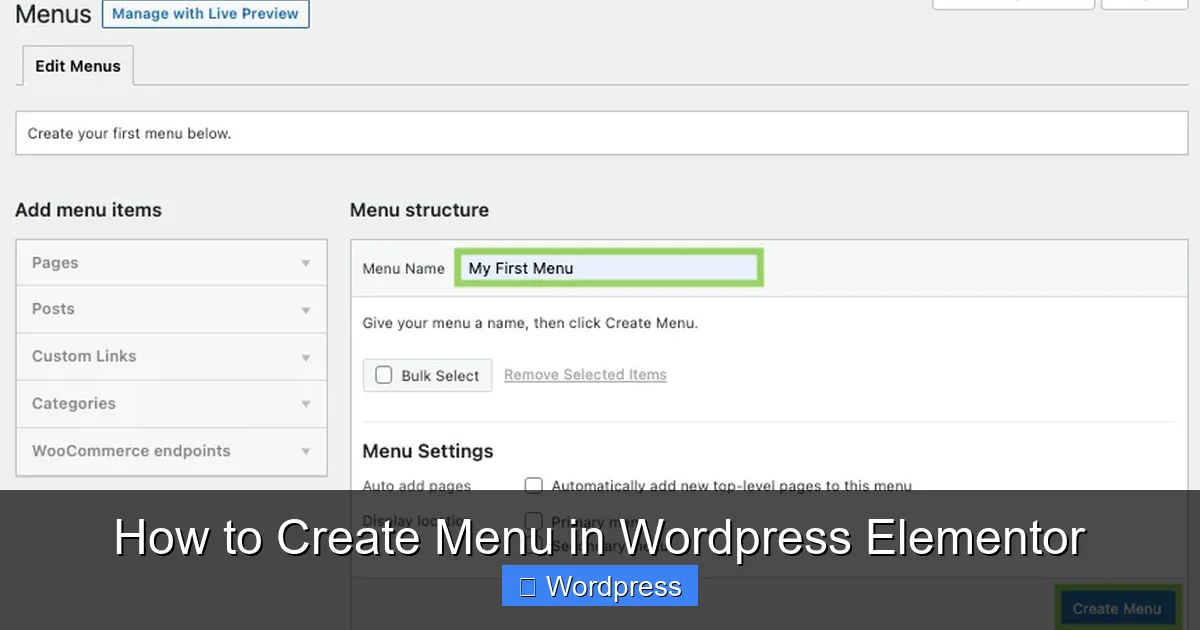
Visual guide about How to Create Menu in WordPress Elementor
Image source: visualcomposer.com
Insert the Nav Menu Widget
In the Elementor editor, look for the Nav Menu widget in the widget panel (under the “General” category). Drag and drop it into your header or desired section.
Select Your Menu
In the widget settings on the left, you’ll see a dropdown labeled Menu. Choose the menu you created earlier (e.g., “Main Menu”).
Adjust Basic Settings
You can choose the menu layout (horizontal or vertical), alignment (left, center, right), and whether to show dropdown arrows. These options help you match your design.
Step 3: Style Your Menu with Elementor
Elementor gives you full control over how your menu looks. Let’s make it visually appealing.
Customize Typography
In the Style tab of the Nav Menu widget, go to Menu Items. Here, you can change the font family, size, weight, and color. Use bold for active items or uppercase for a modern look.
Adjust Spacing and Padding
Under Padding and Margin, set spacing between menu items. More padding makes the menu easier to tap on mobile. Aim for at least 10–15px of padding on each side.
Add Hover and Active Effects
Scroll down to Hover and Active states. Change the text color, background, or add an underline when users hover or click a menu item. For example, set hover color to blue and active color to dark gray.
Style Dropdown Menus
In the Dropdown section, customize the background color, border, and text styling for submenus. You can also adjust the dropdown width and animation speed.
Use Background and Borders
Add a subtle background color or border to the entire menu container for better separation from other content. A light gray background or thin border can enhance readability.
Step 4: Make Your Menu Responsive
A great menu works on all devices. Elementor makes it easy to optimize for mobile.
Switch to Responsive View
In the Elementor editor, click the responsive mode icon (bottom-left corner) and select Tablet or Mobile.
Adjust Mobile Layout
On mobile, horizontal menus often become too cramped. Use the Nav Menu widget’s responsive settings to collapse the menu into a hamburger icon.
In the widget settings, go to the Advanced tab, then Responsive. Enable Mobile Menu and choose a breakpoint (e.g., 768px). Below this width, the menu will switch to a toggle button.
Customize the Mobile Toggle
You can change the hamburger icon color, size, and position. Some designers place it in the top-right corner of the header for easy access.
Test on Real Devices
Use Elementor’s preview mode or publish the page and test on your phone. Make sure dropdowns work and links are easy to tap.
Step 5: Troubleshooting Common Menu Issues
Even with careful setup, you might run into problems. Here’s how to fix them.
Menu Not Showing Up
If your menu doesn’t appear, double-check that you’ve assigned it to a theme location in Appearance > Menus. Also, ensure the Nav Menu widget is placed in a visible section of your page.
Dropdowns Not Working
Dropdowns require parent items with sub-items. Make sure you’ve indented child pages under a parent in the WordPress menu editor. Also, check that your theme supports dropdowns.
Styling Looks Different on Frontend
Sometimes Elementor’s preview doesn’t match the live site. Clear your cache (from your caching plugin or browser) and check for CSS conflicts. If needed, add custom CSS via the Advanced tab in Elementor.
For advanced styling, visit our guide on the Best Way to Add CSS in WordPress Website for safe, effective methods.
Menu Breaks on Mobile
If the menu overflows or looks messy on mobile, reduce font size, increase padding, or switch to a hamburger menu. Test different breakpoints in Elementor’s responsive settings.
Bonus Tips for Better Menus
- Keep it simple: Limit your menu to 5–7 main items. Too many options confuse users.
- Use clear labels: Avoid jargon. Use “About Us” instead of “Our Story” if it’s more intuitive.
- Add a search icon: Consider adding a search button next to your menu for better UX.
- Highlight the current page: Use active state styling so users know where they are.
- Test with real users: Ask friends or colleagues to navigate your site and give feedback.
Conclusion
Creating a menu in WordPress Elementor is a smooth process when you follow the right steps. Start by building your menu in WordPress, then use Elementor’s Nav Menu widget to display and style it. With responsive design and thoughtful styling, your navigation will look professional and work flawlessly across devices.
Remember, a great menu isn’t just about looks—it’s about helping visitors find what they need quickly. By combining WordPress’s structure with Elementor’s design power, you can create a menu that enhances both form and function.
If you’re building a full site with Elementor, consider exploring our guide on How to Create WordPress Theme With Elementor to take your customization even further.
Now go ahead—create a menu that wows your visitors!