Theme customization in WordPress lets you tailor your site’s look and feel without coding. This guide walks you through every step—safely and simply. Whether you’re a beginner or upgrading your skills, you’ll learn to use the Customizer, child themes, and CSS like a pro.
So, you’ve installed a beautiful WordPress theme—congratulations! But now you’re wondering: *How do I make it truly mine?* You don’t want just another cookie-cutter website. You want colors that match your brand, a layout that feels right, and fonts that reflect your personality. That’s where **theme customization in WordPress** comes in.
The good news? You don’t need to be a developer. WordPress gives you powerful tools to personalize your site—no coding required (though knowing a little HTML or CSS helps). From changing your site’s logo to adjusting spacing and adding custom widgets, the possibilities are endless. And the best part? Most changes are reversible, so you can experiment with confidence.
In this guide, we’ll walk you through **theme customization in WordPress step-by-step**, covering everything from the built-in Customizer to advanced techniques like child themes and CSS tweaks. Whether you’re running a blog, portfolio, or online store, these steps will help you create a site that looks professional and unique.
Key Takeaways
- Use the WordPress Customizer: Access real-time previews and tweak colors, fonts, and layouts instantly.
- Always use a child theme: Protect your changes from being overwritten during theme updates.
- Modify CSS safely: Add custom styles via the Additional CSS panel or your child theme.
- Leverage theme options panels: Many themes offer built-in settings for headers, footers, and widgets.
- Test changes on a staging site: Avoid breaking your live site by previewing edits first.
- Backup before customizing: Always create a backup to restore your site if something goes wrong.
- Use plugins wisely: Some customizations are easier with plugins like Elementor or Customizer Export/Import.
Quick Answers to Common Questions
Can I customize my WordPress theme without coding?
Yes! The WordPress Customizer lets you change colors, fonts, layouts, and more with a visual interface—no coding needed.
What is a child theme and why do I need one?
A child theme lets you modify your site safely. It preserves your changes when the parent theme updates, preventing data loss.
Where do I add custom CSS in WordPress?
Go to Appearance > Customize > Additional CSS. This is the safest place to add custom styles without editing theme files.
Can I undo changes made in the Customizer?
Yes. Simply close the Customizer without publishing, or use the “Reset” option if your theme supports it.
Do I need a plugin to customize my theme?
Not always. Many customizations can be done with built-in tools. But plugins like Elementor or Customizer Export/Import can help with advanced changes.
📑 Table of Contents
Step 1: Access the WordPress Customizer
The WordPress Customizer is your go-to tool for visual theme customization. It lets you make changes and see them in real time—no guessing, no refreshing.
To get started, log into your WordPress dashboard. From the left menu, go to Appearance > Customize. This opens the Customizer interface, where you’ll see your site on the right and customization options on the left.
What You Can Customize Here
The options depend on your theme, but most themes support:
– Site identity (logo, title, tagline)
– Colors (background, text, accent colors)
– Header and footer layouts
– Menus and widget areas
– Homepage settings
– Additional CSS
For example, if you want to change your site’s background color, click on Colors, pick a new shade, and watch it update instantly. Want to upload a new logo? Head to Site Identity and upload your image. It’s that simple.
Pro Tip: Use the Search Bar
The Customizer includes a search bar at the top. Type in “header,” “fonts,” or “widgets” to quickly find the setting you need. This saves time, especially with feature-rich themes.
Step 2: Use a Child Theme for Safe Customization
Visual guide about Theme Customization in WordPress Step-by-step
Image source: krocess.com
Here’s a critical rule: Never edit your theme’s core files directly. Why? Because when you update the theme, all your changes will be lost.
That’s where a child theme comes in. A child theme inherits all the functionality and styling of its parent theme but lets you make modifications safely. Even after updates, your custom code stays intact.
How to Create a Child Theme
You can create a child theme manually or use a plugin like Child Theme Configurator or One-Click Child Theme. For most users, the plugin method is easiest.
Once activated, your child theme will appear under Appearance > Themes. Activate it, and you’re ready to customize.
> 💡 Need help? Check out our detailed guide on what is a child theme in WordPress to understand the benefits and setup process.
What to Add in Your Child Theme
Common customizations include:
– Custom CSS (in the child theme’s style.css)
– Modified template files (like header.php or footer.php)
– Custom functions (in functions.php)
For example, to change the font across your site, add this to your child theme’s style.css:
“`css
body {
font-family: ‘Arial’, sans-serif;
}
“`
This overrides the parent theme’s font without touching its files.
Step 3: Customize Colors, Fonts, and Layouts
Visual guide about Theme Customization in WordPress Step-by-step
Image source: symplewp.com
Now that you’re working safely, let’s make your site look amazing.
Changing Colors
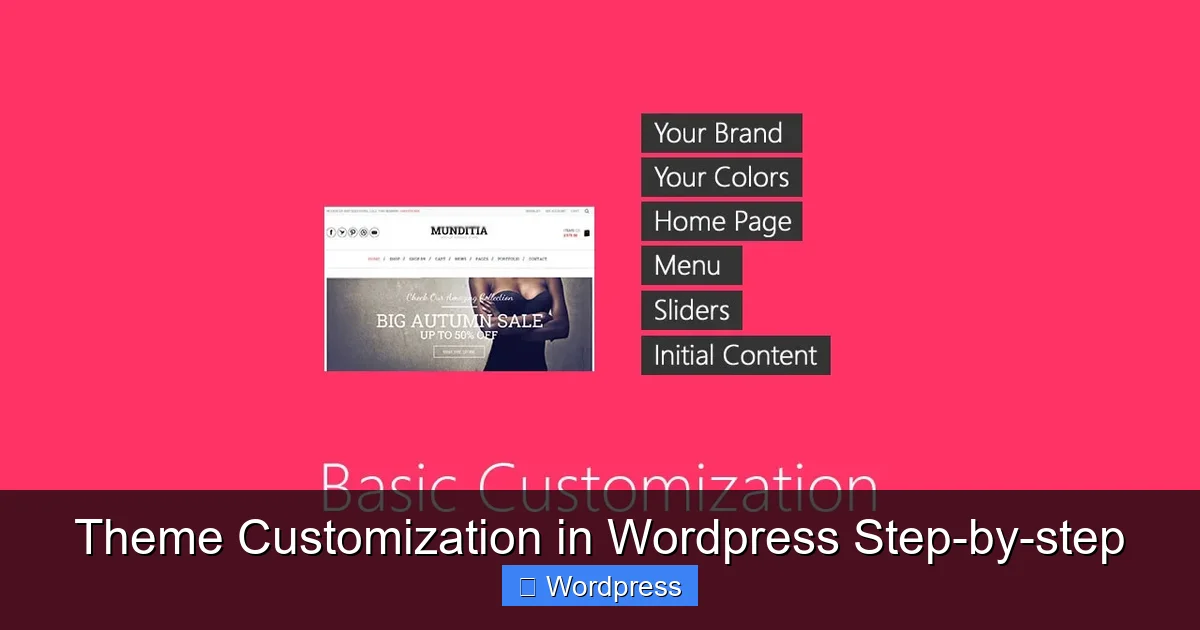
Go to Customize > Colors. Most themes let you adjust:
– Background color
– Text color
– Link color
– Button color
Choose colors that match your brand. Use tools like Coolors or Adobe Color to find harmonious palettes.
Adjusting Fonts
Some themes support Google Fonts directly in the Customizer. Look for a Typography or Fonts section. You can change font families, sizes, and weights for headings and body text.
If your theme doesn’t support this, add custom CSS. For example:
“`css
h1, h2, h3 {
font-family: ‘Roboto’, sans-serif;
font-weight: 700;
}
“`
> 🔗 Not sure which fonts to use? Explore our best WordPress theme for SEO and speed to find themes with great typography options.
Modifying Layouts
Layout changes depend on your theme. Some offer drag-and-drop builders, while others use widgets or theme options.
For example, to change your homepage layout:
1. Go to Customize > Homepage Settings
2. Choose “A static page” and select your desired page
3. Use widgets or blocks to design the content
You can also adjust sidebar placement, header height, or content width using CSS or theme settings.
Step 4: Customize Menus and Widgets
Menus and widgets are key to navigation and functionality.
Editing Menus
Go to Appearance > Menus or Customize > Menus. Here, you can:
– Create new menus
– Add pages, posts, or custom links
– Reorder items by dragging
– Set a menu location (like primary or footer)
For example, to add a “Contact” link:
1. Click “Add Items”
2. Select “Contact” page
3. Click “Add to Menu”
4. Save
Adding and Arranging Widgets
Widgets add features like search bars, recent posts, or social icons. Go to Appearance > Widgets or Customize > Widgets.
Drag widgets into areas like:
– Sidebar
– Footer
– Homepage
For instance, add a “Recent Posts” widget to your sidebar to keep visitors engaged.
> ❓ Curious if navigation menus are auto-generated? Learn more in our article: Are navigation menus automatically generated in WordPress themes?
Step 5: Add Custom CSS for Advanced Tweaks
Sometimes, the Customizer doesn’t offer the exact change you want. That’s when custom CSS saves the day.
Using the Additional CSS Panel
In the Customizer, go to Additional CSS. This is the safest place to add custom code—it’s stored in the database and won’t be lost during updates.
For example, to center your site title:
“`css
.site-title {
text-align: center;
}
“`
Or to add padding around your content:
“`css
.content-area {
padding: 40px;
}
“`
Best Practices for CSS
– Use specific selectors to avoid conflicts
– Test on mobile and desktop
– Comment your code for clarity
– Use browser developer tools to inspect elements
> 🔧 Want more control? Check out our guide on the best way to add CSS in WordPress website for advanced methods.
Step 6: Test, Backup, and Publish
Before going live, always test your changes.
Preview on Different Devices
Use the Customizer’s device icons (desktop, tablet, mobile) to check responsiveness. Make sure text is readable and buttons are clickable on all screens.
Create a Backup
Use a plugin like UpdraftPlus or your hosting provider’s backup tool. This lets you restore your site if something goes wrong.
Publish with Confidence
When you’re happy with the changes, click Publish in the Customizer. Your site will update instantly.
> ⚠️ Planning to update your theme? Always use a child theme first. Learn how in our guide: how to update theme on WordPress.
Conclusion
**Theme customization in WordPress** doesn’t have to be intimidating. With the right tools and a bit of patience, you can transform any theme into a site that truly represents your brand.
Start with the Customizer for quick wins, use a child theme for safety, and add custom CSS for fine-tuning. Always test your changes and keep backups. And remember—experimentation is part of the fun.
Whether you’re adjusting colors, fonts, or layouts, every change brings you closer to a site you love. So go ahead, dive in, and make your WordPress site uniquely yours.
Frequently Asked Questions
How do I access the WordPress Customizer?
Log into your WordPress dashboard, then go to Appearance > Customize. This opens the live preview editor where you can make changes.
Can I customize any WordPress theme?
Most themes support basic customization, but options vary. Premium themes often offer more settings than free ones.
What happens if I don’t use a child theme?
If you edit theme files directly and update the theme, your changes will be lost. A child theme prevents this.
How do I change my site’s font in WordPress?
Use the Customizer’s Typography section if available, or add custom CSS to override the default font.
Is it safe to use the Additional CSS panel?
Yes. CSS added here is stored in the database and won’t be affected by theme updates.
Can I revert to the original theme design?
Yes. Deactivate your child theme and reactivate the parent theme, or reset settings in the Customizer if supported.